Booking a Hotel Room
If your event offers a hotel room block, you can add accommodation to your registration — either during checkout, or afterward from the event's public page. This page covers adding accommodation after you've already registered, and completing a card guarantee if your hotel requires one.
Before you can book accommodation:
- You need to be signed in. Accommodation booking requires an account.
- You need an existing registration for the event. Accommodation is only available to registered attendees — if you haven't registered yet, do that first.
Event page > Add accommodation
From the event's public page, choose Add accommodation to open the booking flow for that event.
If the event doesn't offer accommodation booking, or no rooms are currently available to your registration type, you'll see a message explaining that instead of the booking flow.
Selecting a Room
Browse the hotels in the block, filter by dates, and choose a room type. Selecting a room places a hold on it for your event's configured checkout window — commonly 30 minutes, though your organizer can set a different value, and it falls back to 15 minutes if no checkout window is configured at all. A countdown shows how long you have to complete checkout before the hold expires and the room becomes available to other guests again.
You can add more than one room to the same order — after holding a room, choose Add another room to search and hold a second one. Your held rooms appear in a summary list showing the hotel, room type, dates, and number of rooms for each, with a way to remove any of them before you check out.
If your hold expires before you finish checkout, you'll need to search and select the room again — the hold isn't extended automatically. Complete checkout promptly once you've selected your rooms.
If your organizer requires an occupant form, you'll be asked to complete it as part of checkout — for example, capturing arrival details or dietary requirements for the room's occupant.
Checking Out
At checkout, you can apply a discount code if your organizer has provided one. Your total is shown before you pay; if you've held rooms in more than one currency, the total is broken out per currency instead of combined into one figure.
Payment is processed the same way as registration checkout. Once payment completes, your booking is confirmed and appears alongside your registration.
An attendee registers for the event without accommodation, then a week later remembers they need a hotel room. They return to the event page, choose Add accommodation, select a room for the event dates, and pay — the room is added as a separate booking, not part of their original registration order.
Card Guarantee
Some hotels require a card guarantee instead of, or in addition to, payment through ema — this depends on how your organizer has configured that hotel. If your booking needs one, your booking card shows an Add card guarantee button (or Retry card guarantee if a previous attempt failed).
Selecting it takes you to your hotel's secure card form, hosted by ema's payment provider — ema never receives or stores your full card number. When you finish:
| What you see | What it means |
|---|---|
| Card secured | Your card guarantee is on file. You can close the window. |
| Card capture failed | The guarantee couldn't be confirmed — the secure link may have expired. Try again from your booking. |
| Card capture cancelled | You closed the secure form before finishing — no guarantee was captured. |
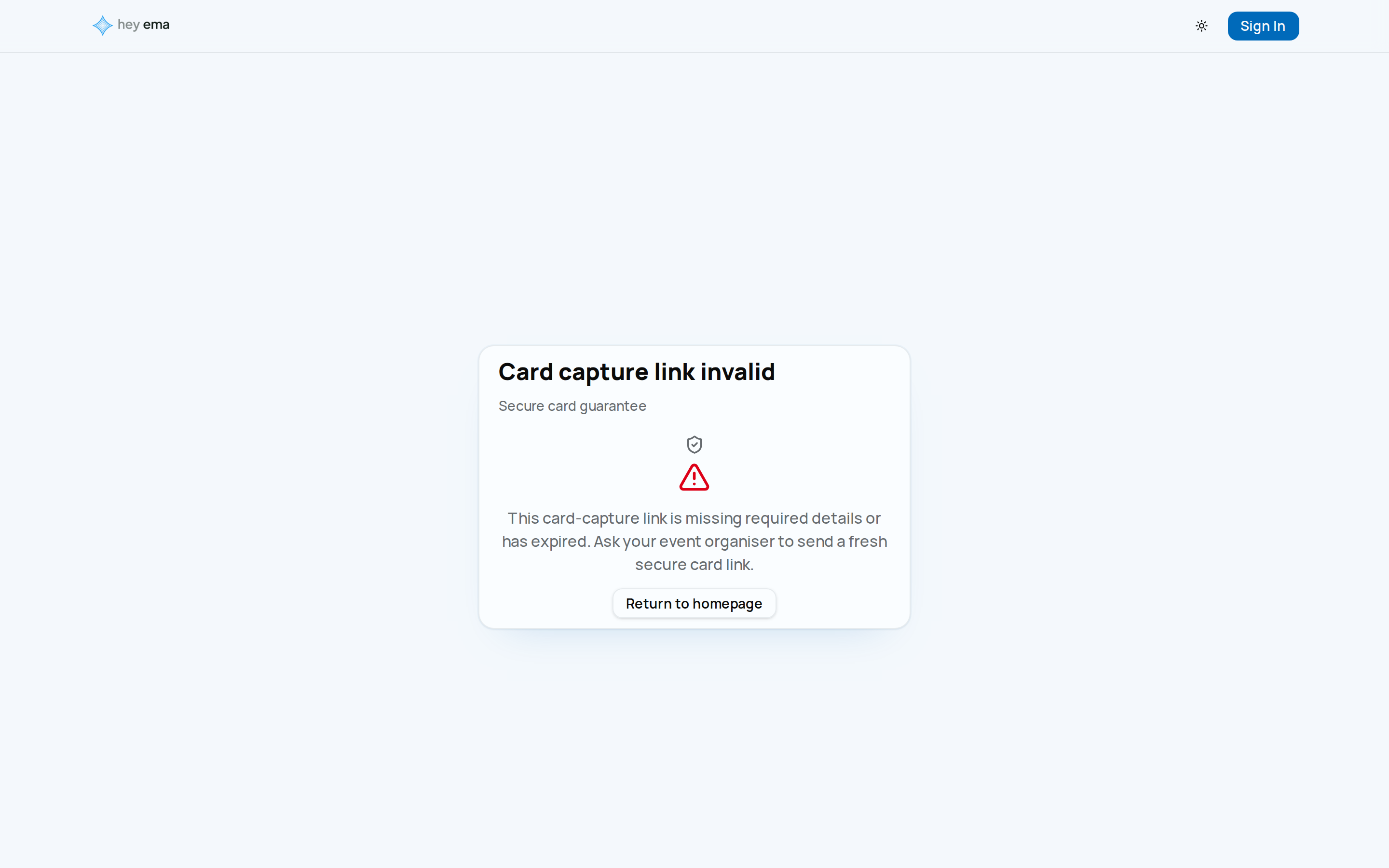
| Card capture link invalid | The link is missing details or has expired — ask your organizer for a fresh one. |
The card guarantee flow is hosted entirely by ema's payment provider — ema never receives or stores your card number, only a secure reference used to charge the card later if the hotel's cancellation or no-show policy applies. To act on that policy, an activated hotel contact can open a time-boxed, single-use display of your full card number: it's loaded directly from ema's payment provider into their browser, never passing through ema. Each reveal is valid for 5 minutes and is recorded against the hotel contact who opened it.
Managing an Existing Booking
Bookings you've already made appear on your booking card with their current status, dates, and room details. What you can change from here depends on your organizer's modification policy for that hotel — contact your event organizer if you need to change dates, room count, or cancel a booking outside what's offered on the card.
Accommodation bookings are tracked separately from your registration but appear together in your event view. See My Registrations for the rest of your event details.
If you're managing a shared room block for a group or delegation rather than booking your own room, see the coordinator guide instead.
Journey pages need an operator sign-in to open.
A room block is contracted, filled, and guests check in.
- Step 5 of 12Attendee adds a room to their registration and secures any card guaranteeAttendee