ePoster Kiosks
ePoster kiosks are poster-browsing touchscreens placed around the venue. They are for browsing posters only — they are not check-in kiosks or wayfinding kiosks. Anyone can walk up and use one; no sign-in is needed.
Venue ePoster touchscreen
Walk up to any ePoster kiosk at the venue and touch the screen to start browsing.
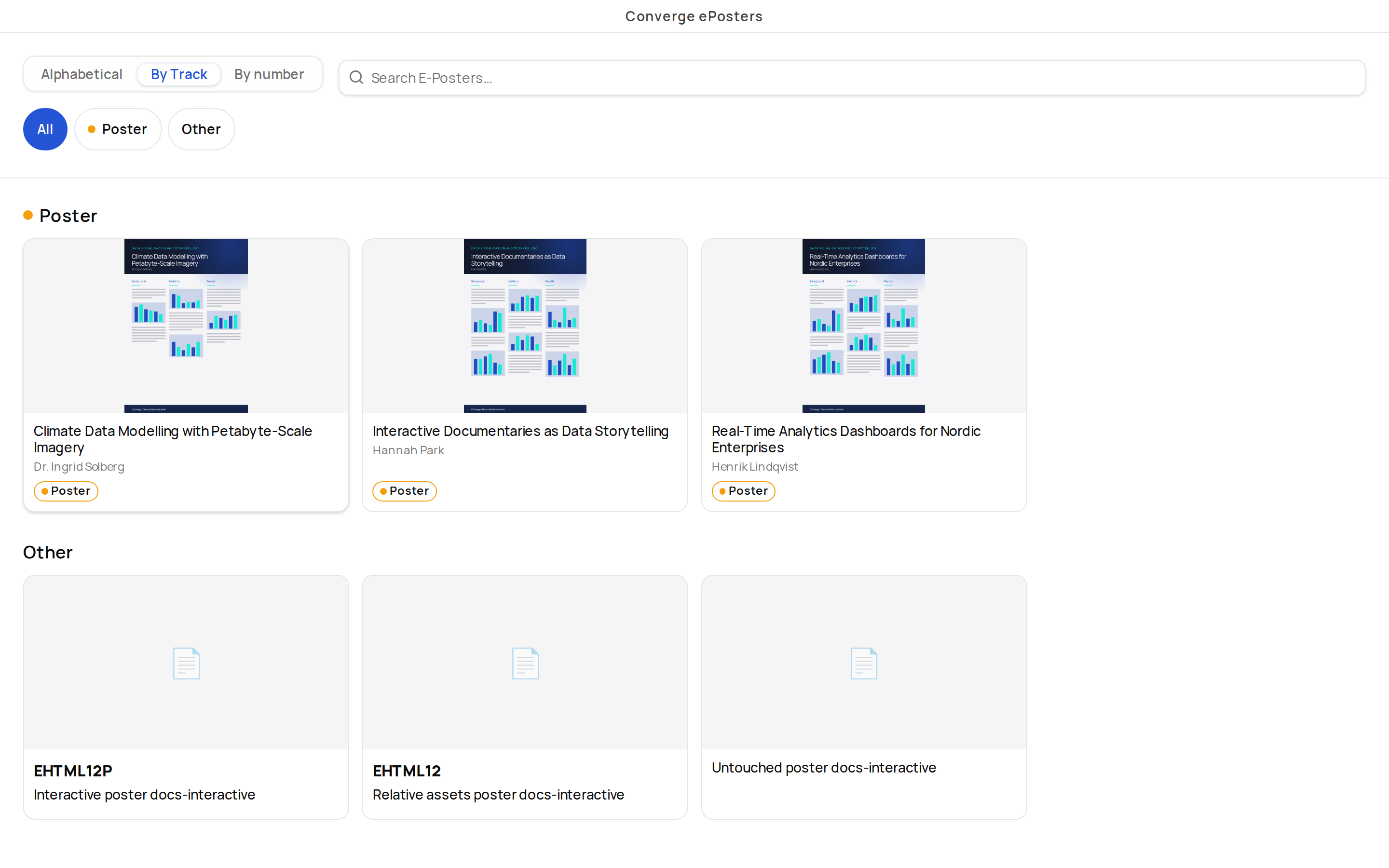
An idle attract screen until you touch it, then a searchable grid of posters. Posters whose session is currently running show a Live now badge on their grid card. Tapping a poster opens a full-screen viewer with its pages, video, images, abstract, and author headshots.
Browsing Posters
Touch the idle screen anywhere to open the poster grid. What you can do there depends on how the event configured the kiosk:
- Switch views — browse posters alphabetically or grouped by track.
- Filter by track — tap a track chip to narrow the grid.
- Search — type to find posters by title, author, or keyword.
- Spot live sessions — posters whose session is running right now carry a Live now badge.
Viewing a Poster
Tap any poster to open the full-screen viewer. Depending on what the presenter uploaded, a poster can include PDF pages, video, and images.
- Navigate with the previous/next arrows or by swiping. Multi-page PDFs have per-page navigation.
- Auto-advance moves through the content hands-free when enabled.
- Below the media, the viewer shows the abstract and author headshots.
- Each poster shows a QR code you can scan to open that poster on your phone.
Interacting with a Poster
The event may enable any of these per-poster actions:
- Contact the presenter — sends an email to the poster's author.
- Email poster to myself — sends the poster to your inbox.
- Rating — leave a star rating.
- Ask a Question — submit a question to the presenter. Questions may be moderated before they appear, and if you are anonymous you may be asked for a display name first.
Accessibility Mode
When the event enables it, an accessibility toggle on the kiosk switches to larger text and higher contrast. It stays on as you move between the attract screen, the grid, and the poster viewer.
Browsing on Your Phone Instead
The attract screen may show a scan to browse on your phone QR code. Scanning it opens a landing page with options to:
- Open in hey ema — with the app installed, the link can open straight into the app's poster section.
- Continue in your browser — browse the same posters on the web.
- Don't have the app? — App Store and Google Play links if you do not have hey ema yet.
Use the kiosk for quick, large-screen browsing between sessions. Scan the QR code when you want to keep a poster, contact a presenter later, or read at your own pace — the phone version keeps your favorites and offline copies.
Browse the same posters in the hey ema mobile app, with favorites and offline viewing. See Posters in the Mobile App.
Browse, filter and rate the same posters on the event website. See Browse Talks and ePosters.
For how organizers configure and manage ePoster kiosks, see the ePoster Kiosks overview.