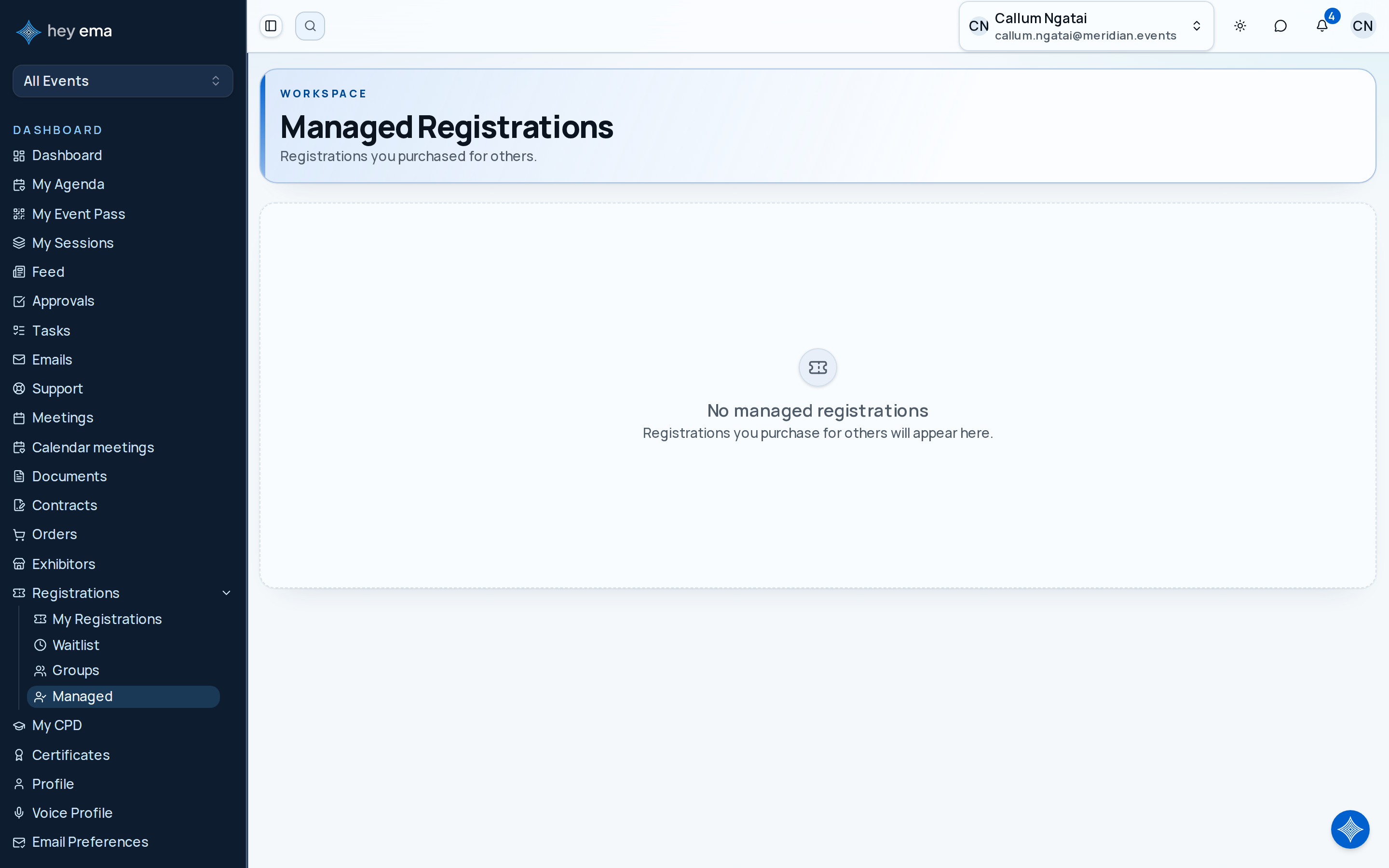
Managed Registrations
Managed registrations let you purchase and administer event registrations for other people, such as team members or clients.
Me > Managed Registrations
Open Managed Registrations when you need to act on behalf of another attendee rather than your own registration.
A team lead buys five Full Conference passes for their colleagues as a group registration. Afterwards they use managed registrations to purchase a workshop add-on for a colleague, transfer a pass to a replacement attendee when someone drops out, and pay an outstanding balance on the group order.
A registration becomes "managed" by you when you purchase it for someone else — either by choosing Register someone else for a single attendee, or Group registration for multiple attendees, during the registration flow. See Registering for an Event for how to start one of these. This page covers what you can do with those registrations afterwards.
Managed Registration List
Navigate to Me > Managed Registrations to see registrations you manage on behalf of others. Registrations bought in the same group order are grouped together; each card shows the registrant's name, their registration type, the event, and the registration's current status. Use the toolbar to search by name, registration type, or event, sort by name or status, and filter to a single event.
Registration Detail
Click a managed registration to view full details, including the registrant's information, purchased add-ons, package inclusions, payment schedule, invoices, and any waitlist entries.
What you can do from here depends on the registration's current status. A confirmed registration shows the full set of actions below; a registration that is pending payment, pending an upgrade, or pending a transfer shows only the actions relevant to that state (for example, resuming or cancelling an in-progress transfer).
Purchasing Add-Ons
For a confirmed managed registration, click Purchase add-on. This takes you into the registration flow for that event with add-on selection open, using the registrant's existing pass and channel. Choose the add-ons, then complete checkout — the charge applies to the managed registrant's order.
Upgrades
If the organizer has configured an upgrade path for the managed registration's pass type, click Upgrade to see the available options.
Confirm the attendee actually needs the higher access level before you start an upgrade. Upgrading changes the payment amount and may change included add-ons or access — you'll see the price difference before you confirm, but review it with the attendee first if you're not sure.
Selecting an upgrade takes you into the registration flow to choose the new pass type and complete payment. While the upgrade is pending payment, a banner on the registration lets you finish or cancel it.
Transfers
To transfer a managed registration to a different person, click Transfer and enter the recipient's name and email.
Transfers move the registration — and any pass already issued — to another person. Double-check the recipient's name and email before confirming.
As the group manager, you can name a different attendee even while an add-on on the place is still unpaid: the add-on moves to the new attendee and its invoice stays with you to pay.
Depending on the registration type, a transfer either completes immediately (after any transfer fee is paid) or is submitted for the organizer's approval first. While a transfer is pending, the registration shows a banner where you can resume payment or cancel the transfer.
Requesting a Cancellation
Click Request cancellation on a confirmed, pending-payment, or partially-paid managed registration to submit a cancellation request. The dialog shows the organizer's cancellation policy and an estimated refund before you submit — the request is subject to the organizer's approval, so cancellation isn't always immediate.
Paying an Outstanding Balance
If a managed registration or its group order has a balance due, a Pay now action appears. Use it to pay an installment or settle the full order on the registrant's behalf.
When a card order is under a payment hold, the order shows when the hold ends, with a countdown, and bank transfer is not offered until the hold is over. If the hold runs out, the held places are released and nothing is charged: the registration or group shows Not booked, and Book again takes you back to the event's registration page. See Registering for an Event.
Resending a Transfer Claim Link
When a transfer needs the organizer's approval before it completes, the recipient gets a claim link by email to accept it once approved. If that email didn't arrive or the link needs resending, open the registration being transferred and click Resend Claim Link. There's a short cooldown between resends.
What You Can't Do Here
Managed registrations are deliberately limited compared to your own registration:
- You can't edit a registrant's personal details (name, dietary requirements, accessibility needs, etc.) from this page. Ask the registrant to update their own details by signing in themselves, or contact the event organizer.
- You can't add or remove group seats from this page. If you manage a group as its captain, add members, assign or release seats, and send invites from the group's own page under Me > Registrations > Groups; see My Registrations. Seats can also be named or reserved during the initial group registration; see Registering for an Event. To drop someone from the event, submit a cancellation request for their registration instead.
- Check-in status isn't shown here. If you need to know whether someone has arrived at the event, ask the event organizer or check-in desk.
Resending a Group-Seat Claim Link
Seats added without a name or email during group registration are claimed through a claim email sent to the attendee. If that email is lost, open the placeholder registrant and click Resend Claim Link — it resends the original group-seat claim email. The action is only available while the seat is in a state where it can still be claimed.
Personal registrations use the same detail view for add-ons, upgrades, transfers, waitlist offers, and passes — and additionally support editing your own details and resending your own confirmation email. See My Registrations.
Journey pages need an operator sign-in to open.
- Group and delegate changesDelivery
Groups, transfers, and cancellations happen without revenue leakage.
- Step 4 of 8Coordinator fills and edits their own delegate listGroup coordinator