My Registrations
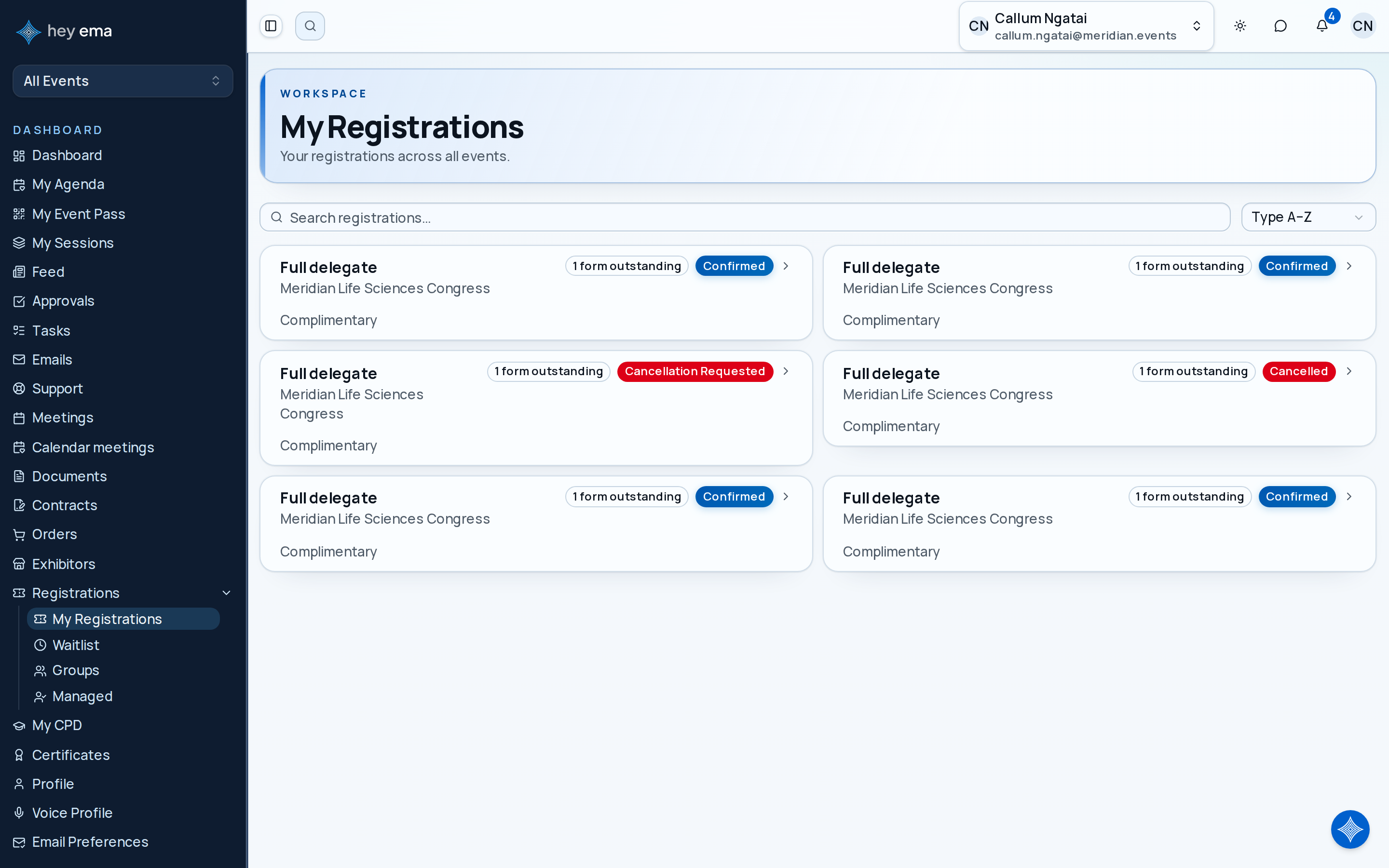
The registrations page shows all events you are registered for, along with waitlist entries and group registrations you manage.
Me > Registrations
Use My Registrations for registrations that belong to you personally.
An attendee starts with a Day Pass, then decides to attend the full conference. They open their registration, choose to upgrade, and complete the price difference at checkout. Their pass reflects the new registration type once the upgrade is confirmed.
Registration List
Navigate to Me > Registrations to see your registrations. Each card shows:
| Field | Description |
|---|---|
| Registration type | The registration package (e.g., Full Conference, Day Pass). |
| Event name | The event you are registered for. |
| Status | Current status of your registration (see below). |
| Payment progress | How much you've paid toward the total, if the registration isn't complimentary. |
Search, sort (by type or status), and filter by event if you're registered for more than one.
Registration Statuses
| Status | What it means |
|---|---|
| Pending Approval | Submitted and waiting for the organizer to approve it. |
| Pending Payment | Approved, but payment hasn't been completed yet. |
| Partially Paid | Some payment has been received, but the balance is still outstanding. |
| Confirmed | Fully processed and ready to attend. |
| Waitlisted | The event or registration type was at capacity when you registered. |
| Pending Upgrade | An upgrade to a different registration type is in progress. |
| Type changed | This registration was replaced by one of a different type (an upgrade, downgrade, or same-price change). |
| Pending Transfer | You've started transferring this registration to someone else; it completes when the recipient accepts. |
| Transferred | This registration has been transferred to another person. |
| Cancellation Requested | You've asked to cancel; the organizer needs to process it. |
| Cancelled | The registration has been cancelled. |
| Expired | The registration lapsed without being confirmed. |
Registration Detail
Open a registration to view full details including:
- Personal details (name, email, dietary requirements, etc.)
- Add-ons purchased with this registration
- Payment schedule with amounts and due dates
- Your QR code for check-in
Updating Personal Details
You can update your registration details (such as dietary requirements or accessibility needs) from the detail page. Changes are saved immediately.
Paying for a Held Registration
When you chose to pay by card, ema holds your places until the time shown on the registration, with a countdown. Pay by card before then. While the hold is running, bank transfer is not offered as a way to pay for that order.
If the hold runs out before payment, the places are released and nothing is charged. The registration shows Expired — not booked with a Not booked notice saying when the held place was released. Choose Book again to go back to the event's registration page. A group shows the same notice with Not booked counts for the released seats.
Where the event offers bank transfer, an order set up for card payment that is not under a live hold also shows Or pay by bank transfer on its payment page. Use the details shown and quote the reference so your payment can be matched.
When a registration has ended for another reason, a notice at the top states it, for example "This registration was cancelled on 12 October 2026", with the amount refunded, credited or kept as a cancellation fee, and a link to contact the organiser.
Add-Ons
The detail page lists add-ons available for purchase that are compatible with your registration type, when your registration is Confirmed.
To purchase an add-on:
- Open your registration and select an available add-on.
- You're taken to checkout to complete the purchase.
- Once payment completes, the add-on appears on your registration.
Upgrades
If upgrade paths are configured for your registration type and your registration is Confirmed, you can upgrade to a different type.
Upgrades and add-ons can change what you owe, what access you have, and what appears on your pass. Review the price difference carefully at checkout before confirming.
- Click Upgrade to see available options.
- You're taken to checkout, where you can review the price difference for the option you want.
- If the upgrade adds add-ons that require guest details, you fill those in during checkout.
- Complete checkout to process the upgrade. While it's processing, your registration shows a Pending Upgrade status with the option to cancel the upgrade before it completes.
Requesting a Downgrade
When downgrade paths are configured for your registration type, you can request a downgrade from your registration. Your registration must be Confirmed, and you cannot have another downgrade request already pending.
- Click Request Downgrade on your registration.
- In the dialog, pick the target registration type — it shows the live price difference as you choose.
- Optionally add a reason for the request, and complete the target type's intake form when one is configured.
- Submit the request. A Downgrade request pending — awaiting organiser review banner stays on your registration until the organizer approves or declines it.
A downgrade changes your registration type, your access, and potentially what you've paid. The price difference shown in the dialog is for your review — any refund or adjustment is handled by the organizer as part of their review.
Transfers
To transfer your registration to another person (only available while your registration is Confirmed):
Transfers are available once everything on your registration is paid, including each add-on. If something is still unpaid, Transfer is not shown and the page names what to pay first.
Make sure the recipient's email address is correct. After the recipient accepts, the registration, pass, and future event communications belong to the new attendee. While the transfer is pending, you can cancel it from the registration detail page.
- Click Transfer on your registration.
- Enter the recipient's details.
- Confirm the transfer request. Your registration shows a Pending Transfer status until the recipient accepts.
The recipient gets an email with a link to claim the registration — it does not appear in their own registrations list until they accept. Once they do, the registration, its add-ons, and its QR code move to them.
Cancellations
To cancel a registration, use Cancel on the registration detail page (available for cancellable statuses) and confirm. Cancellation policies set by the organizer determine any refund or fee.
Waitlist
If an event or registration type is at capacity, you're placed on a waitlist instead. Your waitlist entries appear on a dedicated Waitlist page (Me > Registrations > Waitlist), showing your position in line. When a spot opens:
- You receive a notification with an offer to accept or decline.
- If you decline, don't respond in time, or remove yourself from the waitlist, the spot moves to the next person.
Group Registrations
If you manage a group registration, a separate Groups page (Me > Registrations > Groups) lists every group where you're the manager — the person who registered the group in the first place. If you manage groups across more than one event, search narrows the list by booking, organization, or event name.
Group List
Each group row shows the event (and organization name, if one was given), a status badge, how many members are fully complete out of the total, and how many seats are assigned versus the total — against the organizer's maximum, if one is set. Groups with unclaimed places call out how many places are not yet assigned, and a group that was never purchased shows a Draft — not purchased badge. Groups that provision passes for an exhibitor's team are badged as exhibitor groups with a link into the exhibitor portal.
Open a group to see its members and manage seats — the actions below all live on the group detail page.
Group Detail
The group detail page shows the full record: its type, its status (Active, Suspended, or Cancelled — set by the organizer), the organization name if one was given, and assigned versus unassigned seat counts against any maximum.
It also shows:
- Orders — one card per order in the group, showing its grand total, amount paid, and any discount, tax, or line items. Groups topped up after the original purchase contain multiple orders. Where a balance is owed you can pay by card or download the invoice, and any installment plan appears as a payment schedule on the order.
- Members — every seat in the group with a completion badge and a plain-language summary of where it stands:
| Badge | What it means |
|---|---|
| Unclaimed | The seat is still a placeholder — nobody has claimed it yet. |
| Forms outstanding | The member claimed the seat but still has required forms to submit. |
| Awaiting confirmation | The member has done their part; the registration itself isn't Confirmed yet. |
| Complete | Nothing outstanding for this member. |
- Accommodation — a read-only view of hotel bookings tied to group members, with a link into the accommodation coordinator portal for anyone set up to manage them.
Booking, amending, or cancelling accommodation for group members happens in the coordinator portal, not on this page. See Coordinating a Room Block.
Managing Seats
What you can do with a seat depends on whether it's claimed and where it stands:
- Send invite — shown for a placeholder seat. Enter the recipient's email address and ema sends them a link to claim that seat and complete their own registration. Once an invite is out, the control changes to Resend or change invitee, so you can send it again to the same or a different address. Send a new link also appears for a seat whose link has already gone out, which invalidates the previous one.
- Send reminder — shown for a named member who still has forms they can complete themselves. It sends a nudge email covering whatever's outstanding; it doesn't appear for members who are only waiting on the organizer, since there's nothing they can do. Each member gets at most one completion reminder per 24 hours.
- Fill in details — shown where you can complete a member's intake form on their behalf.
- Assign and Release — move a Confirmed seat to a different person, or free it back to a placeholder.
- Change attendee — replace the person on a seat and invite the new person to claim it.
- Remove place — remove a seat from the group where the seat allows it.
- Add members — on an Active group, buy additional seats through checkout; the new seats land in the group as a separate order.
Withdrawing a Group Application
If a group still has members waiting on organizer approval, a Withdraw application button appears on the group detail page. It only appears for groups you registered directly, and only while at least one member is still Pending Approval.
Withdrawing cancels every member still Pending Approval — anyone already Confirmed, Pending Payment, or further along is left untouched. This action cannot be undone.
If any of those pending members has an active accommodation booking, you're asked to keep or cancel each one before the withdrawal goes through — nothing is cancelled automatically.
Cancelling an accommodation booking as part of a withdrawal can charge a cancellation fee, shown per booking before you confirm.
Digital Pass & QR Code
Each Confirmed registration includes a digital pass with a unique QR code. The registration detail page shows your QR code for event check-in; the My Event Pass page also offers Add to Apple Wallet and Add to Google Wallet for quick access at the venue, and the wallet pass works offline once saved.
Staff scan your QR code at check-in points. See My Pass for more details.
Check your registration detail page regularly for new add-ons or upgrade options that the organizer may release closer to the event.
Your registration creates the digital pass used for onsite check-in. See My Pass.
Journey pages need an operator sign-in to open.
- Money back outFinancial ops
Refunds, credit notes, and disputes are handled without breaking the books.
- Step 1 of 7Attendee requests a cancellation, downgrade or transfer from their registrationAttendee