My Support Requests
When something goes wrong with an event — a missing badge, a registration question, a problem with your booking — you can open a support request and follow the whole conversation in one place. Every reply from the organizer's team lands in the same thread, and you get an email each time they respond.
Before opening a request, make sure:
- You are signed in — My Support Requests is part of the Me portal.
- You belong to the event — event-specific requests can only be filed for events you are part of.
- You have an active organization membership — required only if you want to file a General request that is not tied to any event.
Me > Support
Open Support from the cross-event Me sidebar. It only appears in the non-event-scoped sidebar — if you are browsing inside a single event, go back to the main Me area first.
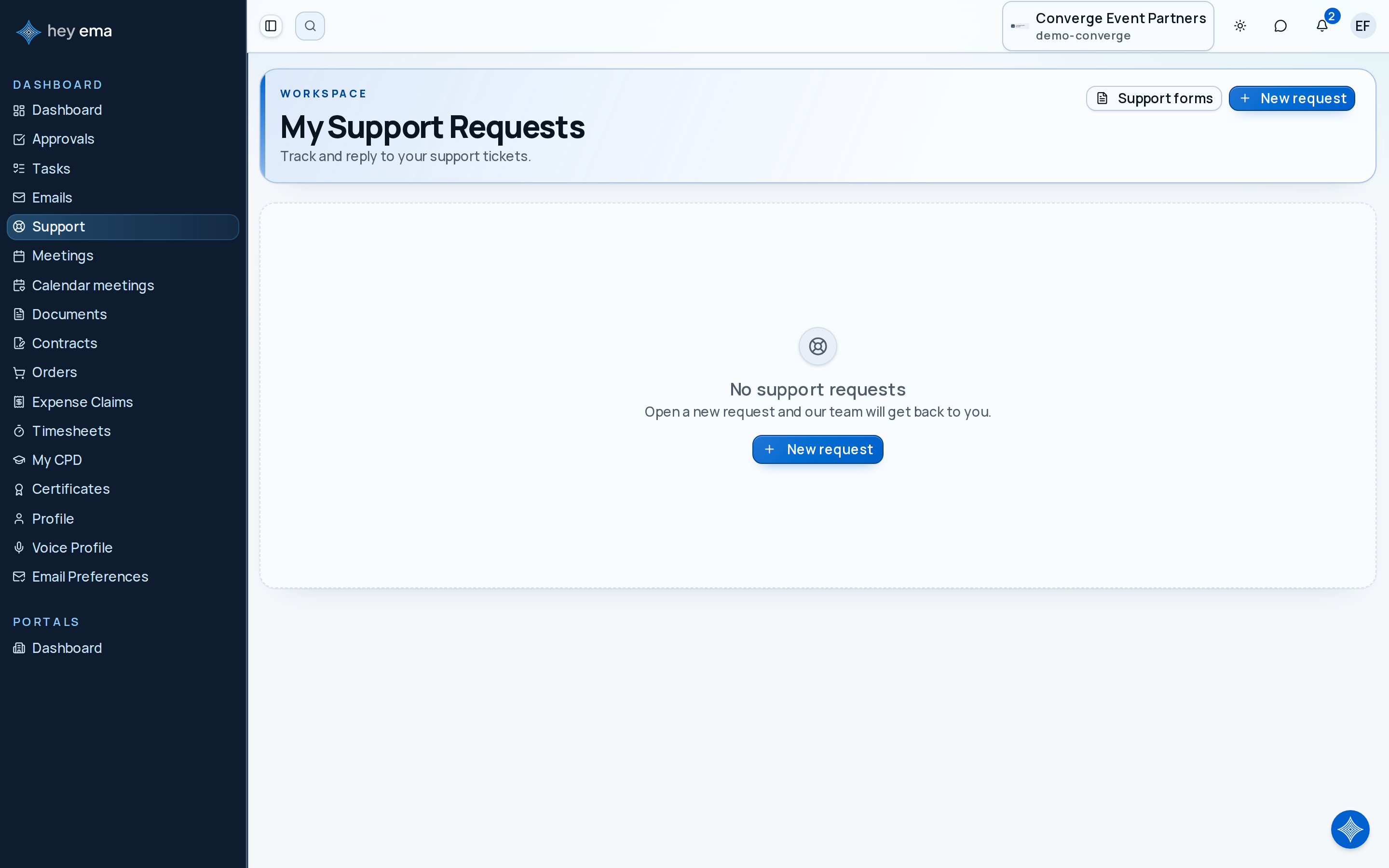
A list of your support requests, each showing its ticket number and a status pill (such as Open or Solved). Two buttons sit at the top: New request to start a fresh ticket, and Support forms to browse structured forms your organizers have published.
Opening a New Request
- Go to Me > Support and click New request.
- Choose what the request is about: pick one of your events from the list, or choose General for something that is not tied to a specific event.
- Enter a subject (up to 255 characters) and describe the problem (up to 20,000 characters).
- Submit. You receive an acknowledgement email, and the request appears in your list.
If your email address has been blocklisted by the organizer's team, you cannot open new requests. Contact the organizer through another channel if you believe this is a mistake.
Following a Conversation
Open any request from your list to see the full thread: the ticket number, a status pill, and every message exchanged so far.
- You only see public messages. Internal notes that agents write for each other are never visible to you.
- Reply in place with rich text and attachments. Attachments become downloadable once they have passed a virus scan — freshly uploaded files may take a moment before they can be opened.
- Replying moves the ticket back to the team. A ticket waiting on you goes back to Open when you reply. A solved ticket reopens if you reply within the organizer's reopen window — after that window, and for closed tickets, your reply doesn't reopen it, so open a new request instead and mention the old ticket number.
Replying from Email Without Signing In
Every agent reply email contains a view this thread link. Clicking it opens the conversation in your browser — no sign-in required — and you can reply with attachments straight from that page.
- The link is valid for 30 days, and every time you use it, it extends for another 30 days.
- Each reply email carries a fresh link, so always use the newest email.
- If a link has expired or been replaced, the page says This support link is unavailable and points you to your newest email or to Me > Support.
- Links are revoked if the requester on the ticket changes or the ticket is merged into another one.
Anyone with the link can read the conversation and reply as you. Do not forward agent reply emails to people who should not see the thread.
Filing Through a Support Form
Organizers can publish structured support forms for common requests. Go to Me > Support > Support forms to browse them as cards, badged by scope:
- General — not tied to an event or organization.
- Organization — applies to your whole organization.
- Event — applies to one specific event.
Open a form, fill it in (your name and email are prefilled), and submit. The confirmation shows your new ticket number and takes you straight to the ticket thread, where the conversation continues like any other request.
Rating the Help You Received
When a ticket is solved or closed for the first time, you may receive a How did we do? email with one-click Good / Not good links. After clicking, you can add one optional comment — once saved, the comment cannot be edited. Only one rating is ever collected per ticket, even if the ticket is reopened and solved again later.
Emails You Will Receive
- Submission acknowledgement when you open a request.
- Agent replies, each containing a fresh thread link.
- Satisfaction survey when the ticket is first solved or closed.
If you are signed in, you can also receive in-app notifications for these updates — see Notification Preferences.
An attendee needs a corrected invoice before their company's payment deadline. They open Me > Support, click New request, pick the event, and describe what they need. The organizer replies the next day; the attendee clicks the thread link in the email, uploads a purchase order as an attachment, and the ticket is solved. A How did we do? email arrives, and they leave a Good rating with a short thank-you comment.
Related Guides
- AI Assistant — the assistant can open a support ticket for you when it cannot answer a question.
- Public Support Forms — how anonymous support forms work for people without an account.
- Notification Preferences — control which support updates reach you in-app.
- Ticket Satisfaction Survey — rate the support you received once a ticket is resolved.
Journey pages need an operator sign-in to open.