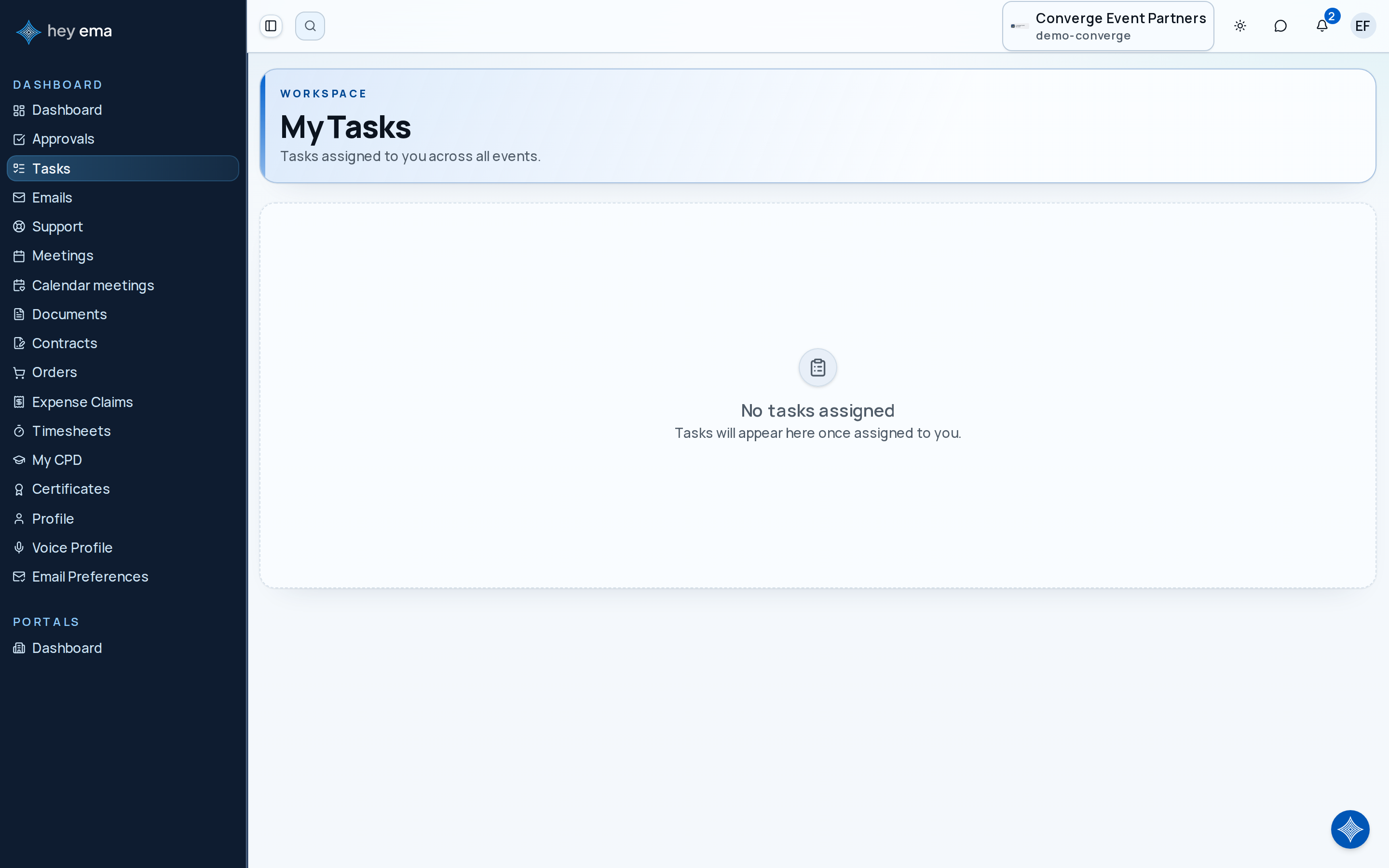
My Tasks
The tasks page aggregates all tasks assigned to you across every project, giving you a single view of your outstanding work. Instead of switching between projects to check what needs doing, you see everything in one place.
Me > Tasks
Open Tasks from the main Me portal to see work assigned to you across all projects. The Tasks entry only appears if you belong to an organization — for example when you are part of an event team.
A presenter who is also helping an exhibitor sees "Upload final slides" and "Approve booth artwork" in one list instead of checking each portal separately. They search for "artwork" to jump straight to the exhibitor task.
Task List
Each task card shows:
| Field | Description |
|---|---|
| Title | The task name. |
| Status | The task's current workflow status, shown as a colored pill (e.g., Not Started, In Progress, Done, Cancelled, or a custom name the event team has set up). |
| Project | The event this task belongs to. |
| Due date | When the task should be completed. Overdue tasks are shown in red. |
Filtering and Sorting
Use the toolbar above the task list to narrow down what you see:
- Search — filter by task title or event name.
- Status — show Open tasks or Closed tasks (Closed covers both Done and Cancelled).
- Event — if you're involved in more than one event, filter to a single one.
- Sort — by due date (soonest or latest first), name (A-Z or Z-A), or status.
Task Statuses
Event teams can set up their own task statuses per project (for example, "Blocked" or "In Review" alongside the defaults), but every status belongs to one of four categories:
| Category | What it means |
|---|---|
| Not Started | Work hasn't begun. |
| In Progress | Someone is actively working on it. |
| Done | The task is complete. |
| Cancelled | The task was called off and doesn't need action. |
The Open filter matches Not Started and In Progress; Closed matches Done and Cancelled.
Due Date Indicators
Tasks past their due date are shown in red so they stand out immediately. Tasks without a due date appear without a date shown.
Cross-Project View
The key benefit of My Tasks is the cross-project perspective. If you are involved in multiple events, you see tasks from all of them in one unified list, so nothing falls through the cracks when you are juggling work across several projects.
Opening a Task
What happens when you open a task depends on what it's attached to:
- Tasks linked to an exhibitor or a talk open that portal's own task view — the exhibitor portal or speaker portal tasks tab — where you can see the full task and act on it (for example mark it complete, fill in a form, or upload a file).
- Any other task opens a read-only summary right on the page with its description, status, due date, and event. These tasks are managed by the event team — the summary tells you to contact them if the task needs to be reassigned or marked complete.
If a task opens as a read-only summary, don't wait for a reminder — reply to whoever assigned it through your usual channel with the event team so it doesn't stall.
Notifications
You receive notifications for task-related activity, such as new assignments and comments on tasks you're assigned to. Notifications appear in ema and, depending on your notification settings, may also be sent via email.
Check My Tasks regularly, especially when you are involved in multiple events. The cross-project view ensures nothing gets overlooked.
Event teams create and track the tasks that appear in your Me portal, including the statuses available for each project. See Task Management.