Notification Preferences
Before configuring notification preferences, make sure you have:
- A user account — preferences are tied to your account and scoped per organization.
ema sends you notifications when things happen that matter to you — a task gets assigned, someone replies to your comment, a session time changes, a meeting is booked. Notification preferences let you control exactly how you hear about each type of update.
Me > Account > Notifications
Sign in, open your account menu from your avatar, select Account, then the Notifications tab. Marketing and announcement emails are managed separately under the Email Preferences tab — see Your Account Settings.
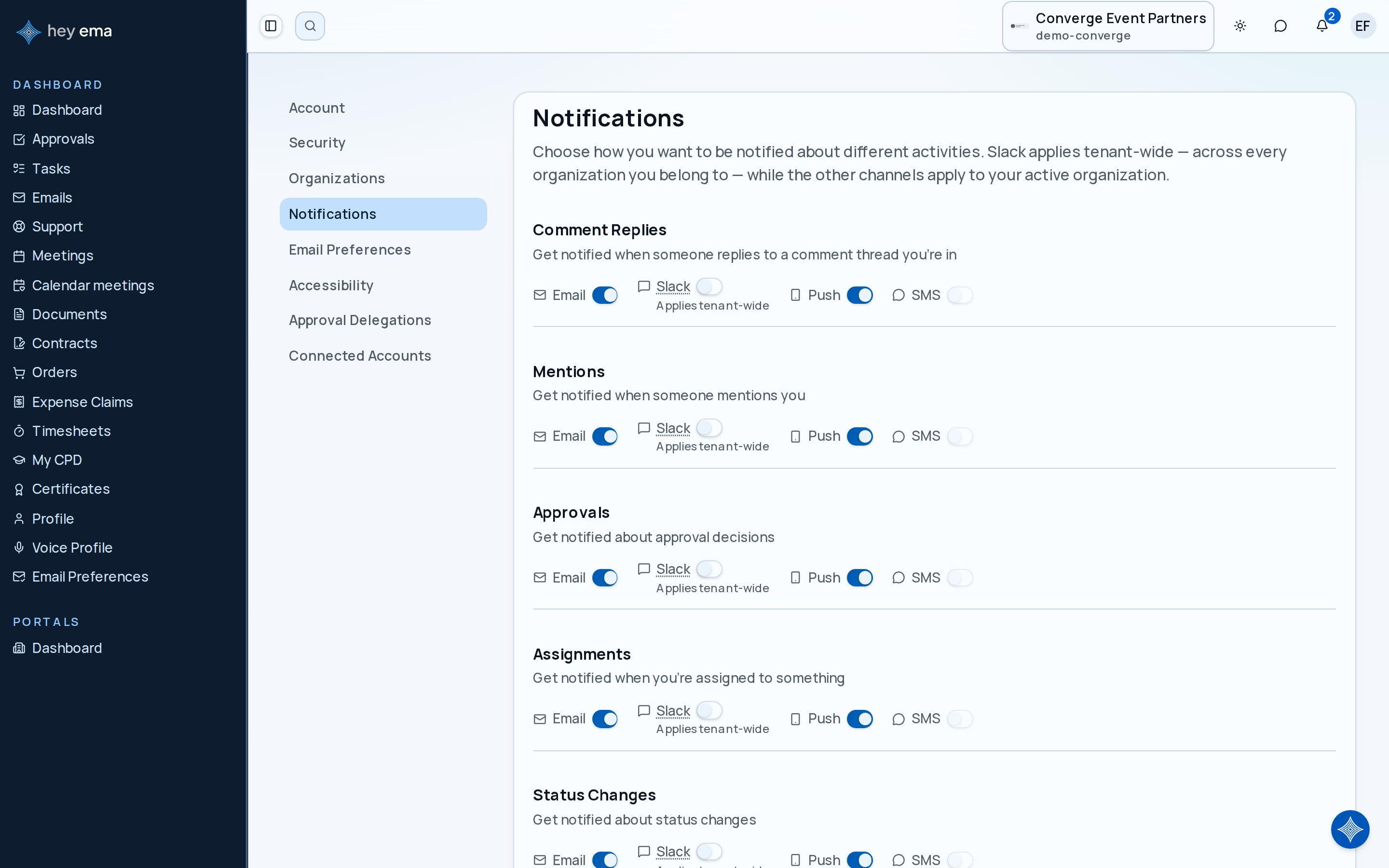
An attendee turns on push notifications for session changes, meeting reminders, and connection requests, keeps receipts and task assignments on email, and turns off email and push for lower-priority social updates so they only show up in the bell icon.
Use push or SMS for time-sensitive updates such as meeting reminders and room changes. Use email for records you may need later. Most updates also appear in the notification bell inside ema regardless of your other channel choices — check it when you next open ema.
Your preferences are scoped to the organization you currently have active. If you belong to multiple organizations, each one has its own set of preferences — with one exception: the Slack channel applies across every organization you belong to, not just the active one. If you don't have an active organization selected, the email, push, and SMS switches are disabled until you switch to a specific organization; Slack can still be updated.
Notification channels
Each notification type can be delivered through any combination of four channels:
| Channel | What it means |
|---|---|
| A message sent to the email address on your account. | |
| Push | A push notification sent to your phone or browser (requires granting permission when prompted). |
| SMS | A text message sent to the phone number on your account. This toggle is disabled until you add a phone number to your profile. |
| Slack | A direct message in Slack (your organization must have the Slack integration enabled). Unlike the other channels, this setting applies across every organization you belong to. |
Most notification types also appear in the bell icon inside ema automatically — that channel isn't controlled from this page. Programme updates read in plain words there — for example a session whose time or room changed, or a session that was cancelled, a talk accepted, declined or waitlisted, a review assigned or its round opened or closed, or a reminder to accept or upload speaker content. Selecting one opens the relevant page, such as your agenda, your talks or the review.
Notification types you can control
Preferences cover the main categories of updates:
Tasks
- Task assigned to you
- Task status changed
- Task overdue or due soon
- Task approval submitted, approved, or rejected
- Task cancelled or deleted
Comments and mentions
- Someone replies to your comment
- You are mentioned in a comment or post
Meetings
- Meeting created, cancelled, or time changed
- Meeting reminder before it starts
- Meeting request received, accepted, or declined
- Meeting booking cancelled, rescheduled, or reminder
- Exhibitor meeting booked
Sessions and schedule
- Session check-in reminder
- Session time or room changed
- Session cancelled
Approvals
- Approval requested, approved, rejected, or delegated
- Approval escalated, reminder, cancelled, or reopened
Exhibitor and booth
- Booth assigned, reassigned, or change requested
- Booth change approved or rejected
- Booth sale status changed
- Booth reservation expiring
Forms and submissions
- Form submission received
- Form progress expiring or deadline approaching
- Form attached to a project
Reviews and submissions
- Review assigned, completed, or declined
- Review round opened or closed
- Review reminder
- Submission created
- Acceptance reminder
- Speaker content reminder
Compliance
- Compliance status changed, milestone reached, or dropped
Awards and voting
- Finalist or winner announced
- Voting opened, reminder, or closed
Networking and social
- Connection request received or accepted
- Networking recommendations
- Post reaction, mention, or comment received
Gamification
- Badge earned
- Top 10 ranking
- Challenge completed
- Streak milestone
- Multiplier active
Organization and membership
- Member added, removed, or role changed
- Organization activated, deactivated, or settings changed
- Added to or removed from a project
Data imports and syncs
- Import started, completed, partially failed, or failed
- Document sync completed or failed
- Directory sync completed or failed
- Integration sync failed or disabled
Other
- Document uploaded
- Event check-in welcome
- Profile completion nudge
- Meeting feedback requested
Toggling channels on or off
To change how you receive a specific notification type:
- Find the notification type in the list.
- Toggle any channel (email, push, SMS, Slack) on or off using the switches next to it.
- A Save Changes bar appears at the bottom once you've made an edit. Click Save Changes to apply everything you've changed, or Cancel to discard your edits and revert to your saved preferences.
There's no bulk "select several types and change them all at once" tool today — toggle each notification type individually, then save.
Muting one conversation
Turning off comment notifications entirely is a blunt instrument when the problem is a single busy thread. Every comment notification email carries a link to stop notifications for that one conversation.
Following the link opens a short page naming the kind of record the conversation is attached to and asking you to confirm. Nothing changes until you click Confirm unsubscribe — opening the link on its own does nothing, so a security filter that follows links in your inbox cannot mute a conversation on your behalf.
Once confirmed, you stop receiving comment notifications for that one record. Every other notification, including comments on everything else, is untouched. If you open the link again later it simply tells you that you are already unsubscribed.
Use the link in the email when one particular discussion has become noisy but you still want to hear about comments elsewhere. Turn Comments and mentions off on this page when you do not want comment notifications at all — they will still appear in the bell icon inside ema.
SMS notifications
Transactional SMS (task reminders, meeting confirmations, and the like) is controlled per notification type on this page, and only becomes available once you've added a phone number to your profile.
Marketing SMS (event promotions and announcements) is separate: it's a single Marketing SMS switch on your profile, under Me > Account > Account, that also only appears once you've saved a phone number. You can turn marketing SMS off at any time without affecting the transactional SMS toggles above.
Only enable SMS for notifications you genuinely need by text message. Your mobile carrier may charge for incoming messages depending on your plan and country.
Slack notifications require linking your Slack account first. Your organization must have the Slack integration enabled. See Slack Integration.
On mobile, push notifications reach you through the ema app. In a browser, they need notification permission granted when prompted. See Mobile App.
Tips
- Attending a multi-track event? Turn on push notifications for session reminders and session changes. You will get a heads-up before each talk you saved to your agenda, and you will know immediately if a room changes.
- Overwhelmed by emails? Turn off email (and push) for lower-priority notification types. They'll still land in the bell icon inside ema, so nothing is lost — your inbox just stays quieter.
- Team lead managing exhibitors? Enable email notifications for compliance status changes and booth assignments so nothing slips through the cracks.
- On your phone at the event? Push notifications are your best friend for meeting reminders, session check-ins, and networking recommendations.
Journey pages need an operator sign-in to open.
- Comms cadenceOngoing
The right message reaches the right audience on schedule.
- Step 9 of 9Attendee changes what they hear from youAttendee