Public Event Pages
Public event pages are the pages attendees, speakers, sponsors, and visitors use to learn about an event. They can show the event overview, schedule highlights, speakers, sponsors, venue information, registration calls to action, and custom pages built for the event.
Public event URL
Open the event's public website and go to the event homepage. Custom pages use links under the same public event site.
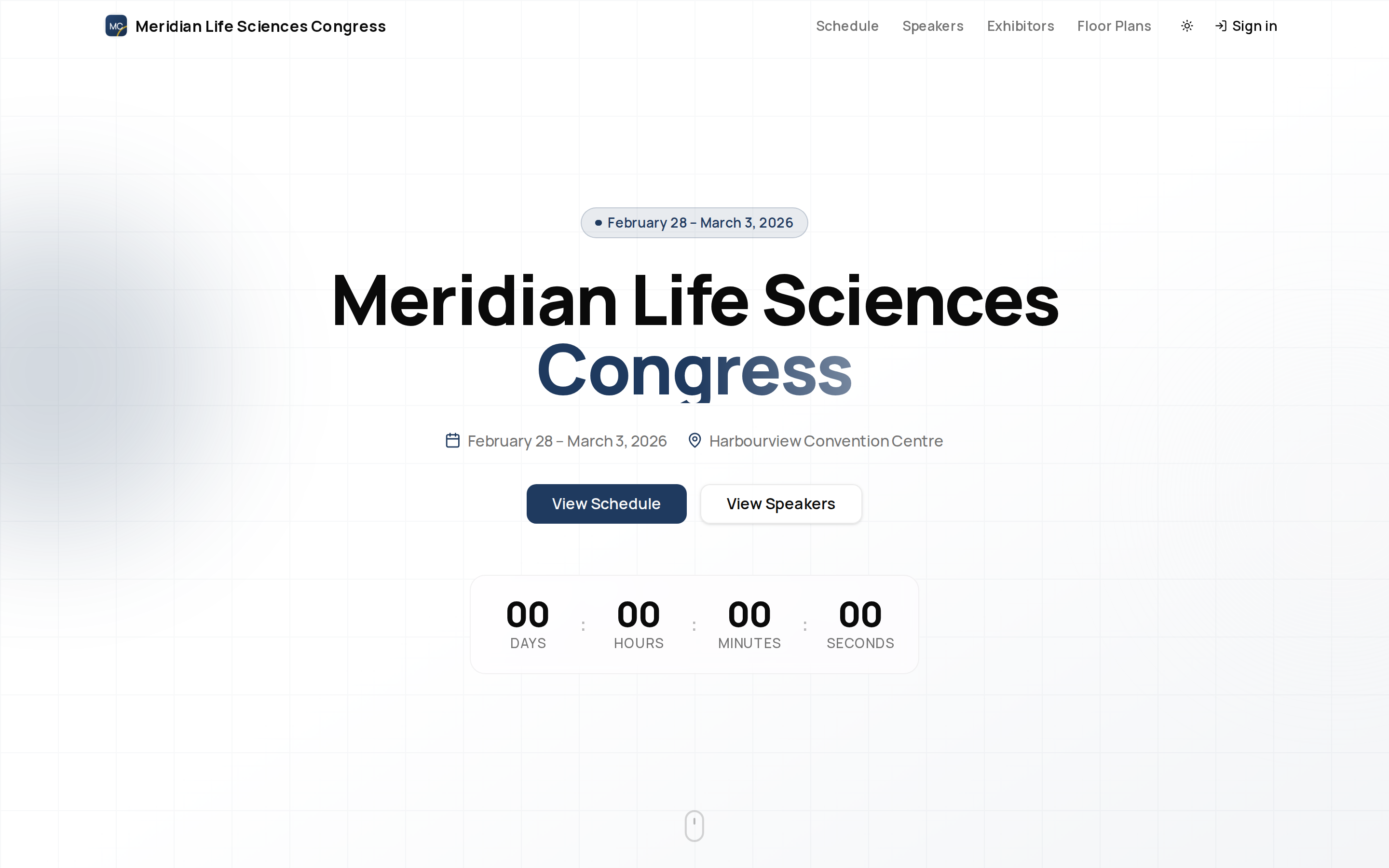
Admins who are signed in and have access to the organisation can also see an Edit Page action on published custom pages, and a similar live-editing toggle on the homepage itself for adjusting section content and order.
What the Event Homepage Can Show
The event homepage is a page the organizers build with ema's page builder. It typically contains section blocks chosen by the organizer, such as:
- Hero — the main event introduction.
- About — event details and supporting copy.
- Stats — key event numbers.
- Schedule — featured programme information.
- Speakers — featured speakers.
- Sponsors — sponsor and exhibitor promotion.
- Venue — location details.
- Registration — a call to register.
- Footer — closing navigation and event information.
The exact blocks, their content, and their order are up to the organizer, so two events can look quite different. An event whose homepage is not ready yet shows a This event page is coming soon placeholder instead.
Browse Speakers and Programme Details
On Speakers, choose Portrait grid, Compact directory or By track. Switching views keeps your search, filters and favourites selection. In the track view, a speaker can appear under more than one track; speakers without a track appear under Other speakers.
Talk pages start with the title, time, place and available actions. For a talk with a recording, the video or access notice appears before the topics, abstract and description. Assigned talk topics also appear in the session programme. Speaker profiles place the biography before their programme. Session pages show their title and actions above any video, with the programme as the main content below it.
During a live session, switch between the available Q&A, Chat, Polls and Feedback tools. The panel sits beside the video on a wide screen and immediately below it on a phone. Programme details and presenter credits sit below the media; related sessions sit beside the programme on a wide screen. Long discussions and polls scroll inside a height-limited panel, with its tabs kept in view. Switching tabs keeps an unfinished response while you stay on the page. Q&A and Feedback require signing in. On a talk page, signed-in visitors can expand Q&A to read questions, then choose Ask a question to write one. Access to video and live tools depends on the event's settings.
Session meetings and webinars keep their own joining, waiting-room and host controls. The event header appears above the room; joining still depends on the session’s access settings.
Extra Programme Details
Open a published talk, session or speaker profile from the event programme. If the organiser has shared additional information, its Details section lists each label and value, such as language, audience level or CPD points. The section is absent when there is nothing to display.
You can read these Details without signing in. A field reserved for the mobile app does not appear here. Private notes and person, file or linked-record fields are not part of this public list. Extra Details do not make an unpublished talk or session available.
Field names are written by the organiser. The page displays plain text. Calendar dates keep their day; date-and-time values use the event's time zone. Ask the organiser if a label or value needs correction; this list is read-only.
The app can also show information the organiser shares only with mobile attendees. See hey ema Mobile App.
Custom Pages
Custom pages let organisers publish extra event pages, such as sponsor information, travel notes, accessibility guidance, or welcome content.
When a custom page is not published or does not exist, visitors see a page-not-found message instead of unpublished content.
Tips
- Keep important attendee actions, such as registration and schedule browsing, reachable from the homepage.
- Use custom pages for event-specific information that does not belong in the main schedule, registration flow, or knowledge base.
- Review public pages after publishing so you can confirm the visible sections match the attendee journey.
- Confirm dates, venue, and timezone are correct.
- Check the registration button or submission link.
- Review the page on a phone.
- Make sure public knowledge base and schedule links go where visitors expect.
Related
Journey pages need an operator sign-in to open.
- Build the public siteStand-up
Pages are built, linked together with navigation, made findable, and published as the site visitors and search engines actually see.
- Step 9 of 10A visitor opens the event page and finds the programme, speakers, and a way to registerAttendee
An attendee finds the event, registers, carries their pass and agenda to the venue, takes part, and leaves with their certificate and the recordings.
- Step 2 of 20Open the event siteAttendee