Filling Out Forms
Event organizers use forms to collect information from attendees, speakers, exhibitors, and the public. Forms serve many purposes — surveys, feedback collection, applications, volunteer sign-ups, dietary requirements, session evaluations, and general inquiries.
Shared form link, public event page, or portal task
Open the form from the link or task provided by the event team.
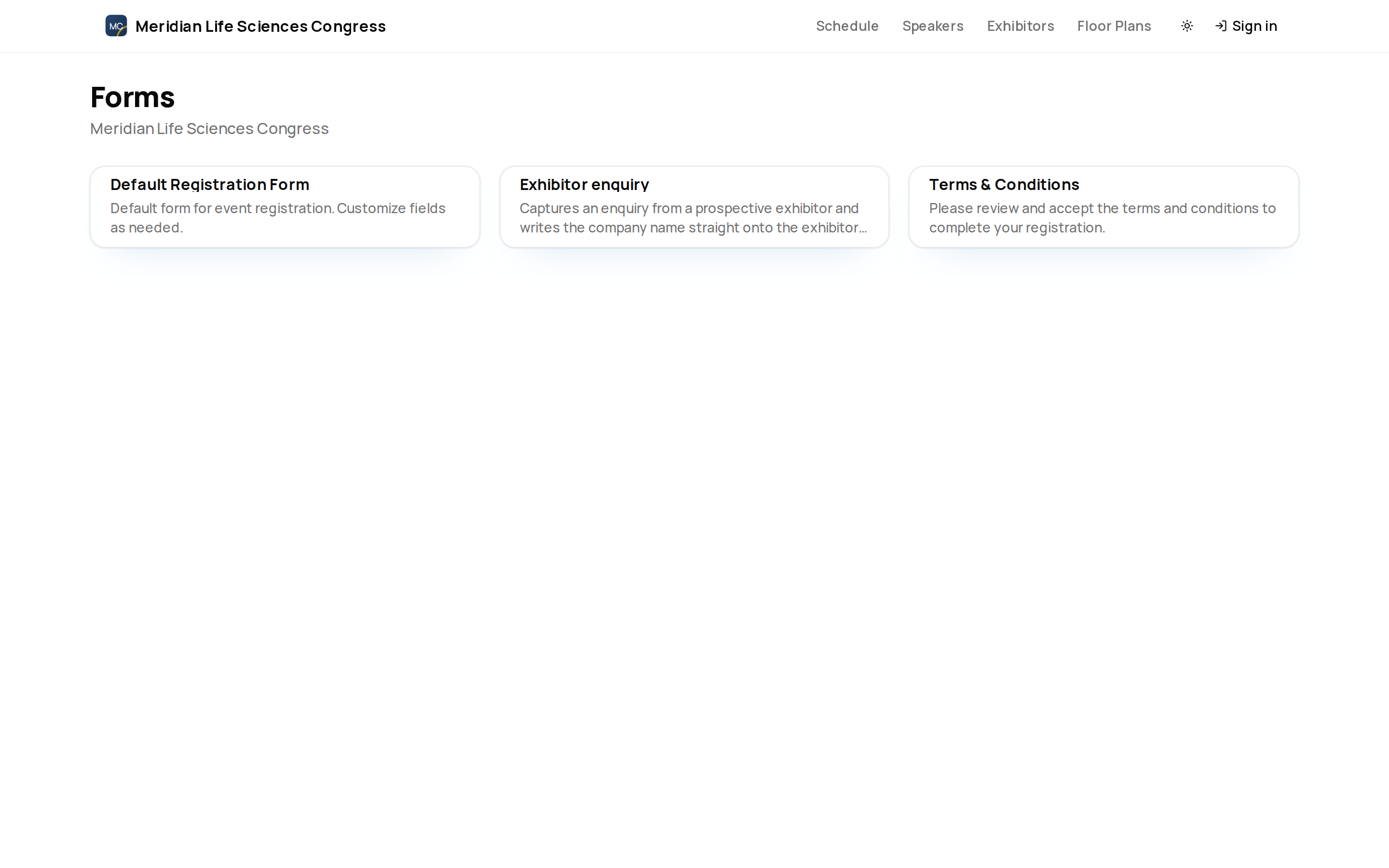
Accessing a Form
You can reach a form in two ways:
- From the event forms page — open the event and go to
/formsto see the public forms the organizer has published. Talk submission forms are kept on the separate talk submission page. - Direct link — the organizer shares a URL that takes you straight to the form. This is the most common method. You might receive the link in an email, on a printed sign at the venue, or as a QR code.
Each form has a unique URL. You can open the form from the link, but ema asks you to sign in before your response is submitted. Support forms are the exception — they accept anonymous submissions. See Support Forms.
Form Fields
Forms can include a variety of field types, depending on what information the organizer needs to collect:
- Short text — single-line text input for brief answers like your name, company, or job title.
- Long text — multi-line text area for detailed responses, comments, or open-ended feedback.
- Dropdowns — select one option from a list. Used for questions with a defined set of choices.
- Radio buttons — choose exactly one option from a visible list. Similar to dropdowns but all options are shown at once.
- Checkboxes — select one or more options from a list. Used when multiple answers are valid.
- Date pickers — choose a date from a calendar control. Used for arrival dates, preferred session dates, and similar fields.
- File uploads — attach documents, images, or other files. The form specifies accepted file types and size limits.
- Number fields — enter a numeric value, such as group size or years of experience.
Required fields are marked with an asterisk. You must complete all required fields before the form can be submitted.
Conditional Logic
Some forms use conditional logic to show or hide fields based on your previous answers. For example:
- Selecting "Yes" to "Are you bringing a guest?" reveals fields for your guest's name and dietary requirements.
- Choosing "Workshop" as your preferred session format shows a follow-up question about workshop topic preferences.
- Selecting "Other" from a dropdown reveals a free-text field for you to specify.
If a section of the form does not appear relevant to you, it is likely because your earlier answers did not trigger those fields. This is intentional — the form adapts to collect only the information that applies to your situation.
Multi-Page Forms
Longer forms are split across multiple pages. Each page groups related questions together.
- Navigation — use the Next and Back buttons at the bottom of each page to move between pages.
- Progress indicator — a step indicator at the top of the form shows how many pages there are and which one you are currently on.
- Validation — required fields on the current page must be completed before you can advance to the next page. If something is missing, the form highlights the fields that need attention.
You can move back to previous pages to review or change your answers before submitting.
Submitting Your Response
When you have completed all pages and fields, click Submit on the final page.
Your response is recorded immediately and the event organizer is notified. Each submission is timestamped and stored in the organizer's form response dashboard.
If the form asks for files, wait for each upload to finish before submitting. Closing the page too early can leave the organizer without the attachment they need.
What Happens After Submission
- Return to the forms list — after ema records the response, you are taken back to the event's forms page.
- Saved progress for signed-in users — if you are signed in, longer forms can save progress so you can resume later.
- Submission limits vary — if you need to change your answers after submitting, contact the event organizer.
Tips for Filling Out Forms
- Read the introduction — many forms include introductory text explaining the purpose of the form and any deadlines. Read it before starting.
- Prepare file uploads in advance — if the form requires file attachments, have your files ready before starting. Check the accepted file types and size limits noted on the upload field.
- Sign in before starting long forms — signed-in users can resume saved progress when the form supports it.
- Check required fields — if the Submit button is not working, scroll through the form to find any required fields you may have missed. They are highlighted with an error message.
- Use a supported browser — forms work best in modern browsers (Chrome, Firefox, Safari, Edge). If you experience issues, try a different browser or clear your cache.