Knowledge Base
The knowledge base is your event's help center. It contains articles published by the event organizer covering FAQs, venue information, travel and accommodation, event policies, session guides, and other reference material.
Public event page > Help, FAQ, or Knowledge Base
The event team decides where the public knowledge base link appears on the event page.
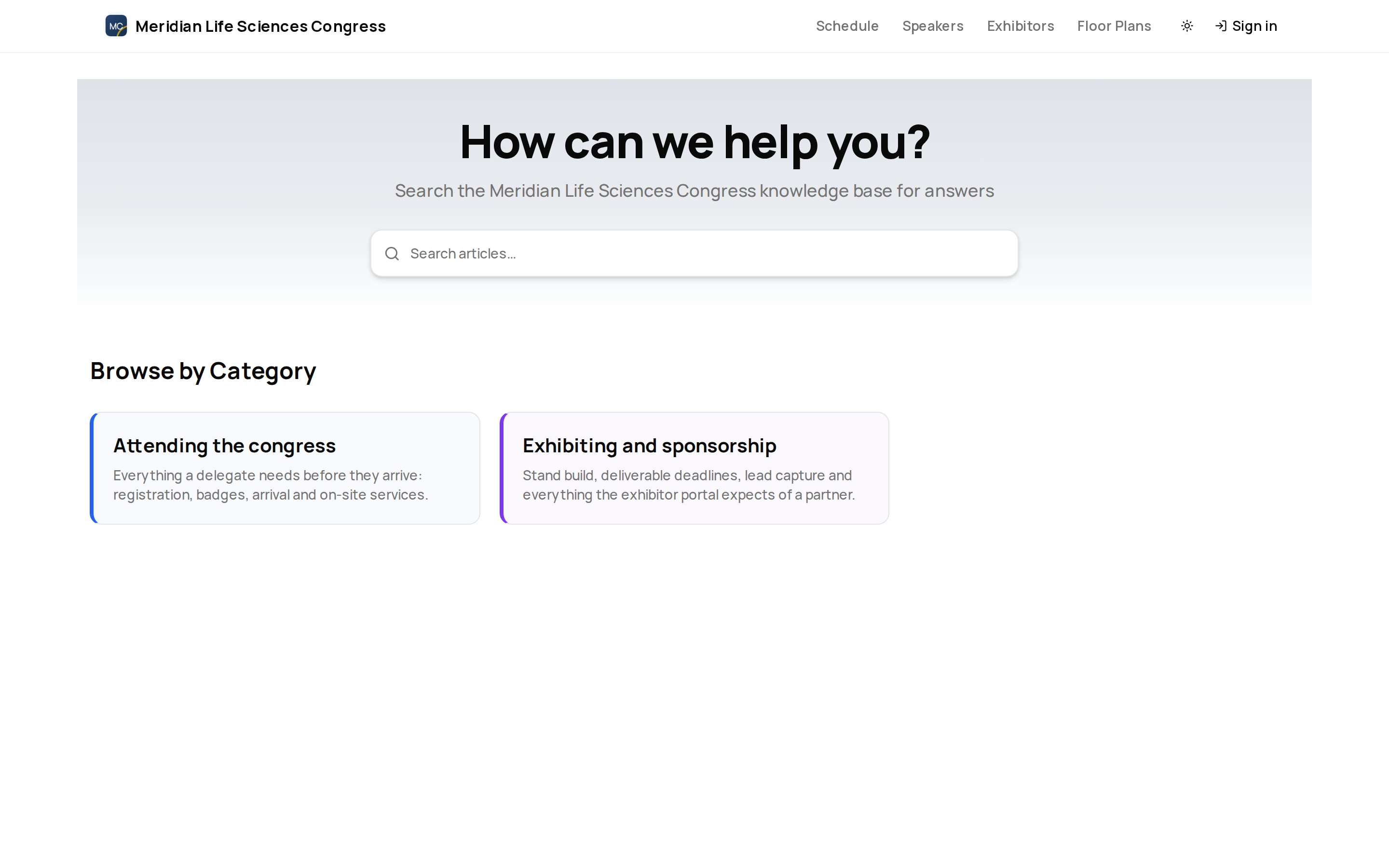
Accessing the Knowledge Base
You can reach the knowledge base in two ways:
- From the event page — look for the Knowledge Base or Help link in the event navigation.
- Direct URL — the organizer may share a direct link to the knowledge base.
No sign-in is required to access public articles.
Only articles that the organizer has published with Public visibility appear without sign-in. Draft, internal, and client-facing articles are hidden from the public knowledge base.
Browsing by Category
Articles are organized into categories defined by the event organizer. The knowledge base landing page displays a grid of category cards, each with a title and a brief description of what it covers.
Click a category card to see articles in that category. The category view opens as filtered search results, so you can keep searching within the category.
Navigating Between Categories
Use breadcrumb navigation at the top of an article to move back to the knowledge base or its category.
Searching for Articles
The knowledge base includes a search bar at the top of every page. Type two or more characters to see instant results. Search matches against article titles and content, returning the most relevant results as you type.
Search results display:
- Article title — click to open the full article.
- Category — the category the article belongs to, so you can gauge relevance.
- Content preview — a snippet from the article showing where your search terms appear.
- Tags and updated date — when available, results show article tags and the last updated date.
Search covers the entire knowledge base, across all categories. It is the fastest way to find an answer when you know what you are looking for.
Reading Articles
Click an article title from a category listing or search result to open it. Articles can include:
- Rich text content — formatted headings, paragraphs, bullet lists, numbered lists, bold and italic text, block quotes, and code blocks.
- Links — inline links to related articles within the knowledge base or to external resources.
- Images — organizer-provided images inside the article.
- Tables — structured data presented in formatted tables.
- Related articles — other public articles in the same category or with matching tags appear automatically below the article, when any exist.
Articles are designed to be self-contained. Each one answers a specific question or covers a specific topic without requiring you to read other articles first.
Article Feedback
At the bottom of each article, you can mark whether it was helpful. This helps the organizer improve event help content.
Common Knowledge Base Topics
Event organizers typically publish articles covering:
- Venue information — address, maps, parking, public transport, accessibility.
- Registration — how to register, ticket types, group bookings, cancellation policies.
- Schedule and sessions — how the programme is structured, session formats, how to navigate the schedule.
- Exhibitor information — floor plan overview, exhibitor setup times, booth guidelines.
- Policies — code of conduct, photography policy, health and safety, privacy.
- Travel and accommodation — recommended hotels, visa information, airport transfers.
- Technical requirements — Wi-Fi access, power outlets, AV equipment for presenters.
- Contact information — who to reach out to for different types of questions.
The exact content depends on what the organizer has published. Check the knowledge base before contacting the organizer — your question may already be answered.
Tips for Using the Knowledge Base
- Search first — if you have a specific question, type it into the search bar rather than browsing through categories.
- Check breadcrumbs — if an article does not answer your question, use breadcrumbs to navigate to the parent category and look for related articles.
- Bookmark useful articles — use your browser's bookmark feature to save articles you may need to reference again during the event.
Before leaving for the venue, search for "parking" or "public transport" to find the organizer's latest arrival instructions.