Public Schedule
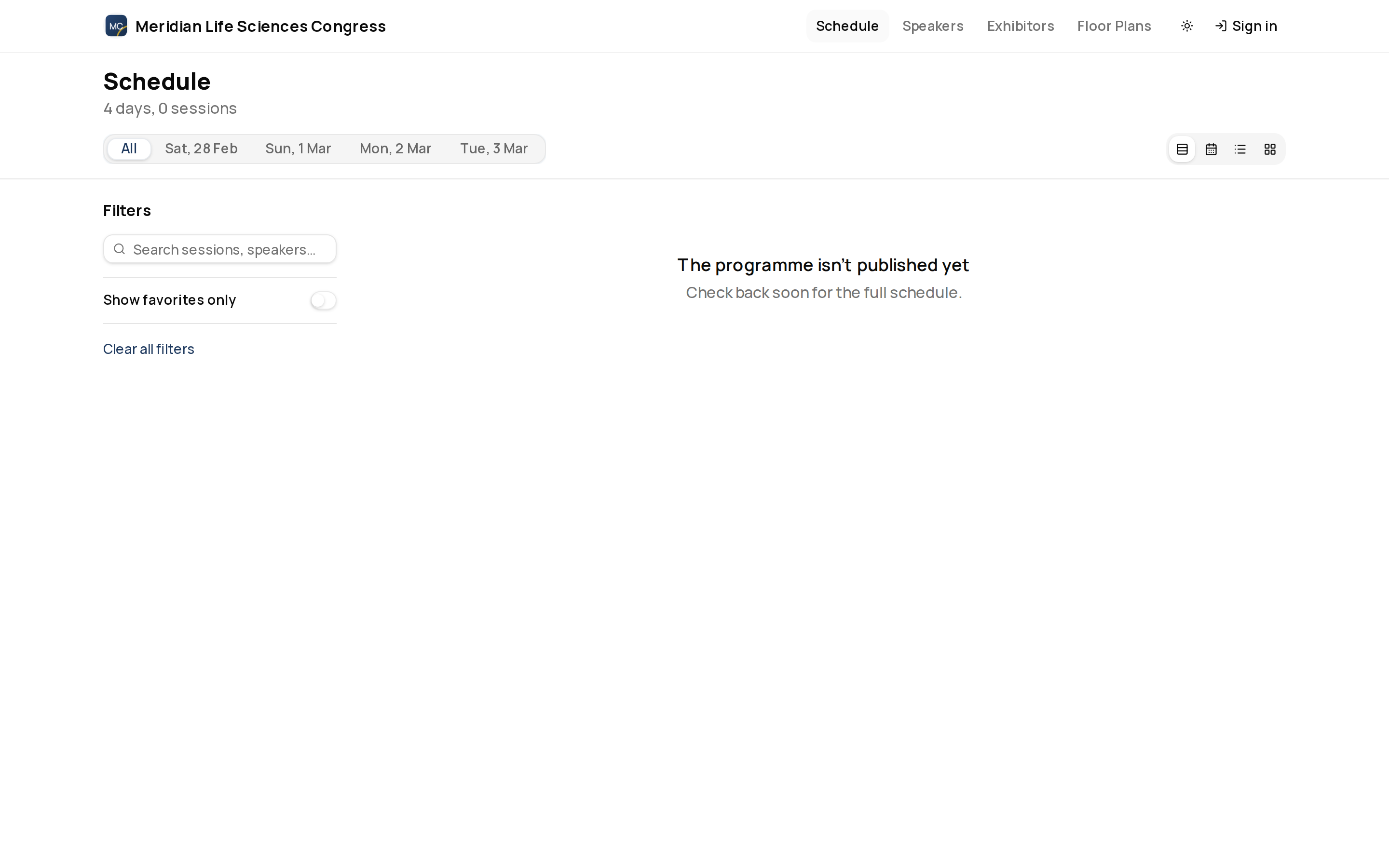
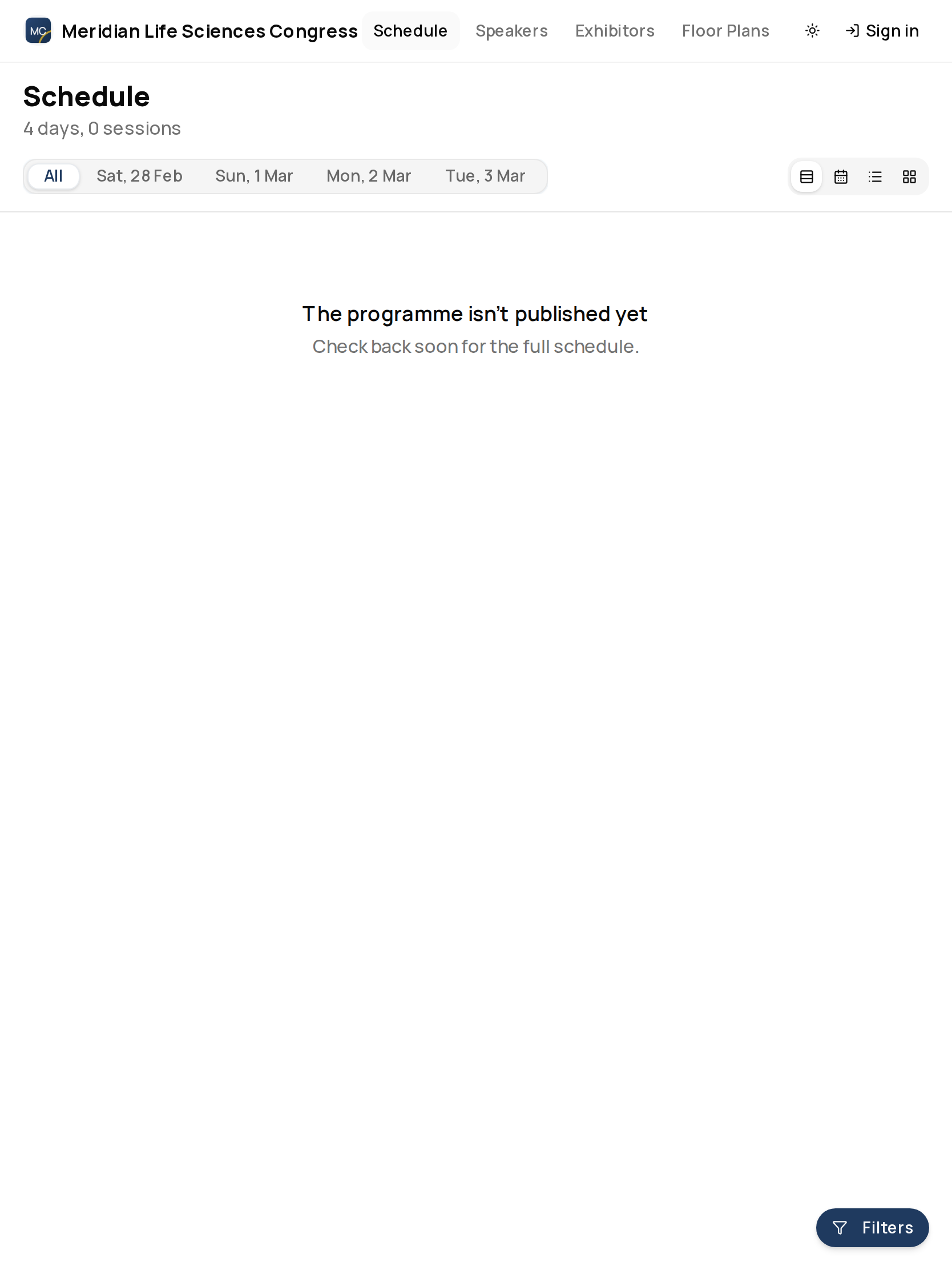
The public schedule helps visitors explore what is happening at the event. Attendees can search sessions, filter by day, track, format, or room, switch views, open session details, and add sessions to their agenda when signed in.
Public event page > Schedule
Open the event's public website and select Schedule. Session and talk detail pages are available from the schedule, session lists, talk lists, speaker profiles, and direct shared links.
- Desktop
- Tablet
- Phone
Browsing the Schedule
Use the schedule controls to:
- Search by session title, description, speaker, or room.
- Filter by day, track, format, and room.
- Show only saved sessions.
- Show live sessions when live sessions are available.
- Switch between timeline, calendar, list, and grid views.
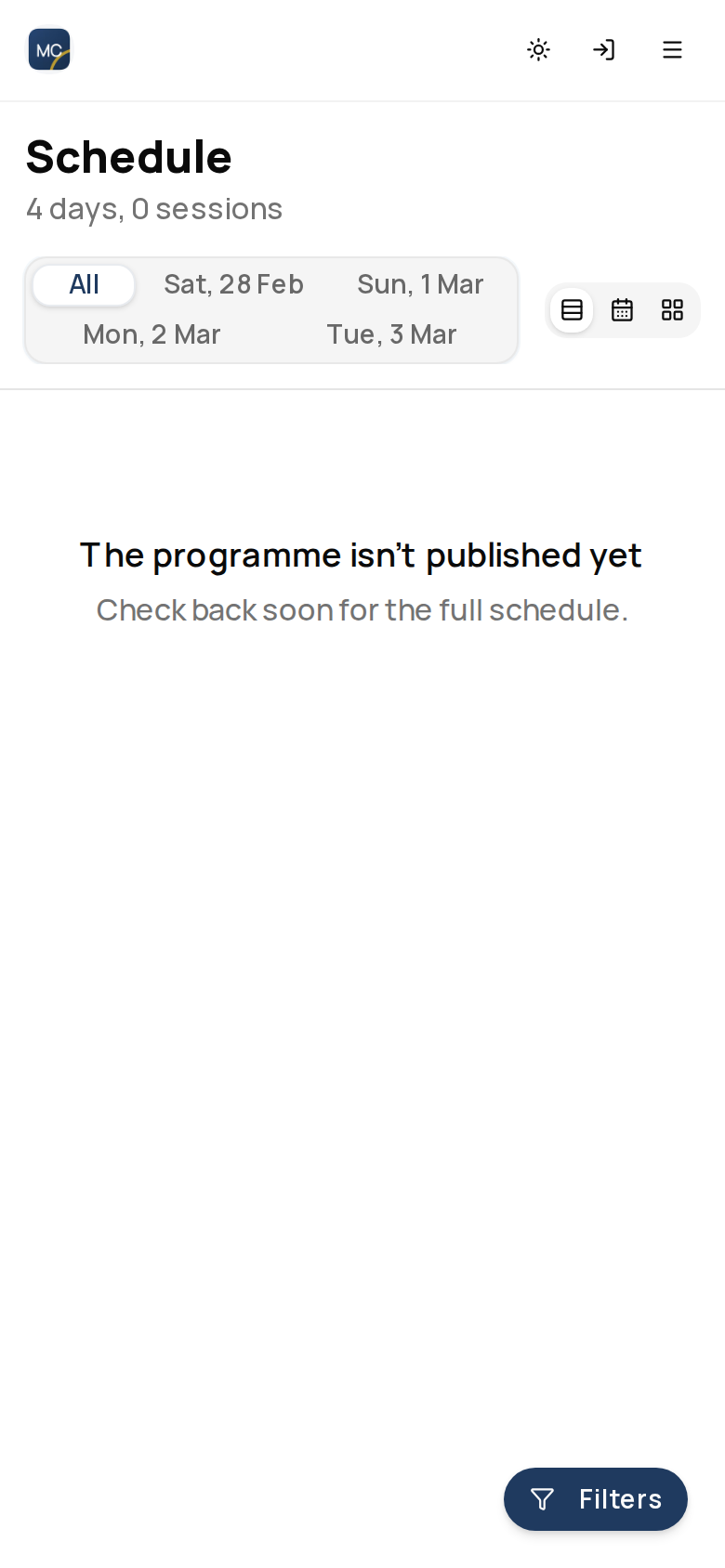
On smaller screens, filters open in a panel so the schedule remains readable.
Open Venue in the filters to choose rooms. The rooms follow the order configured by the event team. Choosing a room shows matching programme items and keeps your choice when you reload the page. This filter order does not change the rooms assigned to a session.
Finding a Programme Code
If the event team has assigned a programme code, such as AI-OP-001, it appears with the published session or talk. Use the complete code in the schedule, session list or talk list search; letter case does not matter. For example, ai-op-001 finds AI-OP-001, while a partial code does not act as a code match. Ordinary title and descriptive searches still apply, so other matching text can also appear.
Searching for a talk's code in the schedule can find the session containing that talk. Open the session to see the individual talks and their saved codes, or open a talk to see its own code. An item without an assigned code has no code to display.
Programme codes are public labels. A speaker's Submission ID, such as #73, is a separate private reference for the speaker and event team; it is not shown in the public programme. Use the item's normal page link to open or share it. Assigning or changing a code does not change that link.
Only programme items the event team has made available are shown. Knowing a code does not reveal an unpublished item or open a disabled programme. Browsing or searching does not assign a code, change the schedule or reserve a seat.
Browsing Talks
The Talks page lists every published talk. Search it, or filter by track, format, day, speaker and topic. Signed in, turn on Only my favourites to see only the talks you have starred. Schedule, Talks and Speakers lead the event website menu whenever the event has a programme, and ePosters follows when the event has published posters. See Browse Talks and ePosters for the filters, the ePoster gallery and the mobile app's Talks screen.
Opening Session Details
Session detail pages can show the session time, room, speakers, description, calendar action, live stream, live chat, questions, polls, recording playback, and a post-session survey when those features are available for that session.
If the organiser has shared additional information about a session or talk, such as language or audience level, a Details section lists it on the page. See Public Event Pages for what appears there.
If a recording is still processing or is not available to the viewer, ema shows the appropriate message instead of an empty player.
Opening Talk Details
Talk detail pages can show the talk schedule, speakers, description, slides, downloadable materials, recording playback, sharing controls, questions, and polls.
Slides uploaded as a presentation play directly on the talk page: visitors step through them with the on-screen controls, the arrow keys, or a swipe, and can switch to Fullscreen. A talk with more than one presentation shows each one separately under its content type's name. PowerPoint files are never offered as a download, and the presenter's speaker notes are never shown. If a presentation is still being prepared, the page says the slides are not available yet. Other materials, such as PDF handouts and videos, can still be downloaded — including a PDF or video uploaded in place of slides.
Use the Calendar action on session and talk detail pages to download a calendar file for that one item.
Saving Sessions
Signed-in attendees can save sessions to their agenda. Turn on Only my favourites in the schedule filters to show only the items you have starred. The toggle is hidden when you are signed out, and it resets when you reload the page. The same toggle is on the Sessions, Talks, ePosters, Speakers and Exhibitors lists. If you have not starred anything yet, the list says No favourite sessions yet and offers Show everything to turn the filter off. Everything you have starred is collected on one page — see Favourites.
An attendee filters the schedule to the Leadership track, opens two session details, saves both to their agenda, then uses the calendar action for the keynote they cannot miss.
Related
Journey pages need an operator sign-in to open.
An attendee finds the event, registers, carries their pass and agenda to the venue, takes part, and leaves with their certificate and the recordings.
- Build and publish the programmeDelivery
Every session sits in a prepared room at a time nobody is double-booked for, carries the code it will be printed with, and is visible to attendees exactly when you mean it to be.
- Step 24 of 24Check the programme from the attendee’s side: days, rooms, codes and filtersAttendee