Signing In and Account Access
ema uses a unified, tenant-aware sign-in flow. What you see depends on how your organization has set up access: some organizations require their own single sign-on (SSO) provider, some use ema's own unified "hey ema" sign-in, and others use ema's local sign-in directly. This page walks through each screen you might see and what to do if something goes wrong.
/auth/sign-in
You land on the sign-in page whenever you open ema without an active session.
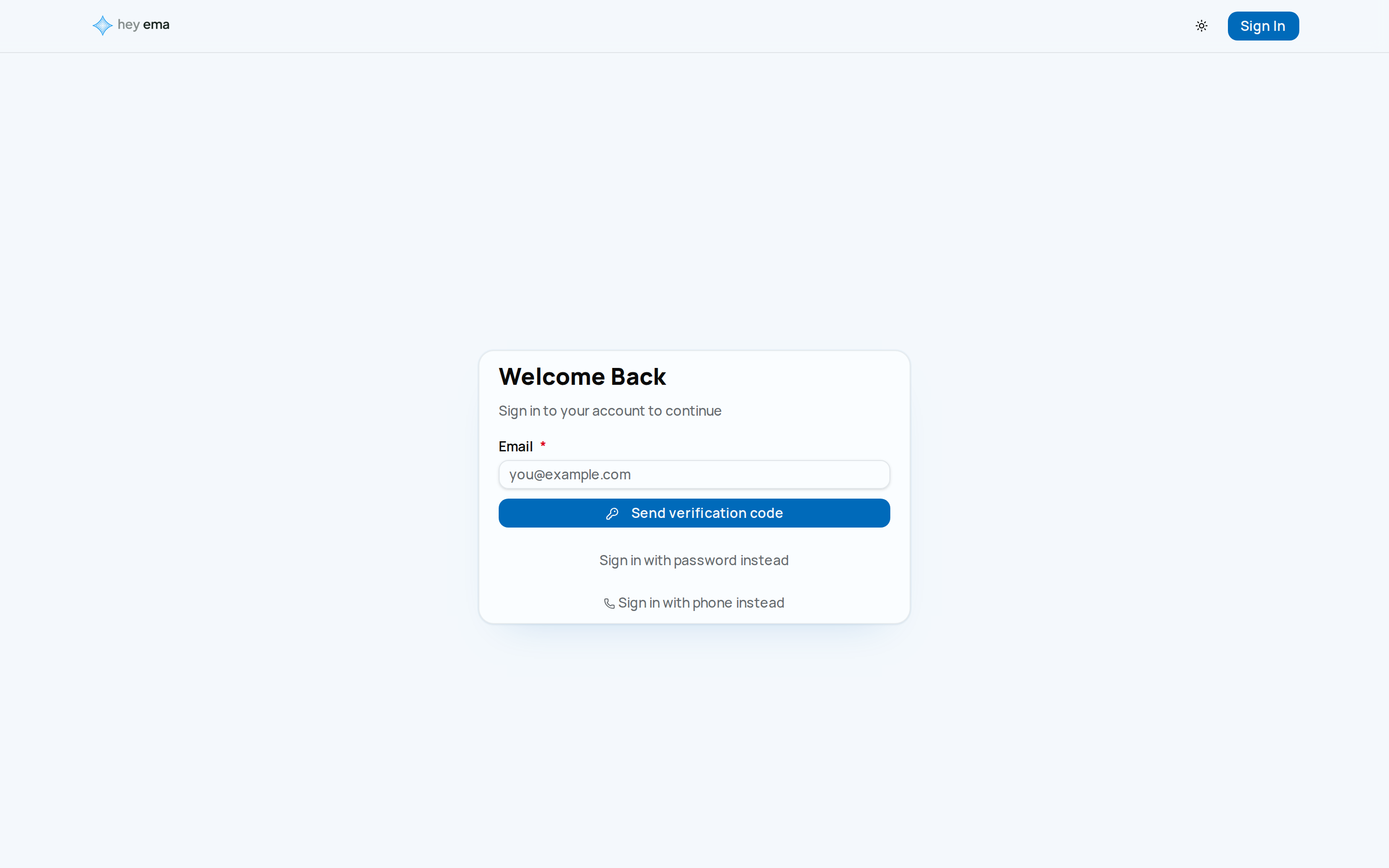
What you'll see when you sign in
Your organization controls which method appears first:
- hey ema sign-in — if your organization uses ema's unified platform sign-in, you're redirected automatically to sign in with your ema account. A brief "Redirecting to sign in…" screen appears first; click Use another method if you don't want to wait, or if you need a different way in.
- Your organization's SSO — if your organization enforces its own identity provider, you'll see one or more sign-in buttons. Enter your email first — ema highlights the matching provider based on your email domain.
- Email sign-in code — the default local method when neither of the above applies. Enter your email and ema sends a 6-digit code to that address; no password required.
Password and phone-number sign-in are still available as backup methods on most organizations — look for Sign in with password instead or Sign in with phone instead underneath the primary form. If your organization enforces its own SSO with no local fallback, only the SSO provider buttons appear.
Sign in with an emailed code
- Enter your email address.
- Click Send verification code.
- Check your inbox for a 6-digit code and enter it.
- Click Verify & sign in.
Didn't get a code? Use Didn't receive a code? Resend on the same screen.
Opening the sign-in email on a phone
Sign-in emails also carry an Open in the app link for the hey ema mobile app. What happens when you tap it depends on the device:
- The app is installed — the link opens hey ema directly and you carry on there.
- The app is not installed, on a phone or tablet — you land on a short page that sends you to the App Store or Google Play. Install hey ema, then open the link again.
- On a desktop browser — there is no app to install, so the page simply shows your code in large type. Type it into hey ema on your phone.
Opening this page does not sign you in and does not use up the code, so a mail scanner or security filter that follows links in your inbox cannot burn it before you get there. If the page says the link is missing its code, open the email again or type the code from it straight into the app.
Sign in with a password
Where password sign-in is available, click Sign in with password instead (it may already be the primary form for your organization), enter your email and password, and click Sign In.
Click Forgot password? next to the password field. ema emails you a 6-digit reset code — it no longer sends a clickable reset link.
Reset your password
- Click Forgot password? on the sign-in page.
- Enter the email address on your account and submit. ema emails a 6-digit code to that address.
- On the reset password screen, enter the code from the email along with your new password (and confirm it).
- Submit to set your new password and return to sign-in.
If the code has expired or never arrived, repeat the forgot-password process to get a new one.
Sign in with a phone number
Where enabled, click Sign in with phone instead, enter your phone number in international format (for example +61412345678), and ema texts you a 6-digit code to enter.
Sign in on the hey ema app
The app signs you in to one organization at a time.
- Enter your organization's code, or tap Or scan QR code and scan the code on your badge or invitation.
- Enter your email address.
- Tap Continue and ema emails you a 6-digit code to enter. Where your organization allows passwords, Sign in with Password sits directly under Continue; tap it to sign in with your password instead.
The app never creates an account. If no account exists for your email, no code arrives and the code screen reminds you that your event organizer sets accounts up. If you started from your email address rather than an organization code, it suggests going back and entering your organization's code or scanning its QR code instead.
Email verification
New accounts must verify their email address before getting full access.
Entering your verification code
If you sign in before verifying, you land on an Enter Your Code screen. Enter the 6-digit code emailed to you and click Verify Email. Use Didn't receive a code? Resend if it didn't arrive, or Sign Out to return to sign-in.
If you were sent here from another page — for example, a checkout that needs a verified email — ema returns you to that page as soon as your email is verified, so you can carry on where you left off.
Verification emails now contain a 6-digit code rather than a clickable link. An older verification email with a link still works if you have one sitting in your inbox — but any new verification email you request from now on will always be a code.
Accepting an invitation
An invitation email opens a page asking you to sign in before you can accept. If your organization uses hey ema sign-in, the page signs you in with your hey ema account automatically (Signing you in…) and takes you on to accept the invitation. If that does not start, choose Continue with hey ema. Other sign-in options lists the remaining methods, and if you are new to hey ema you can create your account on the next screen. Organizations that use local sign-in instead show Sign In, or Set your password if you are new.
Onboarding
The first time you sign in without a name on file, ema takes you to a short onboarding form before letting you into the portal:
- Title (optional) — Mr., Ms., Mrs., Dr., or Prof.
- First Name (required)
- Middle Name (optional)
- Last Name (optional)
- Suffix (optional) — Jr., Sr., II, III, IV, PhD, or MD
- Pronouns (optional)
- Job Title (optional)
- Company (optional)
- Profile photo (optional)
Click Continue to save and enter the portal. You can update any of these fields later — see My Profile.
Signing out
Choose Sign Out from your account menu. If your organization uses hey ema sign-in, signing out also signs you out of your hey ema account and takes you to the hey ema sign-in page. Sign in there with whichever hey ema account you want to use, or simply close the page. This is how you switch between hey ema accounts — without it, ema would sign you straight back in to the account you just left.
No organization access
If your account exists but hasn't been added to any organization yet, you see a No Organisation Access screen. Options:
- Check Again — refreshes your session to pick up any access granted since you last signed in.
- Sign Out — returns you to sign-in.
Contact your administrator to be added to the organization, then click Check Again (or sign out and back in).
ema has no public sign-up page. Accounts are created by administrators or through an invitation. If you need access, ask your event organizer or administrator.
Journey pages need an operator sign-in to open.
An attendee finds the event, registers, carries their pass and agenda to the venue, takes part, and leaves with their certificate and the recordings.
- Step 3 of 20Sign in with an emailed code, password or SSOAttendee