Exhibitor Add-ons and Upgrades
Add-ons and upgrades let you expand your exhibitor package after you have joined the event. Depending on what the organiser has enabled, you may be able to buy extra staff passes, meeting slots, sponsored placements, booth services, or move to a higher package tier.
Me > Exhibitors > [Your company] > Package > Add-ons or Tier upgrade
Open Package. The Add-ons section lets you buy individual extra benefits; the Tier upgrade section lets you compare higher exhibitor package tiers. Either section is hidden if the organiser has not enabled it.
Buying Add-ons
Before buying, check the event deadline, who will use the benefit, and whether your team already has the same benefit through your current package.
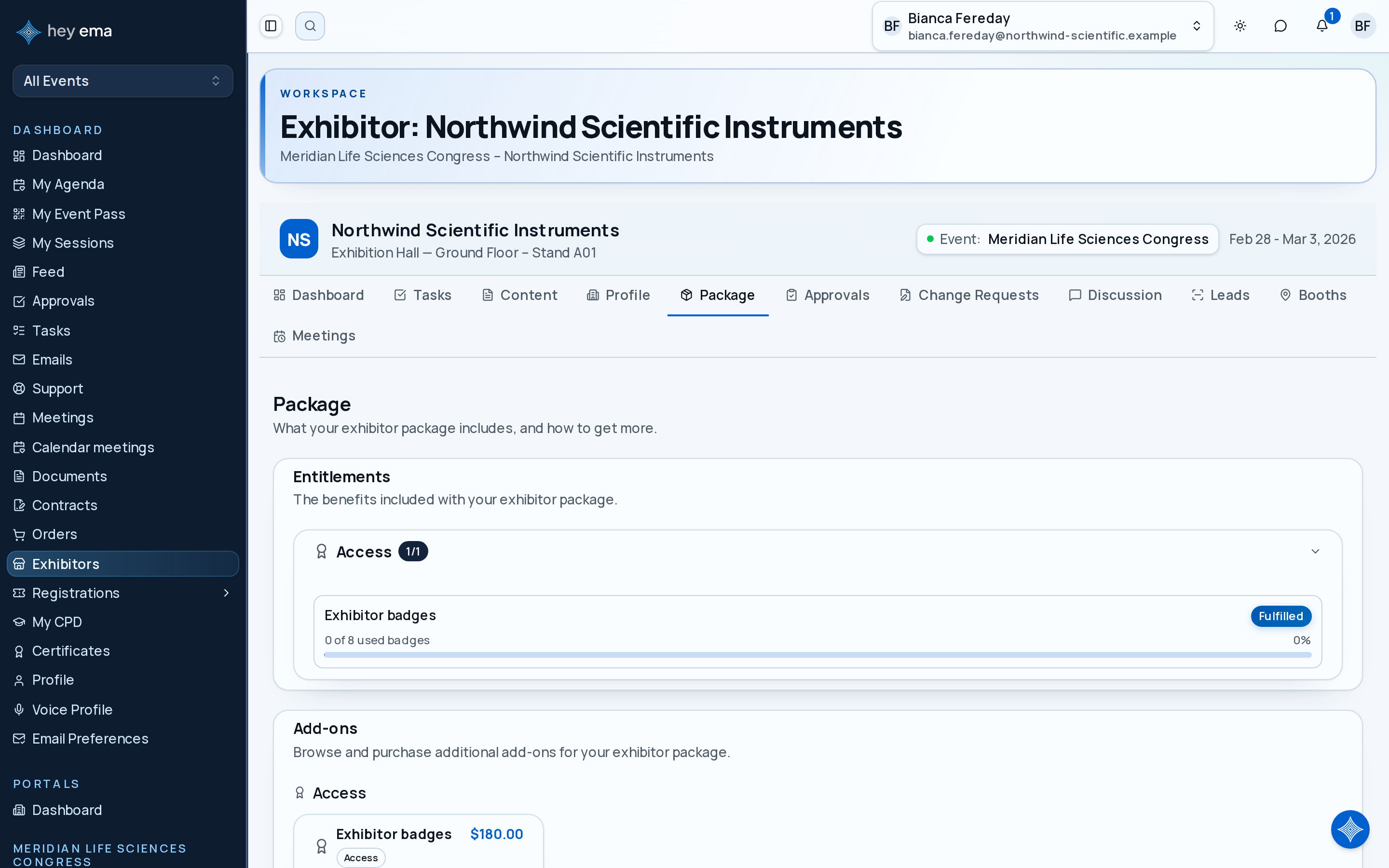
- Open Package and scroll to the Add-ons section.
- Review the available add-ons. Each card shows the price, how many are left if stock is limited, and how many you have already purchased.
- Set the quantity you want with the stepper, or click Add to Cart. You can add several different add-ons to the cart before checking out.
- Click Proceed to Checkout.
- Complete the checkout — confirm the buyer details and pay.
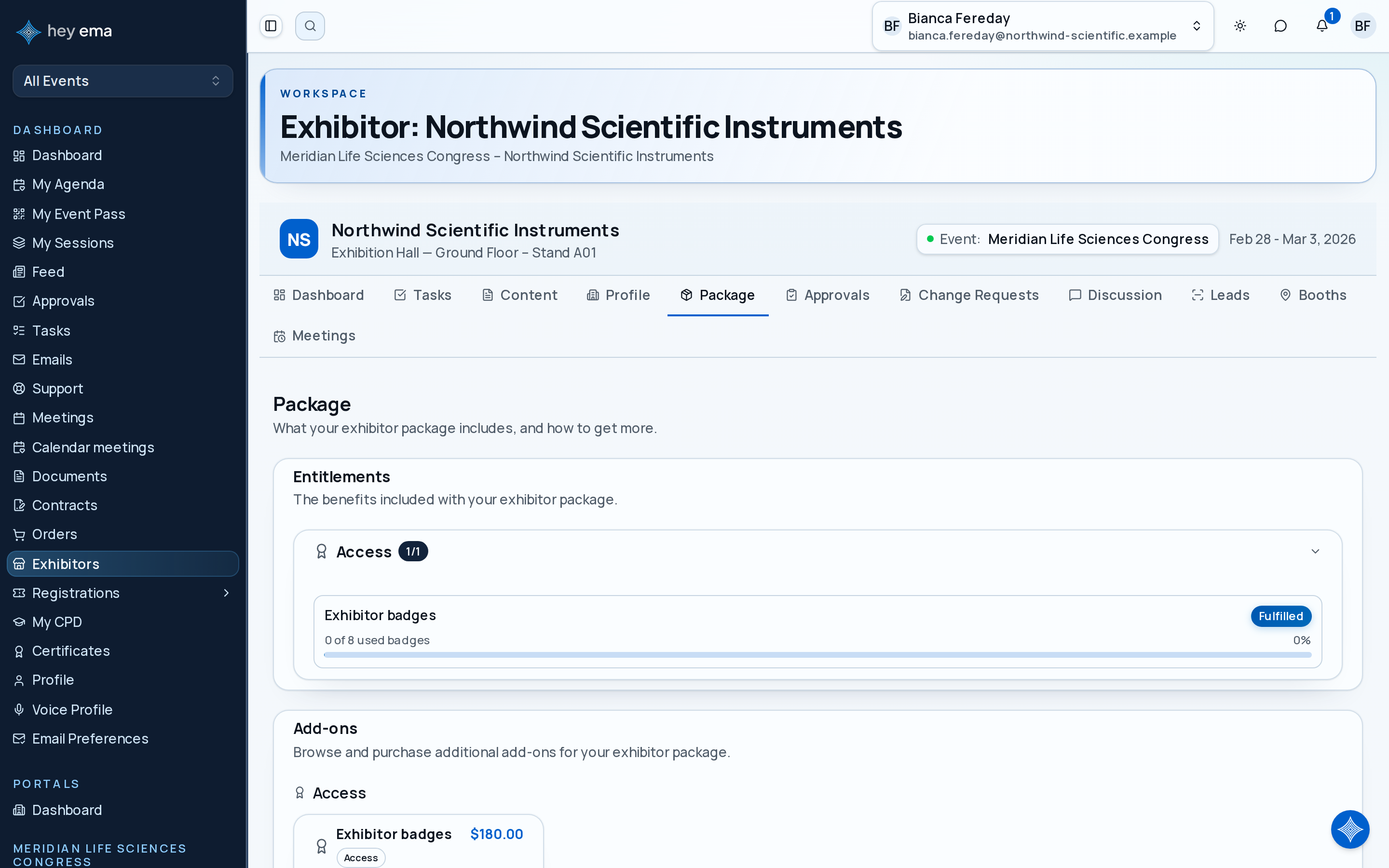
After checkout, the add-on appears in your entitlements. Some add-ons are available immediately; others show as pending until the organiser fulfils them.
Previewing a Tier Upgrade
- Open Package and scroll to the Tier upgrade section.
- Review the tiers available to your exhibitor.
- Click Preview Upgrade on the tier you are considering.
- Review the price difference.
- Review the entitlement changes — what you gain, what increases, and what you would lose.
- Check for a Booth Implications warning and any additional registration passes.
- Click Confirm Upgrade if you want to proceed.
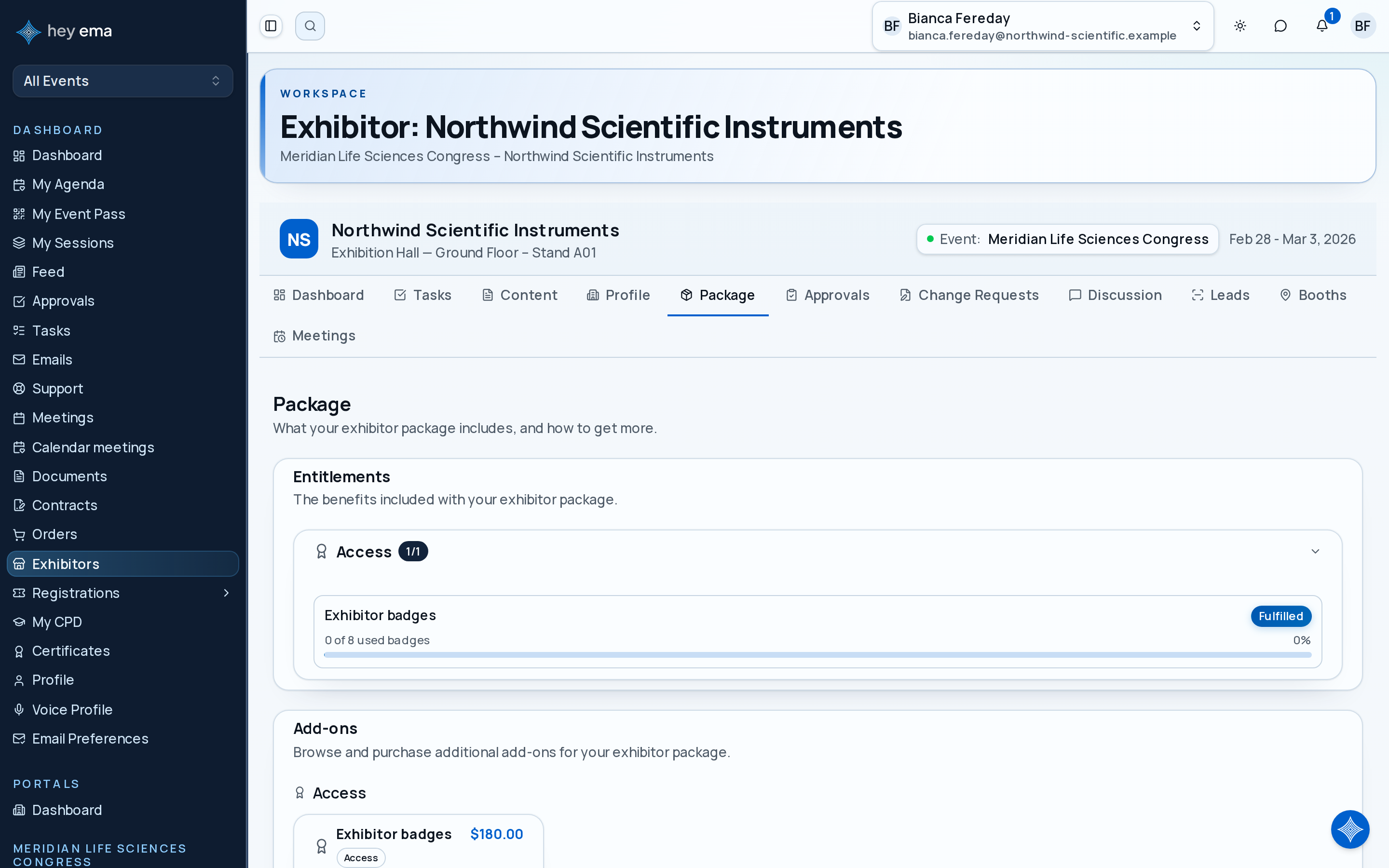
The preview shows what you gain, what increases, and whether anything would be lost — lost entitlements are flagged for the organiser to review rather than removed automatically. It also shows additional registration passes if the higher tier includes them.
Choose an add-on when you need a specific extra item. Choose an upgrade when the higher package gives you several benefits you would otherwise buy one by one, or when your desired booth or sponsorship placement requires a higher tier.
Read the upgrade preview carefully before confirming. Some upgrades can affect booth eligibility or package benefits.
Booth Warnings
If any of your current booths are affected by the target tier, the upgrade preview shows a Booth Implications warning listing each affected booth and why — for example, when your current booth does not fit the new package.
If you see a booth warning, contact the organiser before confirming unless the preview clearly explains the next step.
Payment and Checkout
Add-ons and tier upgrades both go through the same checkout cart. If an upgrade has a price, confirming creates an order and takes you to the checkout to enter the buyer details and pay; the price is the one the preview showed. An upgrade with no price difference applies as soon as you confirm it.
Your tier and entitlements change when the payment completes, not before. If you leave checkout without paying, your package stays as it was. If the organiser has set up an exhibitor payment plan, your first instalment is invoiced at checkout and later instalments are invoiced automatically on their due dates.
After checkout, review the Entitlements section of Package to confirm the new benefit has been added and whether the organiser still needs to fulfil it.
Requesting Changes Instead
If self-service purchase is not available, use Change Requests if the organiser has enabled it. Change requests currently cover booth changes, cancellations, and company info corrections — see Booths and Change Requests. For a downgrade or tier change that is not available self-service, contact the event organiser directly.
Related
Journey pages need an operator sign-in to open.
An exhibitor completes their own obligations unaided.
- Step 8 of 14Exhibitor buys upgrades and extras themselvesExhibitor