Booths and Change Requests
Your booth page shows where your exhibitor company is placed and, when enabled by the organiser, lets you choose your booth yourself. Change requests give you a structured way to ask for changes that need organiser approval.
Me > Exhibitors > [Your company] > Booths or Change Requests
Use Booths to review or select your stand. Use Change Requests when you need organiser approval for a different booth, a cancellation, or a correction to your company details.
Viewing Your Booth
The booth page shows:
- Your Booth Entitlements — one row per booth entitlement in your package, with how many booths you have selected (for example, "1 / 2 selected").
- A floor plan selector, shown only when the event has more than one floor plan.
- A legend for booth statuses: Available, Reserved, Taken, and Your Booth.
- One card per booth, showing the booth title, its stand number, the entitlement it belongs to, and a status badge.
If you have no booth entitlements in your package, a notice tells you to contact the event organiser — there is nothing for you to select.
Selecting a Booth
You can select any booth marked Available that matches one of your booth entitlements:
- Open Booths.
- If your event has more than one floor plan, select the relevant one.
- Find a booth marked Available that matches one of your entitlements.
- Click the booth — the selection is immediate; there is no separate confirmation step.
To change your choice, click a different available booth. To release your booth entirely, click the card marked Your Booth again.
A booth marked Reserved For You is held against your own quote or order — clicking it claims that hold and confirms it as your booth. Booths marked Reserved (held by someone else), Taken (already assigned), or Unavailable (blocked by the organiser) cannot be selected.
Check booth location and package eligibility before selecting. Changing later may be limited by contracts, payments, floor plan availability, or event deadlines.
When to Submit a Change Request
Submit a change request when you need organiser approval instead of an immediate self-service action.
The portal currently offers three request types:
| Request type | Use it when |
|---|---|
| Booth Change | You want a different booth or location than the one you selected. |
| Cancellation | You need to cancel your exhibitor package. |
| Company Info Correction | A detail on your company profile is wrong — you also pick the section that needs correcting. |
Older requests of other types (such as a tier change or downgrade) may still appear in your list, but the portal currently accepts only the three types above. For a package change that is not self-service, contact the event organiser directly.
Use self-service selection when the booth or package option is clearly available and you are ready to confirm. Submit a change request when the organiser needs to review commercial terms, booth availability, deadlines, or cancellation conditions.
Submitting a Change Request
- Open Change Requests.
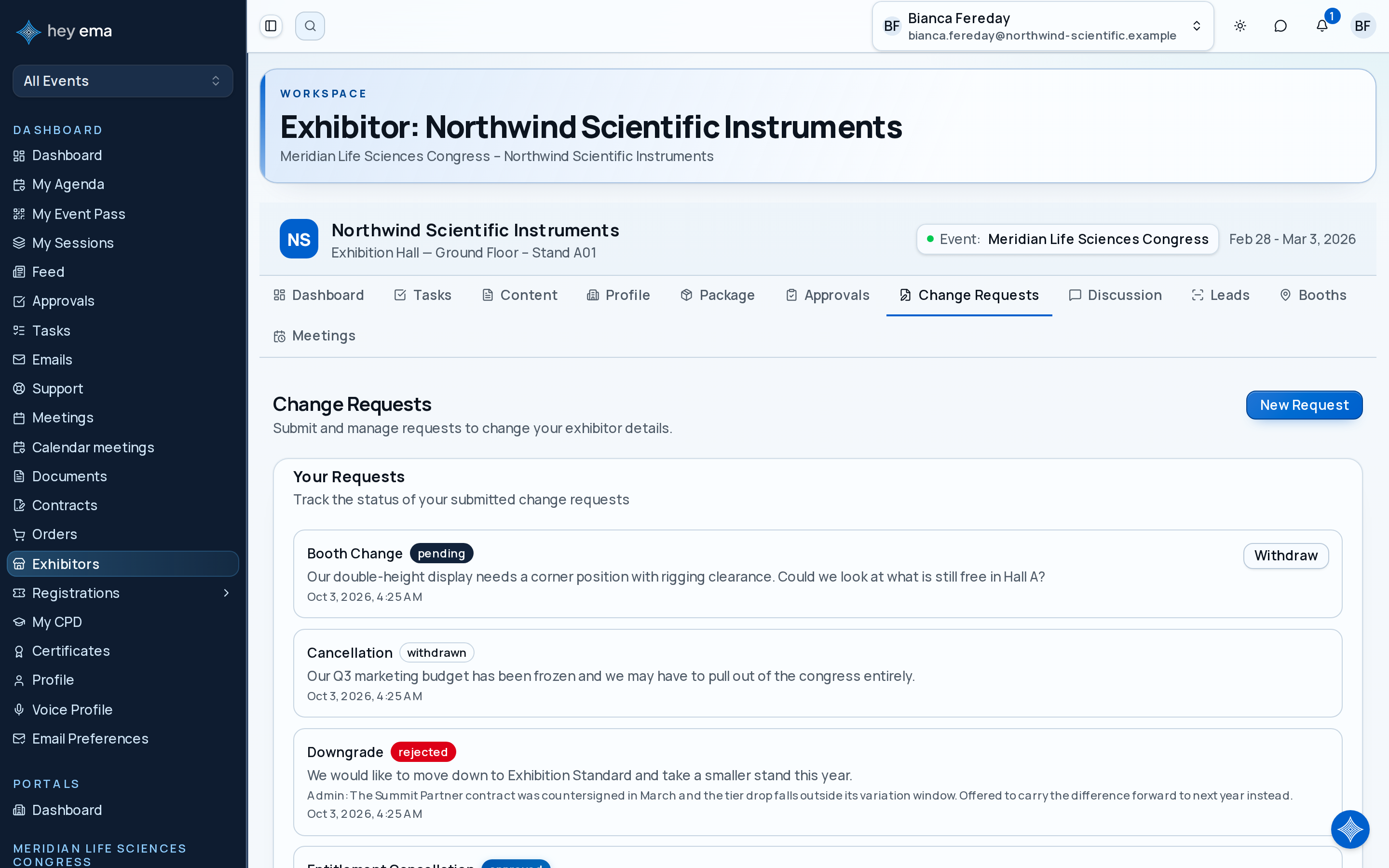
- Click New Request.
- Choose the request type.
- For Company Info Correction, choose the section that needs correcting — a request without a section cannot be submitted.
- Explain what you want changed and why.
- Submit the request.
You can also start a correction from your Profile tab: each company-details section (Identity, Company, Contacts) has a Request a change button that opens the request form already scoped to that section, with a suggested reason you can complete.
Write the reason as if the organiser has no other context. For example: "We need to move closer to the loading dock because our booth includes a heavy demo unit" is more useful than "Need better booth".
Tracking Request Status
Your requests appear in Change Requests with one of four statuses: Pending, Approved, Rejected, or Withdrawn. While a request is still pending, you can withdraw it if you no longer need the change.
If a request is rejected, read the organiser's note before submitting another request.
The organiser can review your request type, reason, the affected profile section, and current status — and can add a note you can read. A specific explanation helps them make a decision without going back and forth by email.
Tips
- Check deadlines. Booth and cancellation changes are often limited close to the event.
- Be specific. Include preferred booth numbers or package names when relevant.
- Do not rely on email alone. If the portal supports change requests, submit the request there so it is tracked.
- Review contract terms first. Some changes may be governed by the contract you signed.