Exhibitor Dashboard
The exhibitor dashboard gives you a single starting point for your exhibitor assignment: company details, booth information, required work, package benefits, and shortcuts to the pages you are most likely to need.
Me > Exhibitors > [Your company]
Open Me > Exhibitors and click your exhibitor company. The dashboard loads with your company context for the selected project.
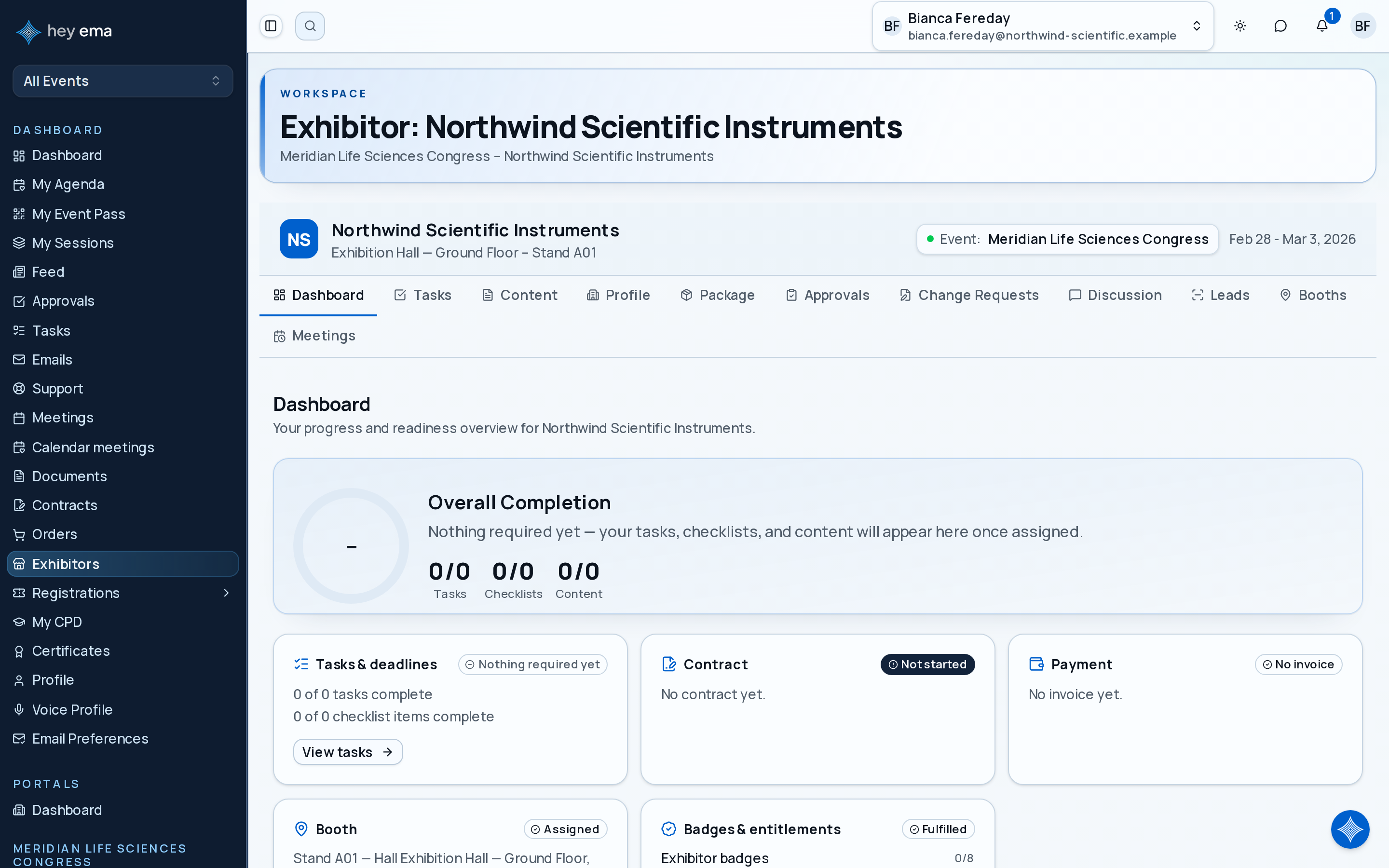
Dashboard Stats
The dashboard displays four progress indicators:
| Metric | Description |
|---|---|
| Tasks | Completed vs. total tasks assigned to your exhibitor. |
| Checklists | Completed vs. total checklist items. |
| Content | Acknowledged vs. total content articles. |
| Approvals | Approved vs. total approval requests. |
If your organiser uses commercial self-service, you may also see links to entitlements, add-ons, upgrades, contracts, booth selection, and change requests.
Your organiser controls which sections appear based on your event, package, and permissions. If a tab is missing, it usually means the organiser has not enabled that feature for your exhibitor.
Your organiser can also embed an Exhibitor Readiness block on public event pages. When you view such a page while signed in, the block shows you your own tasks, contract status, payment status (with due date), booth, and badges at a glance — without opening the dashboard.
Company Context
The dashboard header shows:
- Company name, description, and logo
- Website and industry
- Primary contact name, email, and phone
- Contact address
Booth Information
If a booth has been allocated, the dashboard shows:
| Field | Description |
|---|---|
| Hall | The venue hall or zone. |
| Stand number | Assigned booth/stand identifier. |
| Title | Booth display name. |
| Area | Booth size in square meters. |
Assigned Contacts
A list of all contacts assigned to this exhibitor, showing their name, email, role, and whether they are the primary contact.
Portal Navigation
From the exhibitor layout, navigate to sub-pages:
- Info -- update exhibitor profile details
- Content -- review and acknowledge content articles
- Checklists -- complete assigned checklists
- Tasks -- manage exhibitor tasks
- Approvals -- view approval statuses
- Discussion -- comment threads on the exhibitor
- Entitlements -- review package benefits, usage, and fulfilment status
- Add-ons -- buy extra benefits when available
- Upgrade -- compare higher package tiers
- Booths -- view or select booth assignments when enabled
- Change Requests -- request tier, booth, downgrade, cancellation, or entitlement changes
- My Contracts -- review contracts where you are a signer
Recommended First Checks
- Open Info and confirm your company details.
- Open Tasks and Checklists for organiser deadlines.
- Open Entitlements to confirm what your package includes.
- Open Booths to confirm your stand location.
- Open My Contracts if you have been asked to sign an agreement.
Journey pages need an operator sign-in to open.
An exhibitor completes their own obligations unaided.
- Step 2 of 14Exhibitor sees what they owe and by whenExhibitor