Leads
Your leads page shows everyone captured as a lead for your booth — whether they were scanned or entered manually by your team at the event, or submitted their own details through your public exhibitor page.
Me > Exhibitors > [Your company] > Leads
Open Leads during or after the event to review captured contacts, notes, and question responses.
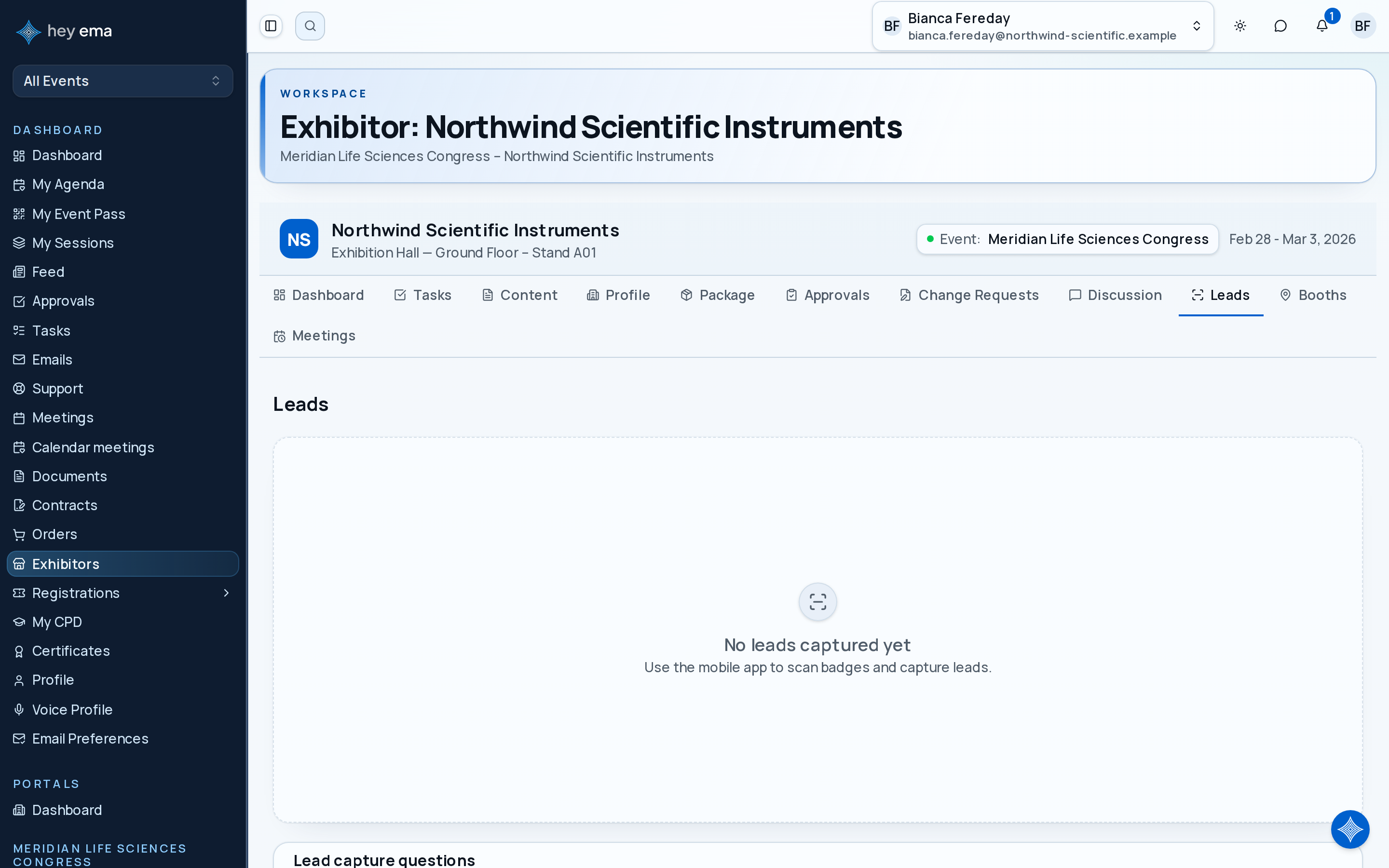
This page is for reviewing, exporting, and configuring lead questions — QR scanning and manual lead entry happen in the ema mobile app, not from this web page. If your leads list is empty, make sure your booth staff are using the mobile app to scan badges.
Lead List
Each lead shows:
| Field | Description |
|---|---|
| Name | The contact's full name. |
| Their contact email address. | |
| Company | The organization they represent. |
| Source | How the lead was captured — QR (scanned in the mobile app) or Manual (entered by hand, whether at your booth or submitted by the attendee through your public exhibitor page). |
| Scanned at | When the lead was captured. |
| Captured by | The team member who captured the lead, if it wasn't a public-page submission. |
Viewing Lead Details
Click a lead to see their full details, including phone, job title, any notes captured at the time, and answers to your configured lead questions.
Lead Questions
You can configure your own questions that your team is prompted to answer when capturing a lead in the mobile app. Scroll to the Lead capture questions section further down this same page to manage them.
Each question has a type:
| Type | What it collects |
|---|---|
| Text | A short single-line answer. |
| Long Text | A longer free-text answer. |
| Dropdown | One choice from a list of options you define. |
| Checkbox | A yes/no answer. |
| Rating | A numeric rating. |
Mark a question as required to make sure your team can't skip it while capturing a lead. Question answers appear on the lead's detail view but are not included in the CSV export.
Capturing Leads
Leads reach your list in three ways:
- QR scan — your team scans an attendee's badge in the mobile app, which fills in their name, and their email when the attendee has made their networking profile public. Otherwise, ask for their email and type it in.
- Manual entry — your team enters a contact's name and email by hand in the mobile app when a badge isn't available.
- Public inquiry — an attendee submits their own details through the "Contact us" form on your exhibitor page in the public event directory.
Attendees under 18 cannot be saved as leads. If you scan the badge of an attendee whose account records them as under 18, the app refuses to save the lead.
Make sure booth staff know which lead questions matter before they start scanning badges. Short, consistent notes make post-event follow-up much easier.
Exporting
Download your leads as a CSV file for import into your CRM or follow-up system. The export includes each lead's contact details, notes, source, and capture time — question answers are not included in the export today, so review those from the lead detail view first if you need them.
Export leads soon after the event while conversations are still fresh. Fast follow-up usually matters more than collecting a perfect set of notes.
Journey pages need an operator sign-in to open.
An exhibitor completes their own obligations unaided.
- Step 13 of 14Exhibitor captures and exports their leadsExhibitor