Exhibitor Meetings
Exhibitor meetings let attendees book time with your team at the event. You set your availability and ema handles the scheduling. Attendees browse exhibitors, pick a time slot, and book directly from the event platform.
Me > Exhibitors > [Your company] > Meetings
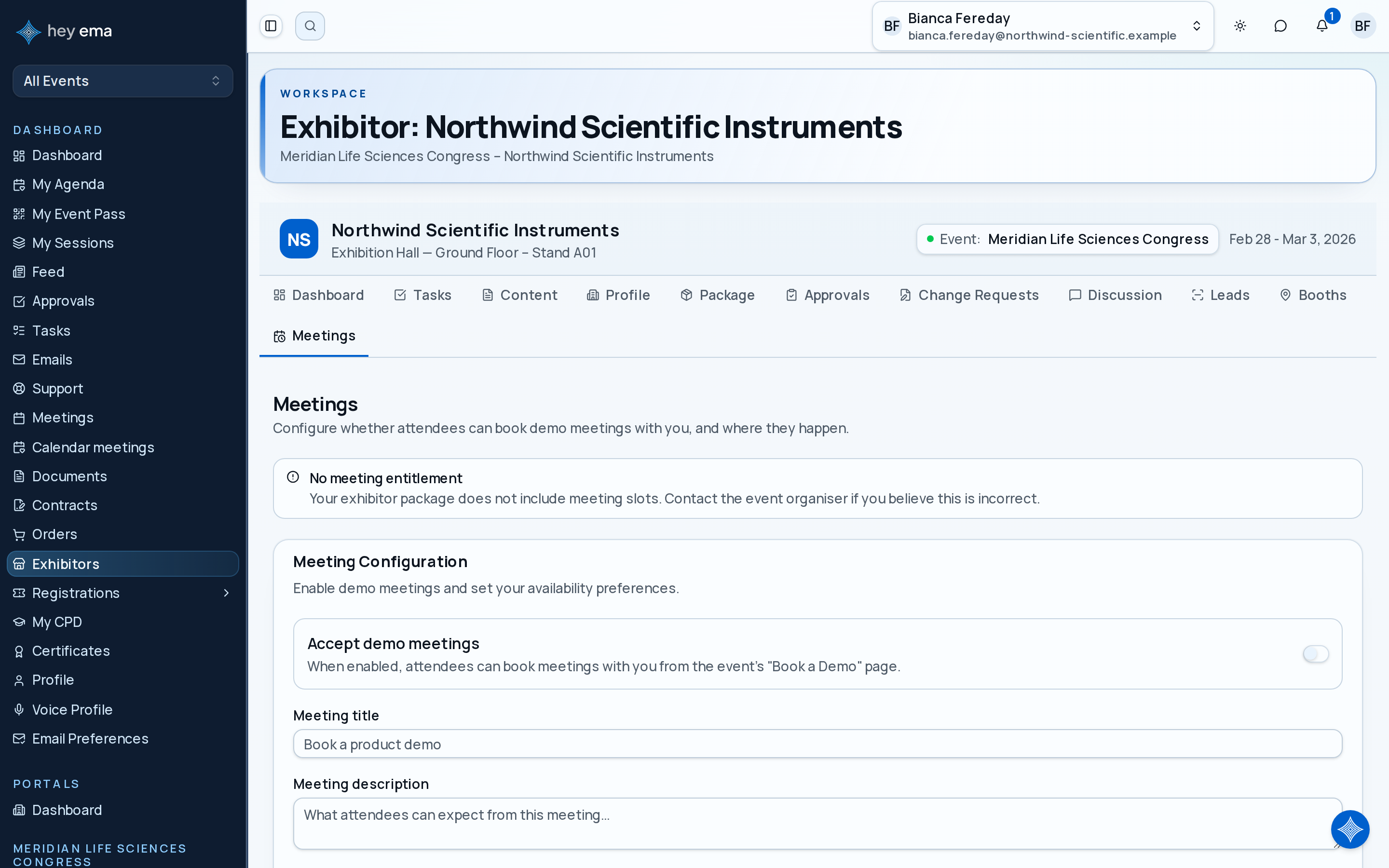
Open Meetings to configure availability, review meeting entitlements, and track upcoming bookings.
How it works
- Your event team creates networking windows — blocks of time during the event when meetings can happen.
- You configure your meeting preferences (duration, capacity, location type).
- Attendees browse exhibitors, see who is available, and book a slot.
- You get notified of each booking and can see your full schedule.
Your exhibitor tier may include a set number of meetings. Once that limit is reached, attendees will no longer see available slots for your booth.
Configuring your meeting availability
- Navigate to your exhibitor in the Me portal.
- Open the Meetings tab.
- Update the settings below and click Save.
Confirm who will staff meetings, where meetings should happen, and how many simultaneous conversations your team can realistically handle.
Only exhibitor admins can change these settings; booth staff can see them but not edit. Once meetings are enabled, a Live badge confirms attendees can book demo meetings with you. If your package has no meeting slots, a No meeting entitlement notice explains why; contact the organizer if that looks wrong.
You can set the following options:
| Setting | Description |
|---|---|
| Enabled | Toggle meetings on or off. When disabled, attendees cannot book new meetings with you. |
| Meeting title | A short name shown to attendees when they browse available exhibitors (e.g., "Product Demo" or "Partnership Discussion"). |
| Meeting description | A longer explanation of what attendees can expect from the meeting. |
| Location type | Choose Physical (meetings happen at your assigned booth) or Virtual. Physical requires a floor plan booth assignment — the Meetings tab links it automatically once your booth is assigned; if you have none yet, ask your event organizer to assign one before switching to Physical. |
| Slot duration | How long each meeting lasts, in minutes. Minimum 5 minutes. |
| Max concurrent meetings | How many meetings can run at the same time during a single slot. Set this to match the number of team members available to take meetings. |
Viewing your meeting stats
The Meetings tab shows a summary of your meeting activity:
| Stat | Description |
|---|---|
| Total meetings booked | The number of meetings booked with your team across the entire event. |
| Meetings today | How many meetings you have scheduled for today. |
| Meetings remaining | How many more meetings can be booked before you hit your tier's limit. Shows "unlimited" if your tier has no cap. |
| Upcoming meetings | A list of your next scheduled meetings, including the attendee's name, profile image, and the time slot. |
A Recorded meetings card below the stats points to your calendar meetings: meetings synced from Microsoft 365 that were recorded keep their notes and action items there, separate from attendee demo bookings.
Tier entitlements
Your exhibitor tier determines how many meetings you are entitled to. The meetings page shows your current entitlements so you know exactly where you stand. If you need more meetings than your tier allows, contact your event organizer about upgrading.
Meeting limits may come from your package entitlements. Check Entitlements if you are unsure how many meeting slots are included.
Managing bookings
When an attendee books a meeting with you, ema sends a notification. You can see all your scheduled meetings in the upcoming meetings list on the Meetings tab.
Each booking shows:
- The attendee's name and profile photo
- The start and end time of the slot
- The location type (physical or virtual)
- The booking status
If an attendee needs to cancel, they can do so from their side. You will receive a notification when a booking is cancelled.
Organizer oversight
Event organizers can view and change any exhibitor's meeting configuration from the admin portal, without needing the exhibitor to do it themselves.
Admin > Projects > [Project] > Exhibitors > [Exhibitor] > Meetings
Open the Meetings tab on an exhibitor's detail page to see and edit the same enable/disable toggle, meeting title and description, location type, concurrent-meeting limit, and slot duration that the exhibitor controls from their own portal.
This is useful for diagnosing why an exhibitor sees no bookings ("is the feature actually enabled?"), or turning meetings on for an exhibitor who has not gotten to it yet.
From the attendee side
Attendees book meetings with exhibitors from the Connect section of the event. Here is what it looks like from their perspective:
- They browse the list of exhibitors with meetings enabled, filtered by industry or search.
- Each exhibitor card shows the company name, logo, tier, meeting title, description, and number of available slots.
- They select an exhibitor and view the available time slots, grouped by networking window.
- They pick a slot, optionally add a message (up to 1,000 characters), and confirm the booking.
- They receive a confirmation with the meeting details.
Attendees can cancel a booking at any time before the meeting — either from My Meetings, or directly on the exhibitor's card on the "Book a Demo" page once they already have a slot booked with that exhibitor.
The "Book a Demo" link itself only appears once at least one exhibitor at the event has meetings enabled, so attendees never land on an empty page while the feature is still being configured.
Attendees see your meeting title, description, location type, available time slots, and any remaining availability. Clear wording helps them choose the right reason to meet with you.
Tips
- Set up your availability before the event opens. Attendees start booking meetings as soon as registration confirms. If your meetings are not configured, you miss early demand.
- Write a clear meeting title and description. "Chat with us" is vague. "15-min Product Demo: See Our New Platform in Action" tells the attendee exactly what they are signing up for.
- Match concurrent meetings to your team size. If you have three people who can take meetings, set max concurrent to 3. If only one person is staffing the booth, set it to 1.
- Check your stats daily during the event. If you are running out of entitlements early, talk to your event organizer about increasing your limit.
Journey pages need an operator sign-in to open.
An exhibitor completes their own obligations unaided.
- Step 10 of 14Exhibitor turns on demo meetings and sets availabilityExhibitor
- Step 11 of 14Organiser enables or diagnoses an exhibitor's meetingsProject lead