Exhibitor Tasks
The tasks page shows all tasks linked to your exhibitor. Tasks are created by the event administration team and may be part of a checklist or standalone assignments.
Me > Exhibitors > [Your company] > Tasks
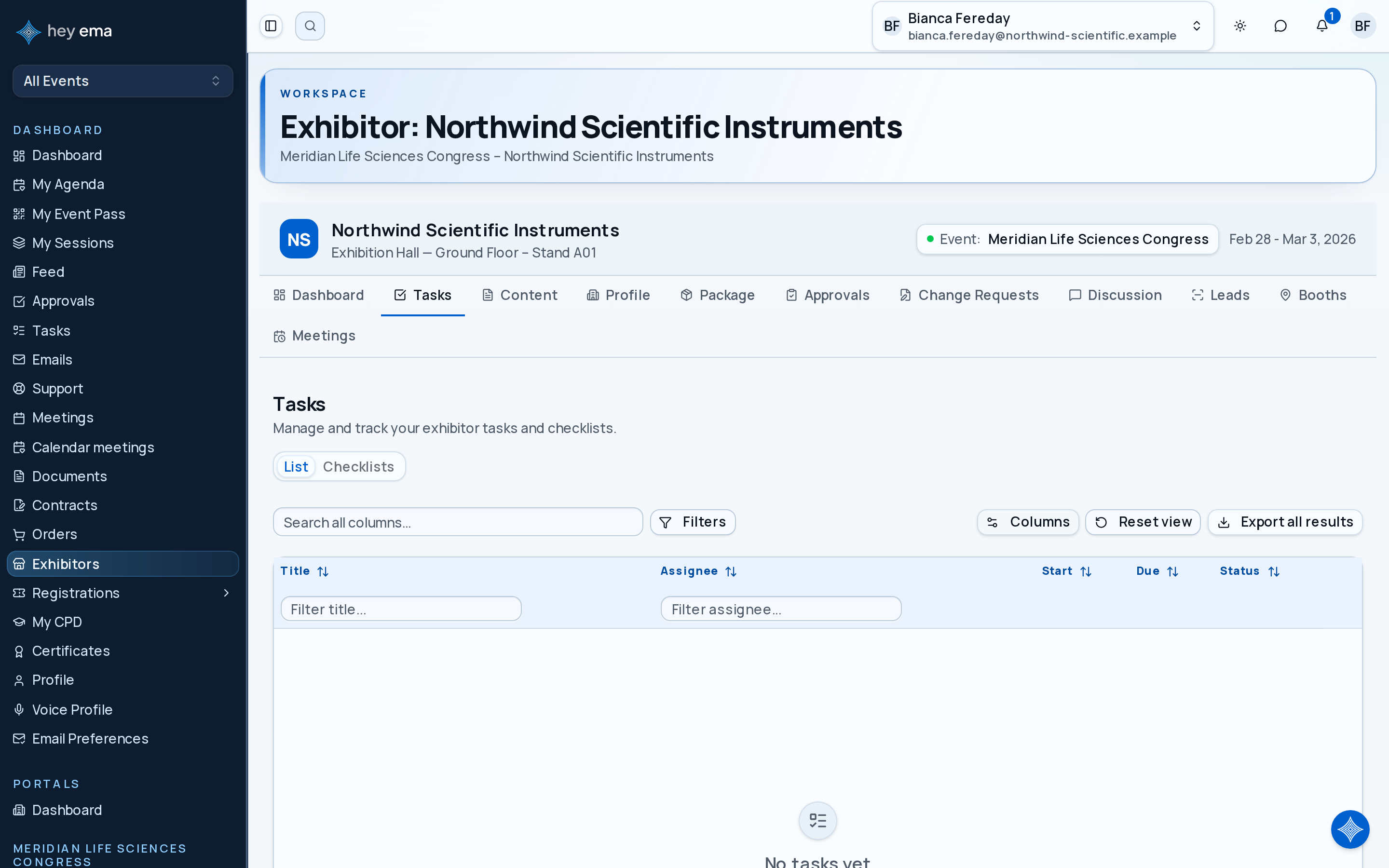
Open Tasks to see work assigned to your exhibitor, including deadlines, assignees, linked forms, and completion status. Use the List / Checklists toggle at the top of the tab to switch between the flat task list and checklist grouping — see Exhibitor Checklists for the Checklists view.
Viewing Tasks
The task list shows:
| Field | Description |
|---|---|
| Title | Task name. Subtasks are shown indented under their parent task. |
| Status | Your event's task statuses (for example Not Started, In Progress, or Done). |
| Assignee | The contact responsible for this task. |
| Start date | When the task becomes active, if set. |
| Due date | When the task should be completed. Past-due open tasks are marked Overdue. |
Click a task to open its details, including its full description, any linked form, and attachment history.
Completing a Task
Open a task and click Mark complete. What happens next depends on how the task is set up:
- Simple tasks — click Mark complete and you're done.
- File upload tasks — Mark complete stays disabled until you attach a document. Use Upload document in the task detail view, then mark it complete.
- Form submission tasks — there is no Mark complete button. The task closes automatically once you submit the linked form.
- Acknowledgement tasks — completing these may depend on content you need to review first. See Exhibitor Content for acknowledging knowledge base articles.
Once a task is marked complete, there is currently no way to reopen it from the portal. If you completed something by mistake, contact your event organizer.
Assigning Tasks
You can reassign an open task to another contact on your exhibitor:
- Open the task and use the Assignee field.
- Select a different contact from the dropdown.
- The assignment updates immediately.
Only contacts assigned to your exhibitor can be selected as assignees, and reassignment is only available while the task is still open.
Tasks can be created from checklists. If you are trying to understand why a task was assigned, check whether it belongs to an organiser checklist.
Form-Linked Tasks
Some tasks have an associated form. When a form link is available, use Fill out form on the task to open and complete the submission — submitting the form is what closes the task, not a separate completion step.