Exhibitor Portal
This feature requires the Exhibition module to be enabled.
The exhibitor portal is your self-service hub for everything related to your event participation. From here you can review your company profile and booth assignment, complete tasks, review package entitlements, manage your public showcase and booth team list, sign contracts, and track leads.
Accessing the Portal
Your event organizer will send you an invitation email with a link to the exhibitor portal. Click the link, create your account (or log in if you already have one), and you'll land on your exhibitor dashboard.
Invitation email > Exhibitor portal, or Me > Exhibitors
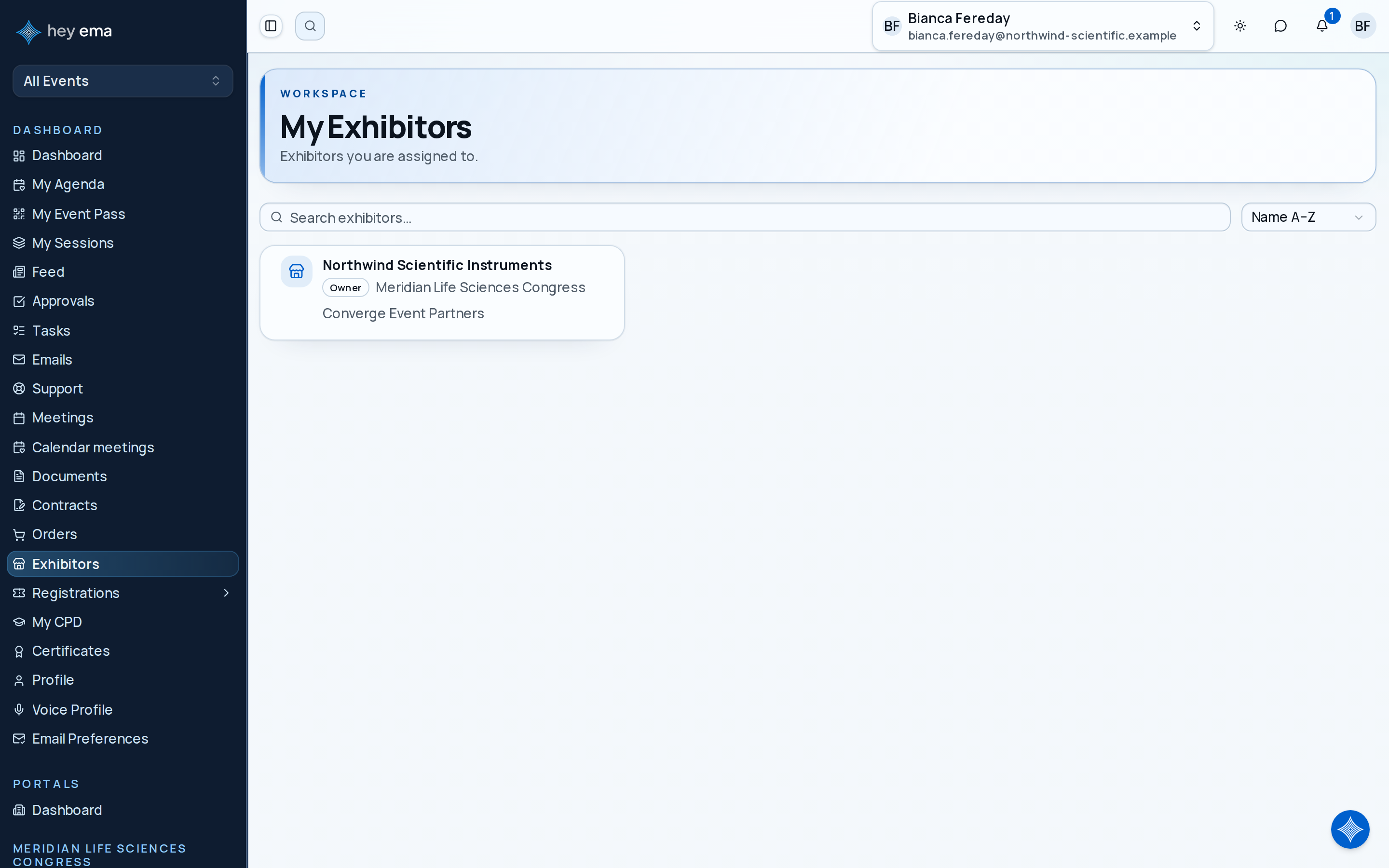
If you manage more than one exhibitor company or event, open Me > Exhibitors and choose the company you want to work on.
Your Dashboard
The dashboard gives you an at-a-glance view of your participation status:
- Overall completion — a single percentage combining your tasks, checklists, and content acknowledgements.
- Tasks and checklists — how many you've completed out of the total.
- Leads — the number of leads captured for your booth.
- QR code — a scannable code for your exhibitor record.
Your dashboard focuses on the work still ahead of you: outstanding tasks, checklist items, and content you still need to acknowledge.
Reviewing Your Profile and Booth
Open Profile in the sidebar and read the Company info section at the top to review your company details — name, description, industry, website, and address — and the contacts who have portal access. That section is read-only in the portal; your booth assignment lives on the Booths tab.
You can't edit your company name, logo, description, industry, website, or social links yourself from the portal. If any of these need to change, ask your event organizer to update them. See Exhibitor Info for exactly what appears in that section.
The parts of your public presence you can manage yourself are further down the same Profile tab: your Branding (see Exhibitor Branding), your Showcase items and Why Visit reasons (see Exhibitor Content), and your booth Team list (see Team Members).
If your company is launching a new product at the event, add a demo to your showcase and a reason to visit before the organiser publishes the exhibitor directory — and ask your organizer to refresh your company description and logo if they're out of date.
Your company profile fields and contact access are managed organizer-side. See Exhibitor Management.
Reviewing Entitlements, Add-ons, and Upgrades
Open Package. Its Entitlements section shows what your package includes and how much you have used. If the organiser has enabled self-service purchases, the Add-ons and Tier upgrade sections further down the same tab let you buy extra benefits or move to a higher package tier.
See Exhibitor Entitlements and Exhibitor Add-ons and Upgrades.
Supplying Sponsor Placement Artwork
Me > Exhibitors > [Your company] > Package > Sponsor placements
If your package includes sponsor placements, such as the app carousel, signage or the ePoster kiosk, the Sponsor placements section of Package lists each one with the artwork it needs. Placements that use your logo, such as Featured in directory or "Presented by" on a session, say "Included in your package. No artwork is needed."
For a placement that needs artwork:
- Read the size line under the placement, for example "2:1 artwork. Recommended 2160 × 1080 px, minimum 1440 × 720 px. JPEG, PNG or WebP up to 10 MB."
- Upload your image under Artwork. If it is the wrong shape or too small, you are told what the placement needs.
- Optionally add a Link URL: where attendees go when they tap your artwork. Without one, they go to your exhibitor page.
- Check the Preview, which shows the artwork approximately as it appears on a phone, an iPad in portrait, or a 16:9 kiosk, depending on where the placement runs.
- Choose Submit artwork.
If the organiser reviews artwork for that placement, your upload shows Pending review until they decide. A rejected upload shows the organiser's review note so you can upload a replacement; while you do, any artwork that is already approved stays live. An ePoster track sponsorship shows "Awaiting track assignment from the organiser" until the organiser chooses the session track you are sponsoring. Choose Withdraw to take artwork down; you can upload new artwork at any time.
Your artwork appears only while your package includes the placement and the artwork is approved, and it shares the space in rotation with other sponsors who hold the same placement.
Writing Sponsored Posts
If your package includes sponsored posts, Sponsored posts appears with your sponsor placements. Write the Post, add an optional image and link, and choose Publish post. The post appears in the attendee news feed labelled Sponsored, under your name, and attendees can comment and react as on any post.
The allowance line shows how many posts you have left. When all of them are live, delete one to free a slot, or ask the organiser for more. A post the organiser has hidden shows Hidden by the organiser.
Reading Your Sponsorship Results
Sponsorship results, further down Package, shows how your sponsor placements performed for the dates you choose: impressions, clicks and click-through rate for each placement, the same figures split by where they were shown (the attendee app, the event website, the kiosks and signage), daily charts, and Engaged attendees, the attendees who tapped your placements while their networking profile was public. The list shows at most the 1,000 most recently engaged attendees; a note appears when there are more, so narrow the dates to see the rest. Choose Download CSV to download the engaged attendees list.
Attendees who engage this way also appear in your lead list with the source Sponsor engagement, whether or not your package includes lead capture, and they do not use up your lead-capture allowance. Taps from attendees whose profile is not public, and everything on kiosks and signage, are counted but never named. See Exhibitor Leads.
How organisers sell placements, approve artwork and assign ePoster tracks.
Reviewing Quotes and Contracts
Quotes arrive by email from the organiser. Contracts where you are a signer open from the Contract card on your exhibitor dashboard: choose View contract to land on your My Contracts list at that contract. Review quote totals, attachments, contract fields, and expiry dates carefully before accepting or signing.
See Exhibitor Contracts and Quotes.
Viewing Your Booth Assignment
Open Booths to see your assigned stand and the other booths on the floor plan. Depending on event settings, you may be able to choose from eligible booths or submit a change request.
See Booths and Change Requests.
Confirm your booth location before making operational commitments such as freight delivery, furniture hire, electrical services, or printed signage.
Submitting Compliance Documents and Forms
Some events require exhibitors to submit insurance certificates, safety plans, or other compliance documents before move-in, and may publish forms for extra data such as electrical requirements, catering orders, or badge requests. These arrive as work on your Tasks tab (or in its Checklists view):
- Open Tasks and find the task for the document or form.
- For a document, open the task, use Upload document to attach your file, then click Mark complete.
- For a form, use Fill out form. Submitting the form closes the task.
Your organizer reviews submissions and marks them as approved or requests revisions. Check Approvals if a submission needs sign-off.
Document deadlines are enforced. Late submissions may affect your ability to participate. Check your dashboard and task due dates for upcoming deadlines.
See Exhibitor Tasks and Exhibitor Checklists for how tasks are completed.
Admin and Booth Staff Access
Each person on your exhibitor's team signs in with one of two access levels, set by an exhibitor admin or by your event organizer:
| Area | Admin | Booth staff |
|---|---|---|
| Team and portal access | Add and remove team members and manage their access | Edit their own team card only |
| Branding, Showcase, Why Visit, Resources | Edit | View |
| Leads | Review leads, export them, and manage lead questions | Review leads; export and lead questions are admin-only |
| Meetings | Change meeting settings | View settings and bookings |
Controls you are not allowed to use are hidden rather than shown disabled. If you cannot see something you expect, ask an exhibitor admin on your team. See Team Members.
Getting Help
If you have questions about your participation, use the AI assistant (available in the bottom-right corner) or contact your event organizer directly from the Discussion tab, which is your conversation with the event team.
If you are setting up for the first time, follow Getting Started as an Exhibitor.
Buying a package, a booth or an add-on happens in the exhibitor checkout. See Buying a Stand.
Journey pages need an operator sign-in to open.