Live Polls
Before creating live polls, make sure you have a talk assigned to you — polls are created per talk in the speaker portal, and only speakers on the talk can manage them.
Live polls let you ask your audience questions during your talk and see their responses in real time. They are a simple way to break the ice, check understanding, gather opinions, or just make your session more interactive.
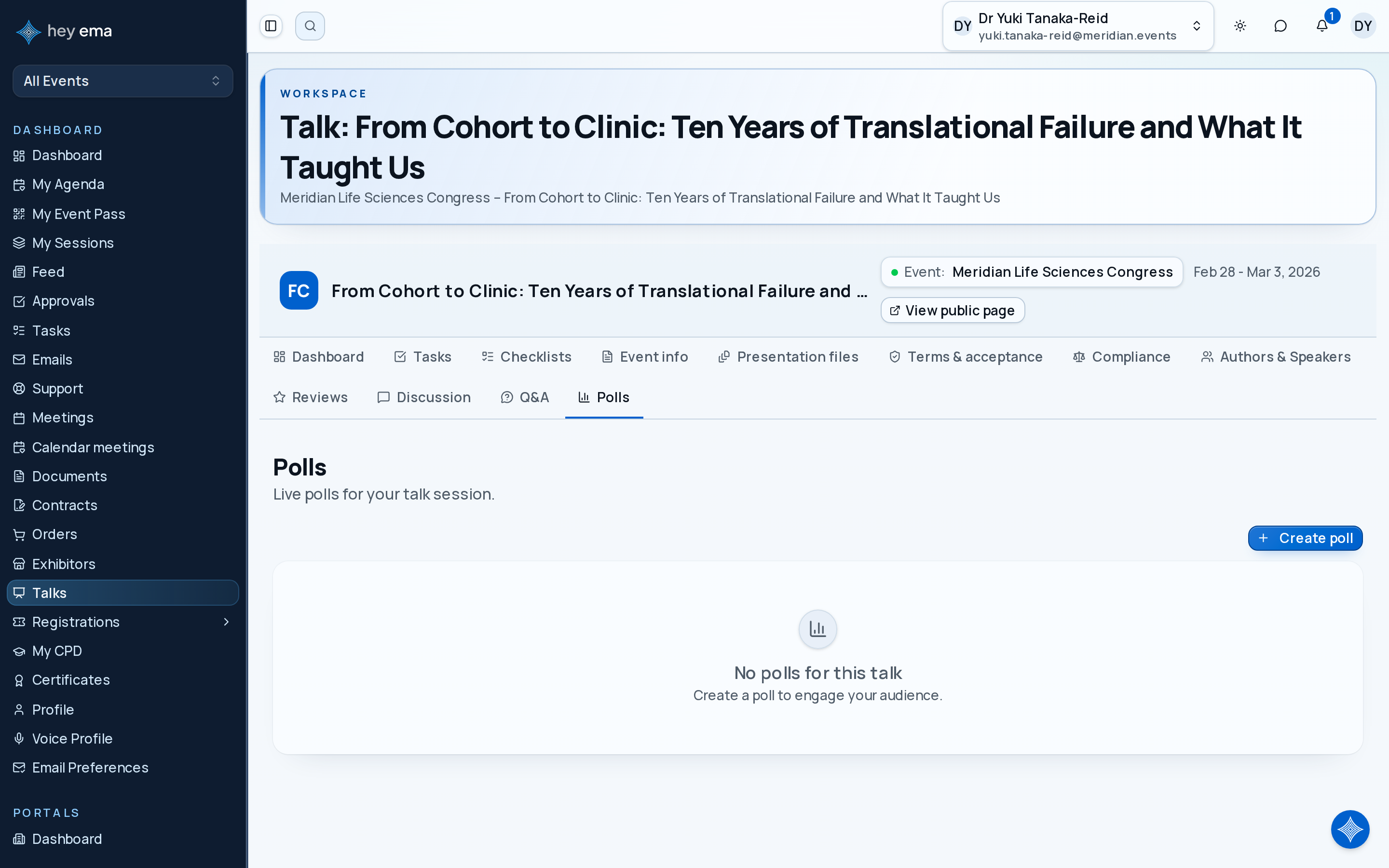
Me > Talks > Open a talk > Polls
Use the Polls tab on your talk to prepare, activate, pause, close, and review poll results.
Poll types
ema supports seven poll types:
| Type | What it does | Example |
|---|---|---|
| Multiple choice | Audience picks one of the options you define, or several if you allow multiple selections. | "Which topic should we cover next?" |
| Yes / No | A simple two-option vote. | "Have you used this feature before?" |
| Rating scale | Audience rates something on a numeric scale. | "How useful was this session?" |
| Word cloud | Audience types a word or short phrase; popular answers appear larger. | "Describe this conference in one word." |
| Open text | Audience submits free-text responses. | "What question do you want answered?" |
| Ranking | Audience ranks the items you define in order of preference. | "Rank these priorities from most to least important." |
| Numeric input | Audience enters a number. | "How many years of experience do you have?" |
Creating a poll
Use yes/no or multiple choice when you need a quick audience pulse. Use word cloud or open text when you want ideas in the audience's own words. Use rating scale, ranking, or numeric input when you need a measurable result.
- Navigate to your talk in the Speaker portal.
- Open the Polls tab.
- Click Create poll.
- Fill in the details:
| Field | Description |
|---|---|
| Title | The question or prompt shown to your audience (required). |
| Description | Optional extra context or instructions. |
| Poll type | One of the seven poll types listed above. The type cannot be changed after the poll is saved. |
| Options | For multiple choice and ranking polls, add at least two answer options. Option images can be added after the poll is saved. |
| Results visibility | Control when the audience sees results: Always, After voting, After closing, or Never. |
- Fill in any settings for the poll type (see below).
- Save the poll. It starts in Draft so you can prepare it ahead of time and activate it during your session.
Settings for each poll type
Some poll types have extra settings, which appear after you choose the type. Ratings, selection limits and the number of items to rank must be whole numbers:
| Poll type | Setting | What it does |
|---|---|---|
| Multiple choice | Allow multiple selections | Lets the audience tick more than one option. When it's on, Max selections (optional) limits how many options each person can choose. The limit can't be more than the number of options. Leave it empty for no limit. |
| Rating scale | Min rating and Max rating | The lowest and highest score the audience can give. The maximum must be higher than the minimum. The default scale is 1 to 5. |
| Numeric input | Min value and Max value | Optional limits on the number the audience can enter. The maximum can't be lower than the minimum. Leave a field empty for no limit. |
| Ranking | Number of items to rank (optional) | Asks the audience to rank only their top choices, for example their top 3 of 8 options. It must be at least 2 and can't be more than the number of options. Leave it empty to have every option ranked. |
Yes / No, open text and word cloud polls have no extra settings. If a setting doesn't fit, the form shows the problem next to that setting and the poll isn't saved. You can change these settings while the poll is still in draft.
Managing poll options
While a poll is still in draft, open its actions menu and choose Edit to change the title, description, results visibility, settings, or options — including adding an image to an option. If you lower Max selections or Number of items to rank, you can then remove options down to the new number; to raise it, add the options in the same edit.
Once a poll has been activated, editing is no longer available, because changing the question or options mid-vote would make results harder to interpret. If the poll question is wrong, close it and create a corrected poll instead.
Activation is the point of no return for editing — an active, paused, or closed poll can no longer be edited. Get the wording and options right in draft, or close the poll and create a corrected one.
Running polls during your talk
Each poll goes through a lifecycle: Draft → Active → Paused (optional) → Closed.
Activating a poll
- Open the Polls tab during your talk.
- Find the poll you want to run, open its actions menu, and choose Activate.
- The poll is pushed live to your audience. Attendees see the question on their device and can start voting immediately.
Pausing a poll
If you want to temporarily stop accepting responses — for example, to discuss interim results before collecting more — open the actions menu and choose Pause. The poll stays visible to the audience but voting is suspended. Choose Resume to start it again.
Closing a poll
When you are done collecting responses, choose Close. The poll stops accepting votes permanently. If you set results visibility to After closing, the audience sees the results at this point.
Viewing results
Open a poll's actions menu and choose View results to see how voting is going. The results view shows the total response count and, for polls with answer options, a percentage bar per option. For a ranking poll it lists the options by their average position instead, best first. Open it again any time to see the latest numbers.
Audience Q&A
The Q&A tab on your talk is where questions submitted by attendees arrive during your session.
Me > Talks > Open a talk > Q&A
Use the Q&A tab to review incoming audience questions, moderate them, and respond.
- Open the Q&A tab during your talk (or before, to prepare).
- Review each incoming question. Approve questions you want to take, and reject anything off-topic or inappropriate — rejected questions are not shown further.
- Respond to a question in writing, or work it into your answers live on stage.
Depending on the event's settings, attendee questions can be visible to the audience as soon as they are submitted. Keep an eye on the Q&A tab during your session so anything unsuitable is rejected quickly.
Editing and deleting polls
- To edit a poll's title, description, results visibility, settings, or options, open its actions menu and choose Edit — available while the poll is in draft.
- To delete a poll, open its actions menu and choose Delete. This permanently removes the poll and its responses.
Poll responses can earn attendees gamification points, encouraging participation. See Gamification.
Combine polls with live Q&A for maximum audience engagement during your session. See Q&A Moderation.
Tips
- Prepare your polls before your talk starts. Create all your polls in draft state ahead of time so you can activate them with a single click during your session.
- Open with an icebreaker poll. A quick yes/no or word cloud question at the start gets the audience engaged from the first minute and sets the tone for an interactive session.
- Keep multiple choice options to 4 or 5. More than that and the audience spends too long reading instead of voting.
- Use "After they vote" for show results if you want to encourage participation — people are more likely to vote when they can immediately see how others responded.
- Close your polls before moving on. An open poll that you forgot about can be confusing for attendees who join late or scroll back.
Journey pages need an operator sign-in to open.
Sessions run, are recorded or streamed, and attendance is captured.
- Step 6 of 8Speaker runs polls and takes questions from the stageSpeaker