Talk Authors
The Authors & Speakers page lets you view and manage everyone credited on your talk, and mark who is actually presenting.
Me > Talks > Open a talk > Authors & Speakers
Use the Authors & Speakers tab when the people credited on the talk need to be reviewed or updated.
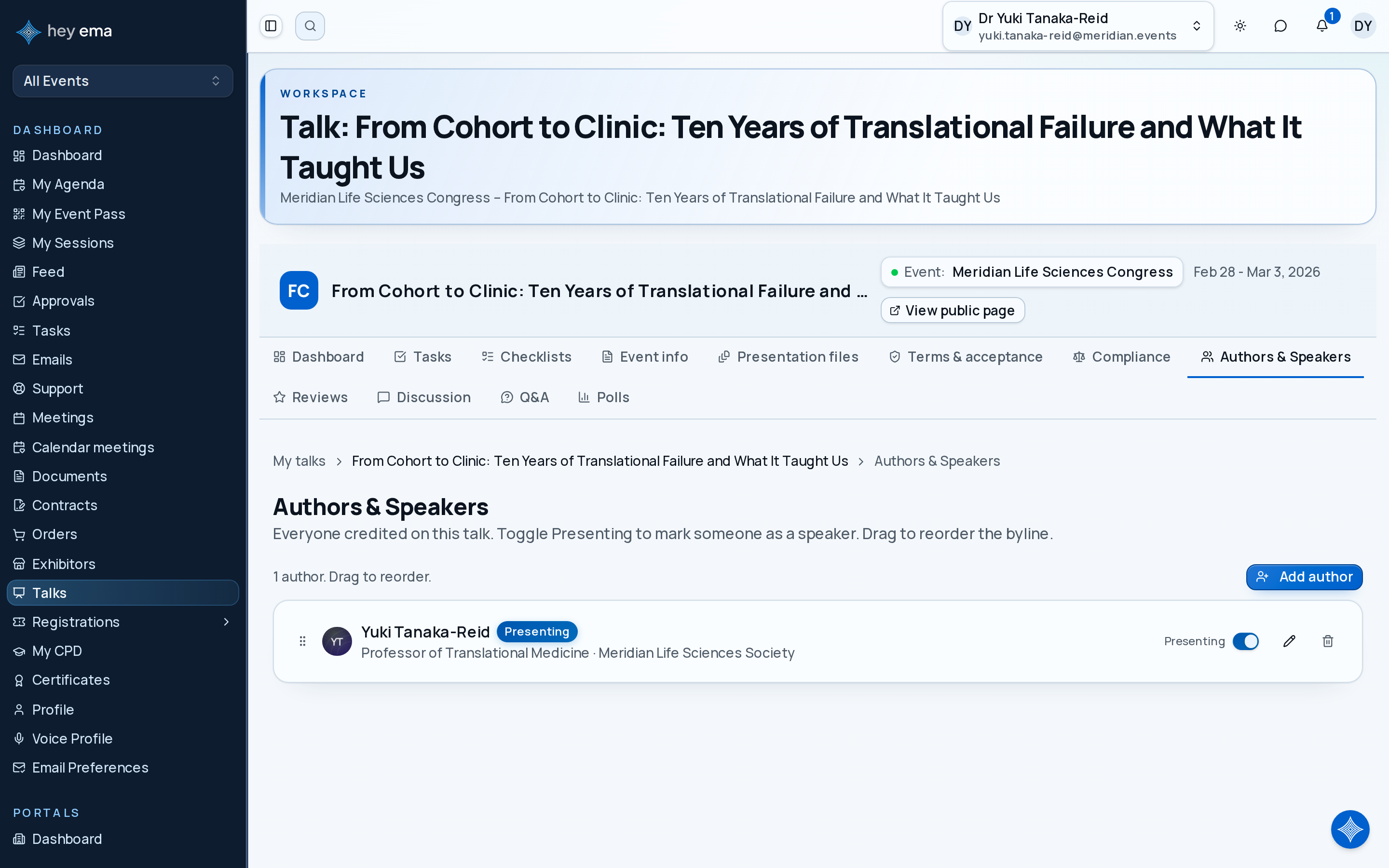
A primary speaker adds a colleague as a co-author and turns on Presenting for them, so the event team lists both presenters in the programme and knows to contact both about session preparation.
Authors vs. Presenting
Everyone credited on the talk is an "author" — the byline. Separately, each author can be marked Presenting, meaning they'll actually deliver the talk. Non-presenting authors (for example a supervising researcher who isn't attending) stay on the byline without a speaker profile.
Toggling Presenting on for someone creates a per-event speaker profile for them (photo, bio, socials) the first time it's turned on; toggling it off doesn't delete that profile, so it can be reused if you turn it back on later.
Author List
Navigate to your talk and select the Authors & Speakers tab. Each author entry shows:
| Field | Description |
|---|---|
| Name and photo | From their speaker profile or user account if they have one, otherwise their email. |
| Presenting / Author badge | Whether they're marked as presenting this talk. |
| Role badge | Their assignment role (e.g., Lead Author, Co-author), if the event has configured roles — set by an administrator, not editable here. |
| Account status | Whether they've been invited to ema and linked their account (Not invited, Invited, Claimed, Linked, or Blocked), shown as a badge. |
Drag an author by the handle to reorder the byline. The order you set here is the order authors appear everywhere — the public programme, exports, and email templates.
Adding a Co-Author
- Click Add author.
- Enter the co-author's email address (required). As you type, ema may suggest existing people already associated with this event to avoid duplicates — select a suggestion to prefill their details.
- Optionally fill in their first name, last name, title, job title, organisation, and country.
- Turn on Presenting if they will actually deliver the talk.
- Click Add author.
Adding a co-author here does not send them an invitation — the project administrator controls invitation workflows separately.
Editing or Removing an Author
Click the pencil icon to edit an author's details or toggle Presenting. Click the trash icon to remove them from the talk.
Whoever originally submitted the talk can't be removed from the author list — you'll need an administrator to reassign it if that changes. Every other author can be added, edited, or removed freely.
Each author with an ema account should keep their profile current so bios and photos look right in the programme. See My Profile.
Journey pages need an operator sign-in to open.
- Open the call for papersDelivery
Authors can find the call while it is open, submit a complete abstract with the right co-authors, and change or withdraw it only while the rules allow.
- Step 10 of 14Author adds co-authors and says who presentsSpeaker