Talk Documents
The documents page lets you upload and manage files associated with your talk, such as presentation slides, papers, or a video recording.
Me > Talks > Open a talk > Presentation files
Use the Presentation files tab to upload required files for the selected talk.
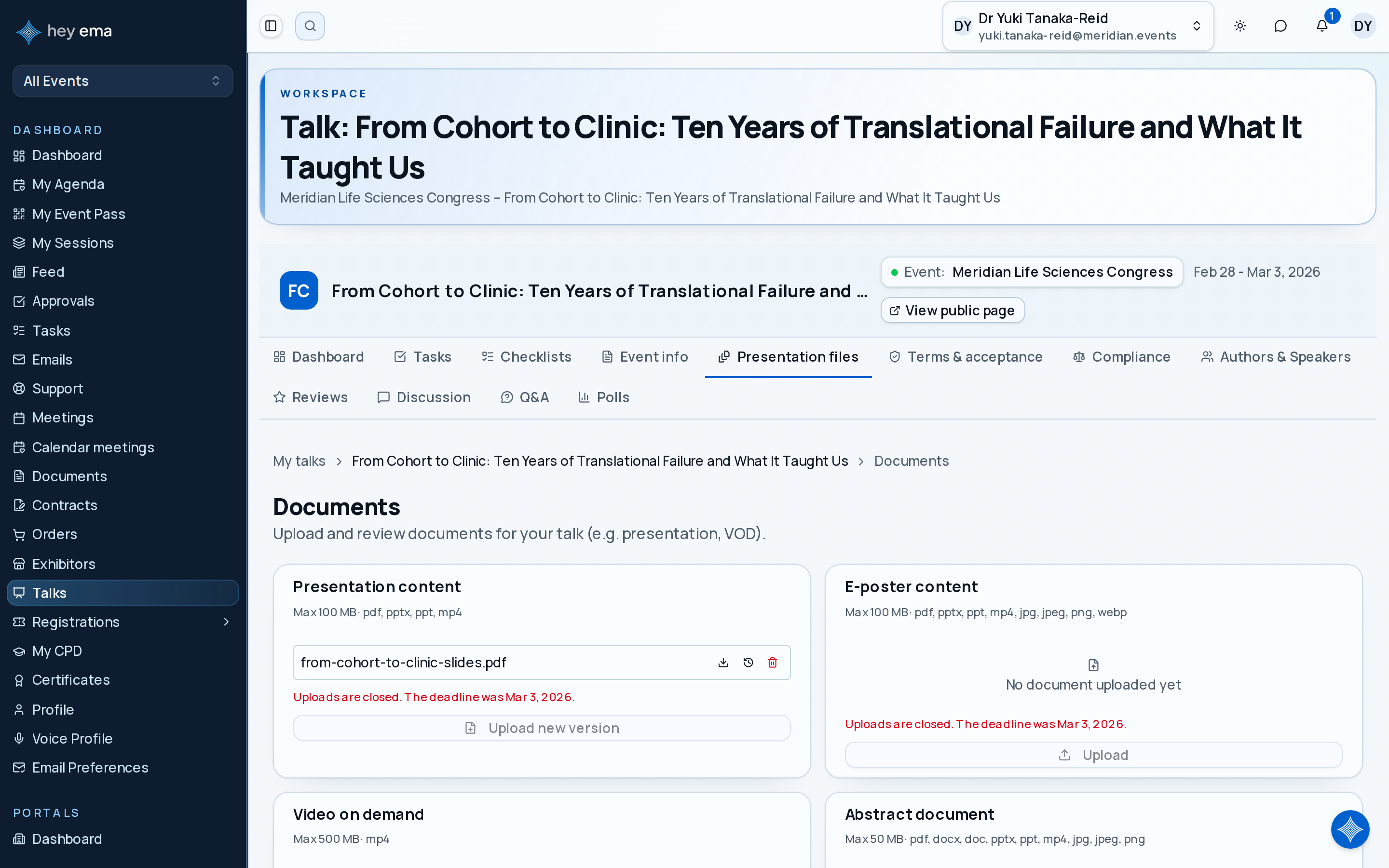
A speaker uploads draft slides two weeks before the event, then uploads a new version after rehearsal. The event team can still see every previous version if they need to compare changes.
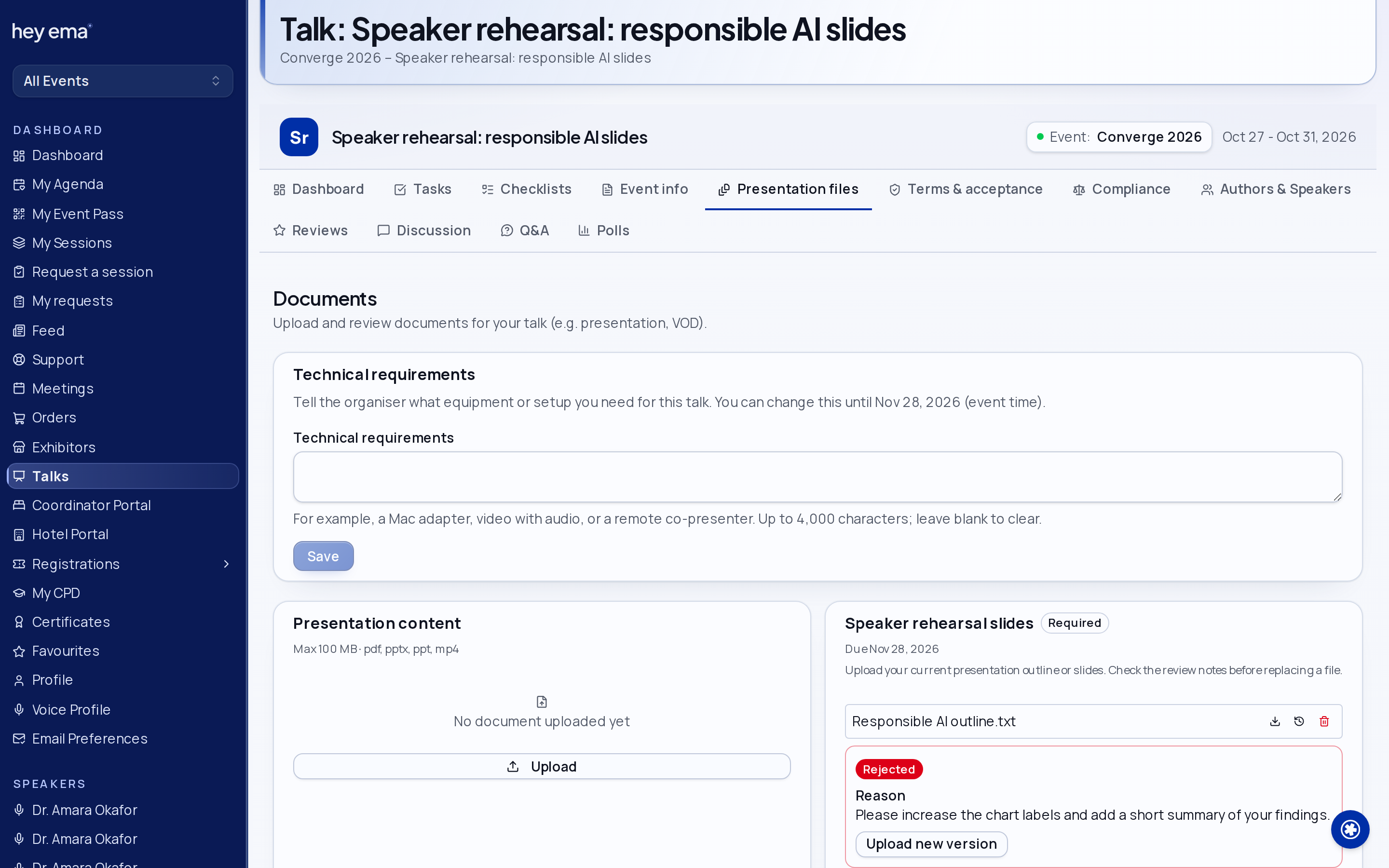
Technical Requirements
Use Technical requirements on the Presentation files tab to tell the organiser what equipment or setup you need, such as two microphones or a lectern monitor. This card is available even when the organiser has not requested any document types.
Enter up to 4,000 characters and choose Save. Line breaks are preserved. To clear the requirements, remove the text and save the empty field. Your requirements are shared with the event team; they are not shown on the public programme or in the event app.
The card shows the editing deadline in the event’s time zone. Editing closes at the end of that calendar day. The deadline uses the latest deadline among enabled document types; a type without its own deadline uses the event end date. If there are no enabled types, the event end date applies. If no deadline is set, there is no date cutoff. The document upload opening date does not delay editing these requirements.
A locked talk or a read-only card requires the organiser’s help. If the talk locks or the deadline passes while you save, the failed save keeps your draft on screen; it has not been saved. Contact the organiser about the change.
You can also read the requirements for a session assigned to you, or a session containing your participating talk, on its Me session detail page. Session requirements are read-only here; ask the organiser to change them.
Check Your Requirements
After a successful save, reopen the Presentation files tab and check that the saved text is correct. If an error remains in the card, your draft is still unsaved.
Content Types
Each project defines talk content types that specify what files speakers should upload — for example presentation slides, a full paper, or a poster image. Each content type has its own:
| Constraint | Description |
|---|---|
| Allowed extensions | File types accepted (e.g., .pdf, .pptx, .mp4). |
| Max file size | Maximum upload size in MB. |
| Instructions | Guidance text from the organizer, shown above the upload button. |
Each card also tells you where you stand:
- A Required badge means the talk is not complete until this content type has a file.
- A Due date shows when uploads close for that content type.
- If the upload window has closed, or has not opened yet, the card says so and the upload button is unavailable.
If you upload through an emailed upload link, a link can cover several content types. The page then shows one upload card per content type, each with its own instructions, size limit and file types, and each uploads independently.
Poster preview frames: for PDF and video uploads, ema generates a preview thumbnail automatically in the background after the upload completes. There is no upload control for it — the thumbnail may take a short while to appear on the document card.
Uploading a Document
- Navigate to your talk and select the Presentation files tab.
- Find the content type you need to fill (each shows as its own card) and click Upload.
- Choose your file (it must match the allowed extensions and size limit shown on the card).
- Wait for the upload to finish — a progress bar shows the current step.
Once a content type already has a file, the button changes to Upload new version — uploading again replaces the current file rather than adding a second one.
- Confirm the file matches the organiser's requested content type.
- Check the file opens correctly and is not password protected unless requested.
- Use a clear filename that includes your talk title or speaker name.
Replacing a Document
To update an existing document with a new version, click Upload new version on that content type's card and choose the new file. The previous version is preserved in version history.
Previewing Your Slides
When you upload a PowerPoint file (.pptx) to a slides content type, ema builds a playable copy of it and shows it in the Preview your slides card on the Presentation files tab. This is the deck as attendees will see it, so you can check it before the event.
- Building your preview — shown straight after an upload while ema prepares the deck. This can take a few minutes; the card updates on its own.
- Ready — the deck plays in the card. Use Presenter view to read your speaker notes alongside the slides, and Audience view to switch back. Speaker notes appear only in your own preview, never to attendees.
- Could not be built — the file could not be converted. Check it opens in PowerPoint, then use Replace file to upload it again.
While the card shows This preview is not visible on public pages yet, only you and the event team can see the deck. It appears on the public talk page once your talk is published and your slides' visibility and review allow it — nothing extra is needed from you.
Once public, attendees step through your slides on the talk page. They cannot download the PowerPoint file and never see your speaker notes. A PDF or video you upload is offered as a download instead.
If you uploaded through the emailed upload link rather than the speaker portal, the upload page shows the same build status — building, ready, or could not be built. The preview itself is only in your speaker portal, so sign in there to view it.
Upload Confirmations and Rejected Files
When upload receipt emails are enabled for your event, successful uploads from your portal, emailed upload link or talk content-upload form can send a confirmation. Files uploaded for the same talk by the same person are grouped into a fixed ten-minute window starting with the first upload; later uploads do not restart it. The receipt may arrive after that window closes. It confirms that ema received the listed files and versions, not that an organiser has approved them.
An organiser uploading for you chooses whether to email a receipt. Co-presenters receive copies only when the organiser has enabled that setting. Files collected on-site do not send upload receipts.
If an organiser rejects your current file, the Presentation files tab shows Rejected and any notes explaining what needs changing. When rejection emails are enabled, you can also receive those notes by email. Follow the replacement link when one is available, or contact the organiser if the email asks you to.
On mobile, tap the upload receipt or correction notice to open Presentation files in your event portal. The notice identifies the talk; correction notes and the replacement action are on that page.
Read the notes, correct the file, then use Upload new version for the same content type. Keep the existing slot rather than uploading the replacement under a different content type.
A new version returns to Uploaded for review. Earlier versions remain in the history. If uploads have closed or the talk is locked, contact the organiser to arrange the correction.
Check Your Replacement
Reopen Presentation files after the upload finishes. Check that the version number has advanced and the old rejection notice has cleared. The new file still needs review; a receipt email is not an approval.
Version History
Each document maintains a version history. Click the history icon on a document to:
- View all previous versions with timestamps.
- Download any version.
Downloading or Removing a Document
Use the download icon to open the current file, or the delete icon to unlink the document from your talk. Removing a document does not delete it from the project's document library — it only unlinks it from this content type, and you can upload again later.
If you are correcting a file, upload a new version so the event team can see the current file plus history. Delete only when the content type should no longer have a file attached.
Choose In person, Pre-recorded or Virtual for your own participation on the Authors tab. That declaration is separate from uploading files or choosing your own laptop here.
Presenting a Different Way
If you won't upload a file for a content type — for example a talk that only needs live presentation, not slides — the Presentation files tab also offers a Presenting a different way? section where you can indicate:
- I'll present from my own laptop — you'll connect your own device in the room instead of uploading anything.
- Link to a hosted URL — point to slides or a deck hosted elsewhere instead of uploading a file.
Uploading a file always takes precedence over these settings, and choosing one clears the other.
Published slides play on the public talk page. See Public Schedule.
Files you upload for talks also appear in your cross-project document list. See My Documents.
At venues with a prep station you can also hand over your slides, or choose to present from your own laptop, on the day. See The Speaker Prep Station.
Journey pages need an operator sign-in to open.