Talk Reviews
The reviews page shows feedback from the review process for your talk. How much detail you can see is controlled by the project's result visibility setting.
Me > Talks > Open a talk > Reviews
Use the Reviews tab to check review round progress and any feedback the event team has made visible.
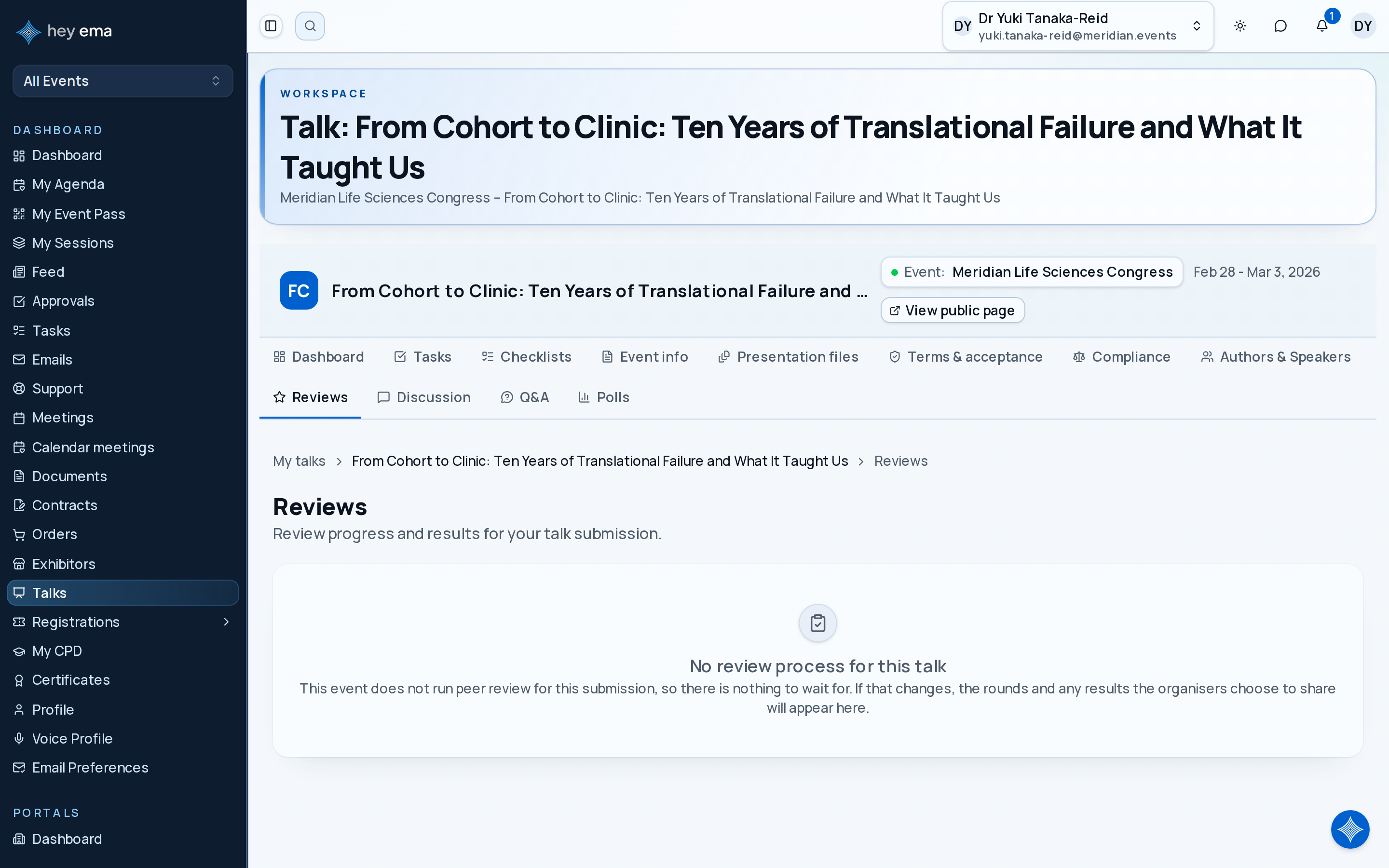
A speaker sees that two reviewers submitted feedback. The event shows full comments, so the speaker uses the visible feedback to improve the abstract before the next round.
Review Status
Navigate to your talk and select the Reviews tab. For each review round, you can see:
| Field | Description |
|---|---|
| Round name | The review round (e.g., "Round 1", "Final Review"). |
| Reviewers submitted | How many of the assigned reviewers have completed their review, out of the total assigned. |
| Average rating | The mean overall rating across submitted reviews, if the event shares scores. |
Result Visibility
The event's result visibility setting controls what you can see, and has three levels:
| Setting | What you see |
|---|---|
| Hidden | Nothing yet — ema shows a message that reviews are in progress. |
| Scores only | Round progress and the average rating, but not individual written comments. |
| Full | Round progress, average rating, and each reviewer's public comments (identified only as "Reviewer 1", "Reviewer 2", etc. — never by name). |
This setting is configured by the program committee and cannot be changed from the speaker portal.
Reviewers may leave scores, public comments intended for you, and private comments visible only to the committee. Only public comments ever reach this page, and only when result visibility is set to Full.
Discussion with Reviewers
Unless results are fully hidden, the Reviews tab also includes a message thread where you can raise questions or comments related to the review process, and the event team (or reviewers, depending on their settings) can reply. A thread can be marked resolved; adding a new comment reopens it.
Reviewers complete the assignments that produce the feedback shown here. See Review Assignments.
Journey pages need an operator sign-in to open.
Every submission is scored by eligible reviewers under the blinding the committee chose, and every author receives a decision — and only the feedback they were meant to see.
- Step 16 of 18Author reads the decision and whatever review feedback the result visibility allowsSpeaker