Submitting a Talk
This feature requires the Programme & Submissions module to be enabled.
Submissions must also be open for the event — the organizer controls the submission window.
Submit a talk or abstract for consideration in the event programme. Your submission enters a review pipeline managed by the event organizer, and you can track its progress from your Me Portal.
Public event page > Submit a talk
Use the submission link shared by the organizer or the event page's submission action when submissions are open.
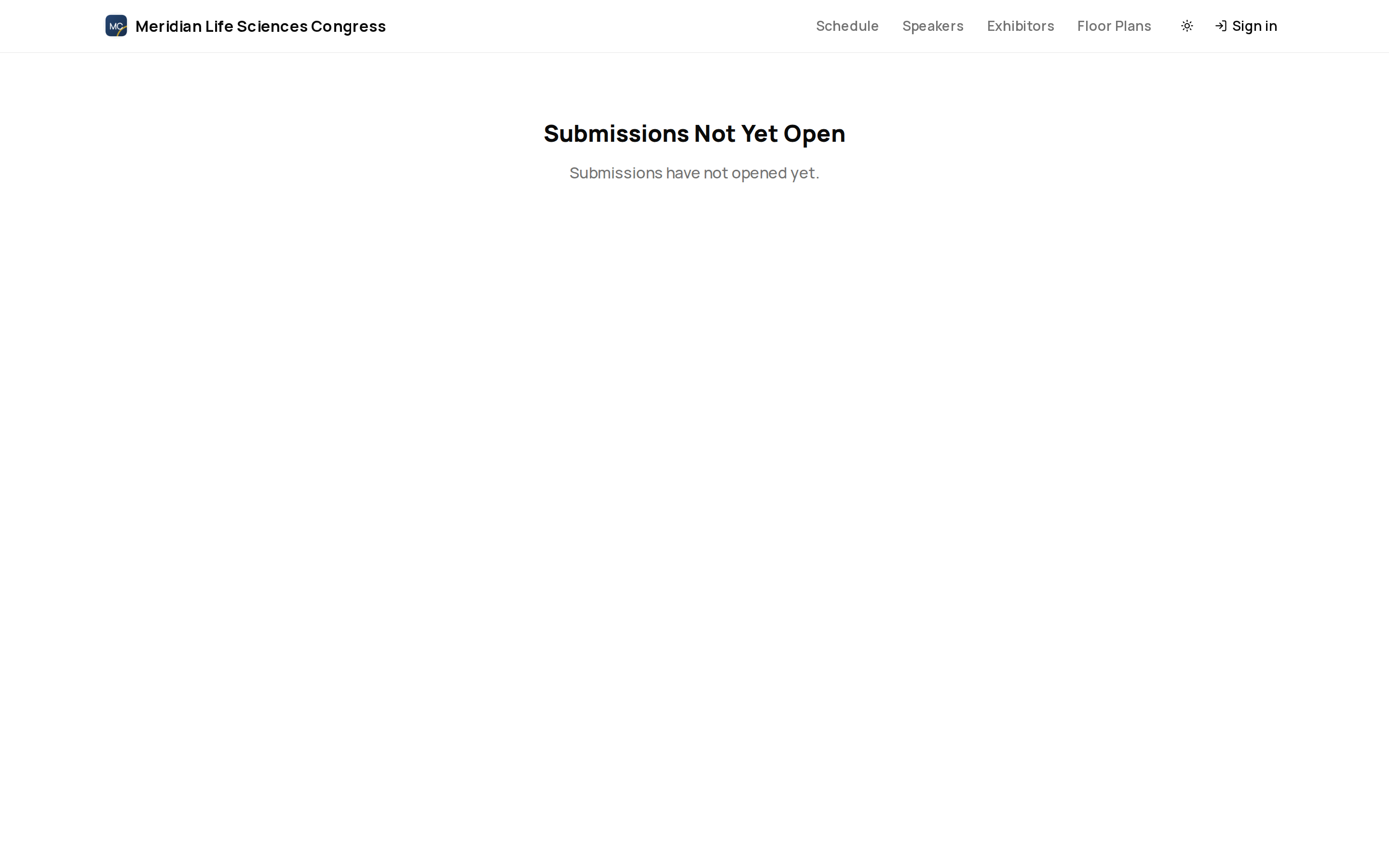
Before starting your submission, check whether the event is currently accepting talks.
Visit the event's public submission page to check whether submissions are available:
- Open — submissions are being accepted. You can submit immediately.
- Closed — ema shows a closed message. If the organizer allows late submissions, the form remains available after the close date.
The submission link follows this pattern:
yourorg.heyema.com/your-event/submit
You can also find the submission link on the event's public page when submissions are open.
Choosing a Track
Many events organize their programme into tracks — groupings by topic, audience, or format. Examples include Technical, Business, Research, or Industry tracks.
If the event has multiple tracks, you select which track to submit to before filling out the form. Each track may have its own submission form with different questions tailored to that track's focus area.
Choose the track that best fits your topic. If you are unsure which track is appropriate, review the track descriptions on the submission page or contact the organizer.
Choose the track where reviewers and attendees will expect your topic. If your proposal crosses multiple themes, pick the closest primary audience and mention the overlap in your abstract.
The Submission Form
The submission form is configured by the event organizer, so the fields vary between events. Every form is tailored to the information the organizer needs to evaluate your proposal.
Common Fields
Most submission forms include some combination of the following:
- Title — a concise, descriptive title for your talk.
- Abstract — a short summary of what you will cover, typically displayed in the public programme if accepted.
- Description — a detailed overview of your talk's content, objectives, and what attendees will take away. Reviewers rely heavily on this field.
- Track — the subject area or programme track your talk fits into (if not already selected).
- Format — the presentation type: keynote, breakout session, workshop, panel discussion, lightning talk, or other formats defined by the organizer.
- Topics — choose from the organizer's subject labels when topic selection is offered. These managed choices are separate from any free-form tags on the form.
Required fields are marked with an asterisk. You must complete all required fields before submitting.
Choose Topics
When topics are offered, choose from the list rather than entering a new label. The choices include active topics for your first track's group and topics available across groups. Labels follow your language where a translation is available.
The organizer can make topic selection optional or required and sets the maximum number you can choose. A draft can be saved before you complete a required selection; choose at least one topic before final submission when it is required. If you edit an existing talk, earlier selections remain identifiable even when the organizer has archived a label. An archived label cannot be newly added.
Speaker Details
Provide your speaker information as part of the submission:
- Name — your full name as you want it displayed in the programme.
- Affiliation — your company, organization, or institution.
- Bio — a short biography for use in event materials and the programme listing.
- Photo — a headshot image. Follow any size or format guidelines noted on the form.
Co-Authors and Additional Speakers
If your talk has multiple presenters, use Add Author to add a row for each additional author. Every row asks for a first name, last name, and email, and — depending on how the organizer configured the form — title, job title, organisation, country, phone, and an assignment role. Each author has their own Presenting toggle: turn it off for someone credited on the talk who won't actually deliver it.
Multi-Page Forms
Some submission forms span multiple pages. Step through each page using the navigation buttons at the bottom of the form. You can move back and forth between pages to review and edit your answers before submitting.
Saving Progress
Once you're signed in, your progress is saved as you fill out the form. You can close the browser and return later to pick up where you left off.
Signing In
You must sign in before ema shows you the submission form.
Enter your email address and ema sends a 6-digit verification code to your inbox. Enter the code on the page to sign in — no password is needed. If you don't already have an account, one is created automatically the first time you verify a code.
Check your spam or junk folder if the code doesn't arrive within a minute.
Submitting Your Talk
When your form is complete, click Submit. The confirmation page tells you whether your talk has been saved as a draft or sent to the programme committee.
Check your title, abstract, speaker details, and co-speakers before clicking Submit.
Confirmation
The confirmation page shows your talk title and selected track, then explains what you need to do next:
| Heading | What it means |
|---|---|
| Submission received | Your talk is with the programme committee. |
| Submission saved | This heading alone does not confirm review. If the message says one step remains, use Submit for review in your speaker portal. |
| Decision recorded | A decision has already been recorded. Open your talk in the speaker portal to see the outcome and next steps. |
If ema cannot check the current state, the page says so. Use Open in my speaker portal to check your talk rather than assuming it has entered review.
When your talk has a Submission ID, such as #23, the confirmation page shows it after loading the talk you have access to. Reopening the confirmation keeps the same ID. This identifies your submission; a code used in the published programme can be different. If your talk has no assigned Submission ID, no ID is shown.
Last saved or Last updated shows the talk's last recorded change, not the time you opened the confirmation page. These details appear after ema retrieves your talk; if it cannot retrieve the talk, no Submission ID is shown.
Use Open in my speaker portal to continue working on the same talk. To start another submission for the event, choose Submit another talk.
The submission confirmation email includes the saved Submission ID, current title and abstract, presentation format, track, author details and submission time in the event's timezone. The event organizer can customise its wording. If they resend it after correcting your submission, the email uses the current details and keeps the same Submission ID. Receiving a confirmation does not itself mean the talk has been accepted.
Check your work
- Read the confirmation's current state; saving a draft does not send it for review.
- If a Submission ID is shown, keep it with your correspondence about this talk.
- Open your speaker portal when another action is required or the confirmation cannot check your current state.
Tracking Your Submission
After submitting, sign in to the Me Portal and go to My Talks to:
- View your submission's status — the default set is Draft, Submitted, Under Review, Accepted, or Rejected, though the organizer can rename these or add their own.
- See reviewer feedback, if and when the organizer chooses to share it. See Talk Reviews.
- View details of every talk you're credited on, across events.
Additional Programme Details in Your Portal
After opening your talk, the dashboard's Details card shows custom fields the organizer has exposed to you. Edit the available answers and choose Save custom fields; fields marked read-only cannot be changed. The talk's edit lock also applies to these answers. Your linked speaker profile has its own details, while assigned session details are read-only.
These portal details are separate from questions on the original submission form. Saving them does not submit the talk for review or change its status. See Additional Programme Details for supported choices, file references, event-local dates and save recovery.
The Review Process
Reviewers evaluate submissions against criteria set by the event organizer. The review process, its timeline, and how (or whether) you're notified of a decision are entirely up to the organizer.
Talk decisions generate an in-app notification and an email to assigned authors and speakers, subject to notification delivery settings. You can edit a talk's title, abstract, and description with Edit submission on the talk dashboard, or from Me > Speakers > [event] > Talks, while the talk status allows edits and the submission window is open. The dashboard also provides Submit for review and Withdraw submission actions when the event's submission rules allow them, and shows the committee's decision once one is recorded. See Talk Dashboard.
If your talk is accepted, see Talk Acceptance for the consent terms you may be asked to review, and Talk Documents for uploading your presentation materials.
Uploading Your Presentation
After your talk is accepted, the organizer may send you a separate link to upload your presentation materials (slides, video, or supporting files).
If you are already signed in and have access to the talk portal, ema sends you to the talk documents area instead of the public upload page.
The public upload page shows your session details so you can confirm the information is correct:
- Session date and time.
- Room or stage assignment.
- Co-speakers listed alongside you.
- The current file, when one has already been uploaded.
Some organizers configure a custom content-capture form instead of the plain upload page — with extra questions, multiple pages, or additional consent items beyond the standard three. The same emailed link takes you there automatically; everything below still applies, there are just more fields to fill in first.
Extra Questions on a Content Form
If the organizer has mapped extra questions to your talk or presenter profile, a successful submission updates those answers together. Presenter answers belong to the profile linked to this talk and this content link, not another co-author’s profile.
Clearing an optional mapped answer clears that saved value. Questions hidden by the form’s rules, or left unanswered, do not overwrite a saved answer. Submitting the same value again does not create another field-history change.
Your link must still be valid, and the talk must still allow edits. If a validation or access message refuses the save, none of the mapped talk or presenter answers from that submission are saved. Correct the answers or contact the organizer as the message directs; if asked to try again, resubmit after the other change has finished.
Consent and Terms
Before uploading, you may need to save your name and email. The public upload link does not require login.
You may also need to check consent boxes covering privacy terms, publishing consent, and data aggregation — the same three terms covered in Talk Acceptance — plus a separate recording release if the session will be recorded. Each checkbox saves as you check it.
Review each one carefully before proceeding.
Uploading Files
Select your file and upload it. A progress bar shows the upload status. Supported file types and size limits are displayed on the upload page.
After a PowerPoint upload, the page shows whether your slide preview is still building, ready, or could not be built. To view the preview itself, sign in to your speaker portal — see Previewing Your Slides.
If you need to update your presentation after uploading, you can upload a new version at any time before the organizer's deadline. Version history is maintained, so the organizer can see all versions you have submitted. The most recent upload is always treated as the current version.
If you do not need to upload a file, you may be able to mark that you will present from your own laptop, paste a web URL for externally hosted slides, or grant a recording release.
Tips for a Strong Submission
- Be specific — vague abstracts are harder for reviewers to evaluate. State your key points clearly.
- Know your audience — tailor your abstract to the track and event audience.
- Highlight outcomes — explain what attendees will learn or be able to do after your talk.
- Proofread — your abstract may be published exactly as submitted if accepted. Check for typos and clarity.
- Submit early — do not wait until the deadline. Early submissions give you time to revise if the organizer requests changes.
For everything that happens to your submission after you send it — the review outcome, confirming your slot, and the materials you still owe — see My Talks.
Journey pages need an operator sign-in to open.
Submissions are reviewed, accepted, scheduled, and published.
- Step 3 of 18Authors submit their talksSpeaker
- Open the call for papersDelivery
Authors can find the call while it is open, submit a complete abstract with the right co-authors, and change or withdraw it only while the rules allow.
- Step 9 of 14Author picks a track, signs in and submits through the public formSpeaker