Getting Started as a Client
/admin)After sign-in you use the unified ema app at /admin (projects under /admin/projects/...). The old /client URL prefix was removed.
Welcome to ema. As a client, you have access to view and collaborate on the projects your organization is involved in. This guide walks you through signing in and finding your way around.
Invitation email > ema sign-in > Client dashboard
Start from the invitation sent by your event team. After sign-in, you will see only the projects and features your organization can access.
What You'll Learn
- How to sign in to the client portal
- What your dashboard and project list show
- How to find tasks, documents, budgets, and meetings
- How to respond when you are named as an approver
- How to reach the event management team
Signing In
You'll receive an invitation email. Open it and click the link, then sign in with the email address the invitation was sent to — ema emails you a 6-digit code to enter, and there's no password to set. Once you are signed in, choose Accept Invitation to join the organization. On later visits, go to your ema URL, enter your email, and ema sends you a fresh code. If your organization uses single sign-on (SSO), you'll sign in through that instead. See Signing in and account access for the full detail.
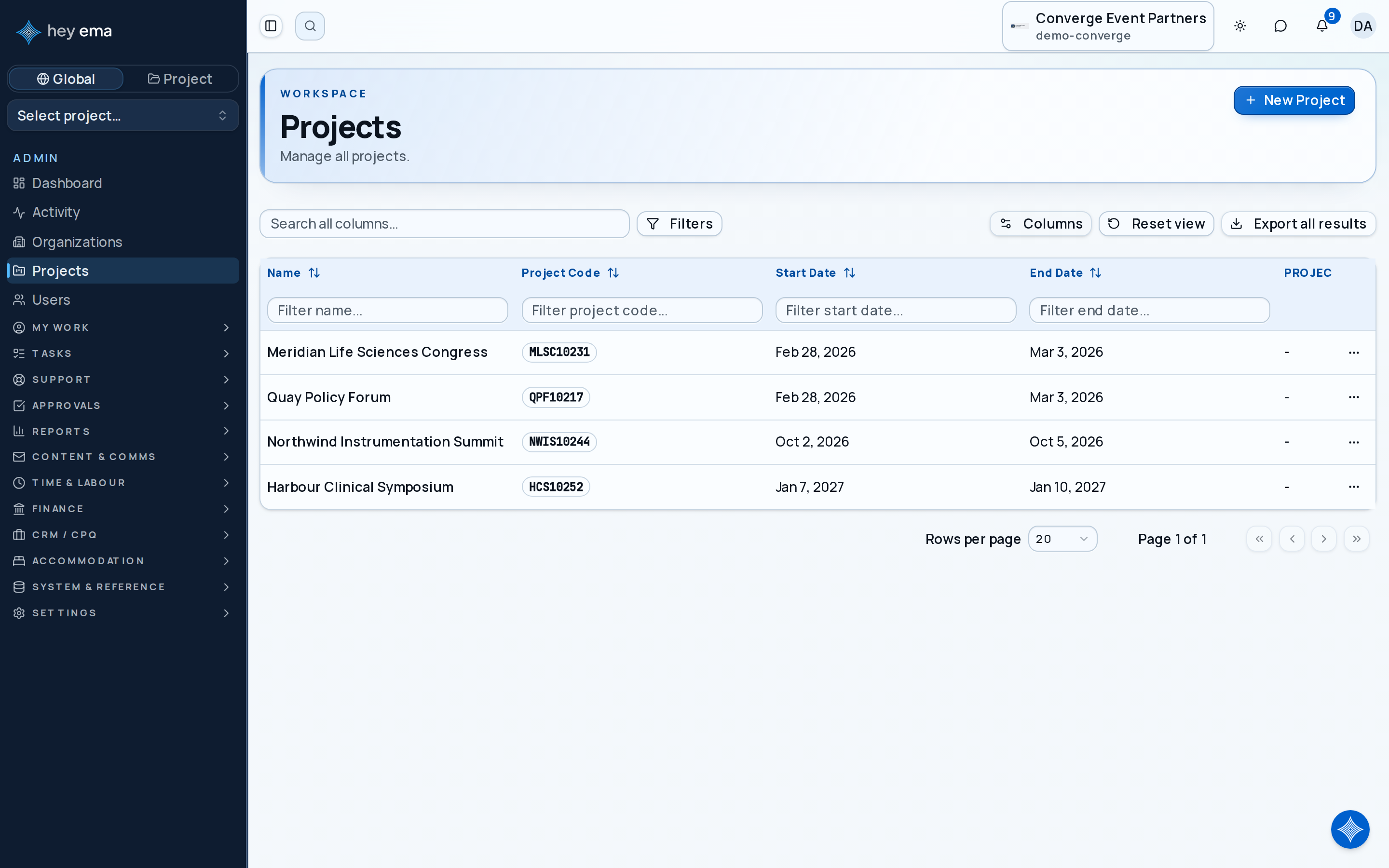
After signing in, you'll see the projects your organization is associated with. If your account is limited to specific projects, you land on Your projects instead — or straight inside the project when you have only one.
Your Dashboard
| Area | What It Does |
|---|---|
| Dashboard | A cross-project summary: overdue and due-soon tasks, unread notifications, your most urgent tasks, recent activity, upcoming deadlines, and a health card for each active project |
| Projects | All projects your organization is involved in — select one to open its overview |
| Project overview | Health tiles, project details, and headline numbers, with a tab for each part of the event your team has switched on |
| Sidebar sections | Tasks, emails, budget, meetings, and documents — only the ones your event team has enabled and your access allows |
Your role decides what appears. Forms, report shares, project schedules, floor plans and knowledge-base pages are not part of the standard client role, so you only see them if your event team grants separate access; the public schedule and floor plan can still be opened from the event website. Your event management contact can explain anything that is missing.
Your First Task: Review a Project
Step 1 — Select a project
Click on any project in your list to open its detail view.
Step 2 — Explore the project
Each project opens on an Overview tab, with further tabs and sidebar sections for the parts of the event your team has switched on. You see only the sections your access allows. Start with Tasks for work shared with your organization, then Documents and Budget & Deals for anything the team has shared.
Step 3 — Respond to approvals
The client portal has no organization-wide approvals section. If the event team names you as an approver on a request, ema sends you an in-app notification and the team shares a link with you directly. After signing in, the page shows the request and its approval progress, and lets you Approve or Reject with an optional comment. Your My Approvals page also lists every request assigned to you.
After sign-in, open your annual conference project, scan the overview tiles for overdue tasks, then check Documents for the latest proposal and Budget for the agreed scenario.
Key Concepts
| Term | Meaning |
|---|---|
| Project | An event you're collaborating on |
| Approval | A request from the event team, shared with you by link, for you to approve or reject — for example a purchase order, contract or expense claim |
| Scenario | A budget variation — you may see multiple scenarios to compare options |
| Document | Files shared with you, including contracts, proposals, and reports |
Check Your Work
You are set up when:
- You can sign in from your ema URL with just your email and the emailed code.
- Your project list shows the projects your organization is involved in.
- Opening a project shows the tasks, budget, and documents the event team has shared with you.
- Any approval request the team shares with you opens from its link and also appears on My Approvals.
Where to Go Next
Everything else you need day to day — tasks, documents, budgets, and meetings — lives inside the project covered above. Reports and forms are only available when your event team shares them with you. For your personal profile, password, and notification settings, see Your Account Settings. If you can't find something, ask your event management contact.
Journey pages need an operator sign-in to open.
The client knows where to look and what they can self-serve.
- Step 2 of 6Walk the client through their first sign-inClient contact