Getting Started as a Project Team Member
You've been added to an event project as staff or a contractor delivering the work — not as an attendee or a client. Your Me portal is where you log time against the project's budget, request leave, and submit expense claims; if you also have admin access, My Work gathers your tasks, timesheet status and approvals in one place.
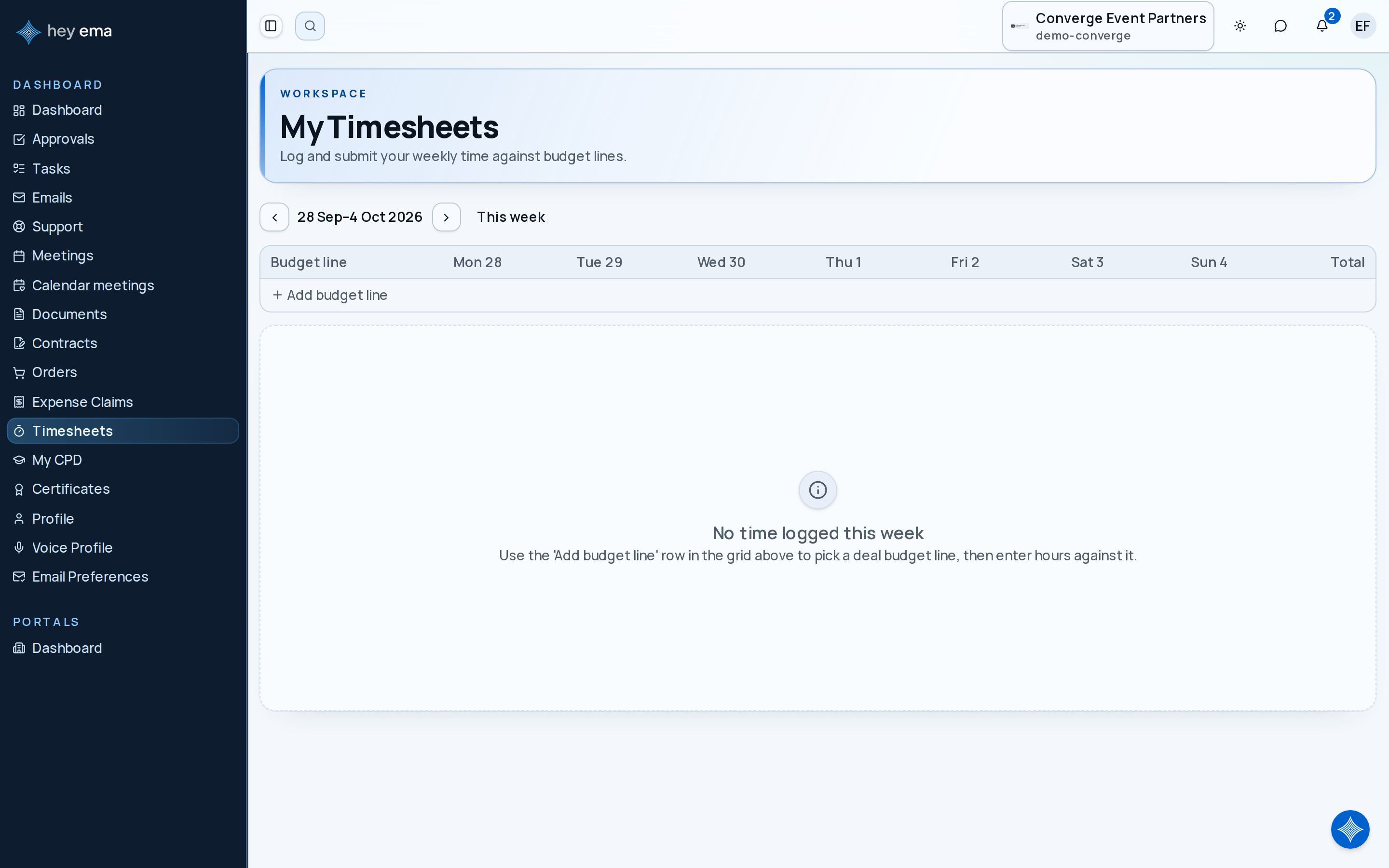
Me > Timesheets / Leave / Expense Claims
Each section is independent — you'll only see the ones your account has permission to use, and only when you belong to an organization.
Signing In
A project manager or ops lead adds you to the project. If this is your first time in ema, you'll get an invitation email — accept it to create your account. If you already have an account, sign in as usual with your emailed code, or through your organization's SSO or hey ema account if it uses one. See Signing In for the full detail.
What You'll Do Here
| Area | What it's for |
|---|---|
| Timesheets | Log hours against the project's budget lines, week by week |
| Leave | Request annual, sick, or other leave for manager approval |
| Expense Claims | Itemize and submit costs for reimbursement |
| My Work (admin access only) | Your assigned tasks, this week's timesheet status, and the approvals waiting on you, across every project — under My Work > My Tasks in the admin sidebar |
Your First Task: Log Your Week
- Open Me > Timesheets (the page is titled My Timesheets) and use the Add budget line row to pick the service you're logging time against.
- Click a day's cell to enter hours, mark it billable or not, and save.
- Once every entry for the week looks right, click Submit week.
A yellow highlight means that entry has an unresolved rate — Submit week stays disabled until it's fixed. The Rate unresolved badge on the row says why. If your role allows it, the badge links to the guided rate setup (or to the labour defaults or exchange-rate overrides, depending on the cause); otherwise it asks you to contact an organisation admin, who sets up the first rate under Admin > Settings > Workforce.
A contractor joins a project mid-week, logs three days against two budget lines, resolves a rate warning on one entry after checking with their manager, then submits once every cell for the week is filled in.
Check Your Work
Your timesheet status badge reads Submitted once it's gone to your manager. The other statuses are Draft (still editable), Approved, Auto-approved and Rejected. Submitted, approved, and auto-approved weeks are locked — ask your manager if something needs correcting after that point. A rejected week shows a Reopen button so you can correct it and resubmit.
Where to Go Next
- Workforce Self-Service — the full reference for timesheets, leave, and expense claims