Share Feedback
Share Feedback is a quick way to tell the ema team what's working, what's missing, or what's broken — without leaving the page you're on. Every signed-in user sees it, in every portal: Admin, the exhibitor and speaker self-service views, and public event pages you're signed into. A screenshot of the page you were on is attached automatically, so the team sees exactly what you saw.
Account menu (top-right avatar) > Share feedback
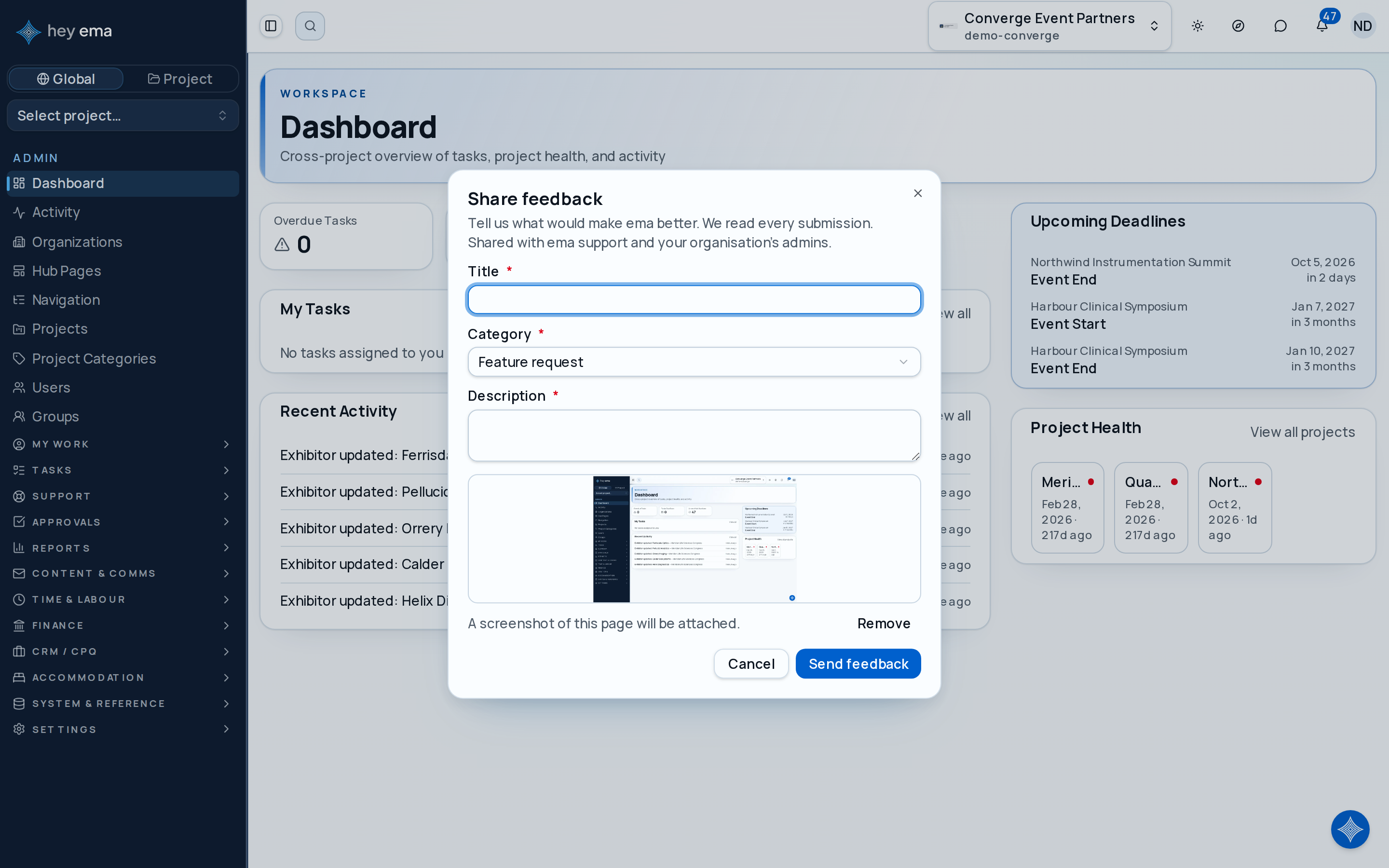
Opening the account menu and choosing Share feedback captures a screenshot of the current page, then opens a form with three fields: Title, Category (Feature request, Improvement, Something is wrong, or Other), and Description. The screenshot appears as a preview above a Remove button — if you'd rather not send it, remove it before sending. If the screenshot couldn't be captured, the form shows "Screenshot unavailable" instead and sends without one; this never blocks you from submitting.
What Gets Captured
Along with the title, category, and description you type, ema automatically attaches:
- A screenshot of the page you were on when you opened the menu (unless you remove it, or it couldn't be captured).
- The page URL, your browser viewport size, and the app version you're running.
- Your name, email, role, and organisation, so the team has context without asking.
Who Sees It
Your submission — including the screenshot and the details captured above — is visible to:
- ema support staff, who review every submission.
- Your organisation's owners and admins, for feedback you sent while working in that organisation.
- Your ema tenant administrators, for every organisation in your workspace.
Owners, admins, and tenant administrators see it on Admin > Settings > ema support & feedback, along with any replies. Other members of your organisation don't see it. If you'd rather a screenshot not be shared, remove it before sending.
What Happens Next
The ema team reviews every submission. You may get a reply by email, or you may see a reply appear against your submission on the ema support & feedback page, which your organisation's owners and admins can open — check there if you're expecting a response and haven't heard back by email.
Organisation owners, admins, and tenant admins can see everything your organisation has shared with ema — including this feedback — and reply to it from ema support & feedback.
Journey pages need an operator sign-in to open.
- Weekly ops rhythmOngoing
Time is in, approvals are done, and WIP has been reviewed.
- Step 9 of 12Send ema quick in-app feedback, with a screenshot, from the account menuProject team member