Signing In and Account Access
How you sign in depends on how your organization has set things up. Most people sign in with just their email address and a one-time code sent to their inbox — there's no password to remember. Some organizations sign in through their own company login (SSO) instead, and some let you sign in with a single hey ema account shared across every ema event you attend. This page is the short version for new users; Signing In and Account Access has the full detail for every screen, including password and phone sign-in.
/auth/sign-in
You reach the sign-in page whenever you navigate to ema without an active session.
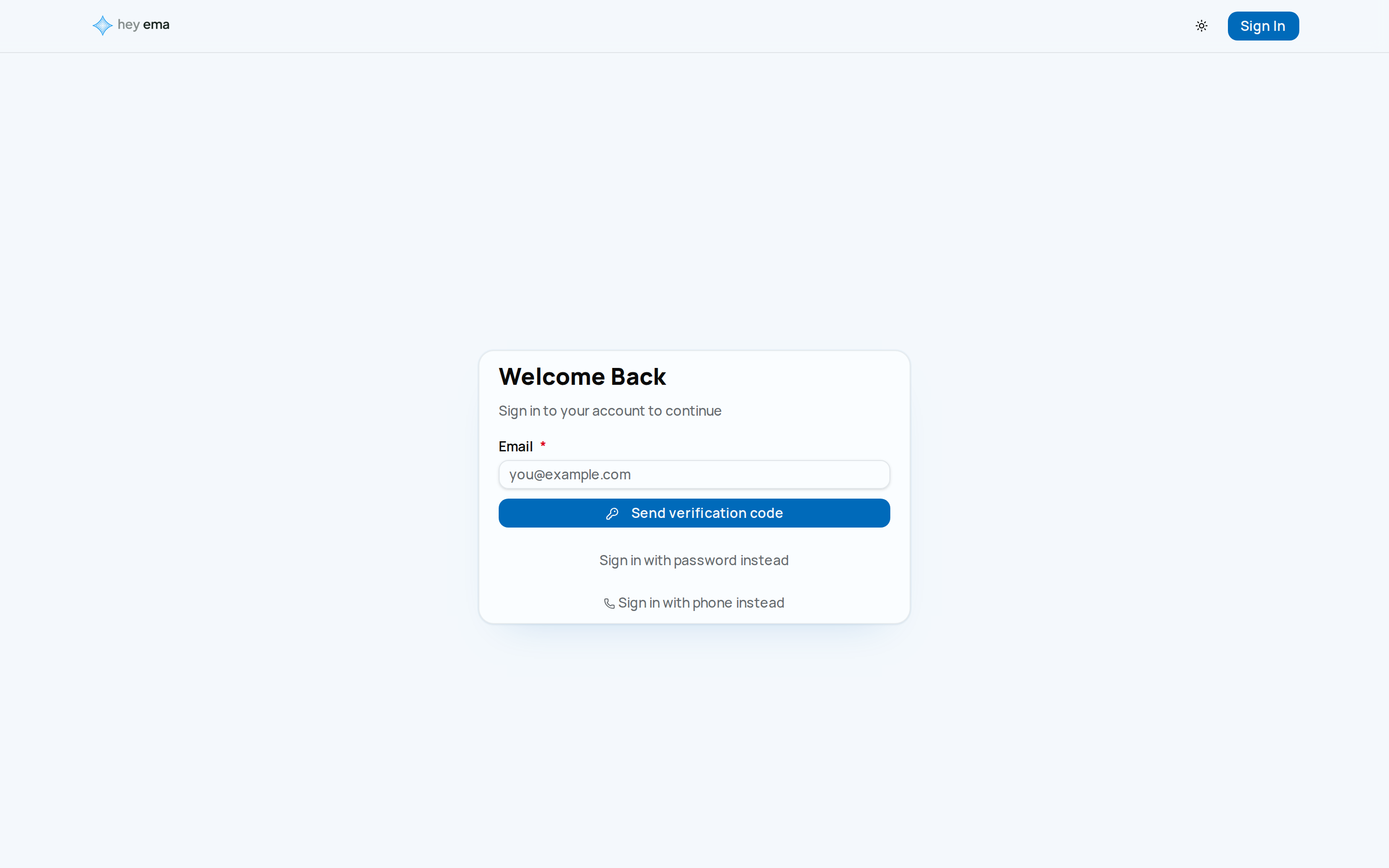
Sign in
Go to your organization's ema URL and enter your email address. What happens next depends on how your organization is configured:
- Emailed sign-in code (most common) — ema sends a 6-digit code to your inbox. Enter it and choose Verify & sign in. No password required.
- Your company's SSO — you're redirected to your organization's own login page (or shown a button for it). This is only available when your organization has connected its own identity provider.
- hey ema account — if your organization uses the shared hey ema sign-in, ema shows Redirecting to sign in… and takes you there automatically. Choose Use another method if you need a different way in. Signing out also signs you out of hey ema, so you can sign back in with a different hey ema account — see Signing out.
Under the main sign-in form you may also see Sign in with password instead or Sign in with phone instead, for organizations that still offer them. If you use a password and have forgotten it, click Forgot password? next to the password field.
Forgot password
- Click Forgot password? on the password sign-in form.
- Enter the email address on your account and submit — ema emails a 6-digit reset code to that address.
- On the Reset Password page, enter the code from the email along with your new password and confirmation.
If the code has expired, repeat the forgot-password process to get a fresh one.
Email verification
When a new account is created, ema sends a verification code by email. You must verify your email address before full access is granted.
If you sign in and your email is not yet verified, you land on an Enter Your Code screen. From here:
- Enter the 6-digit code sent to your inbox and click Verify Email, or click Didn't receive a code? Resend if it did not arrive.
- Click Sign Out to return to the sign-in page.
If ema sent you here from another page — for example a checkout that needs a verified email — it returns you to that page as soon as your email is verified, so you can carry on where you left off.
Very old verification emails contained a link instead of a code. Those links still work while unexpired, but every verification ema sends now uses a code.
Accepting an invitation
If someone invites you to an organization, you receive an invitation email with a link. The link opens an Accept Invitation page that asks you to sign in first.
- Your organization uses hey ema sign-in — the page signs you in automatically (Signing you in…) and carries on to the invitation. If that does not start, choose Continue with hey ema. Other sign-in options lists the remaining methods, and if you are new to hey ema you can create your account on the next screen.
- Your organization uses local sign-in — choose Sign In with your emailed code, or Set your password if you are new.
Once you are signed in, accept the invitation to join the organization.
Onboarding
After your first sign-in, if your account doesn't have a first name on file yet, you're taken to an onboarding page. At minimum you'll enter your first name — you can also add a title, middle name, last name, suffix, pronouns, job title, company, and a profile photo. Once saved, you're redirected to the portal.
No organization access
If your account has been created but has not yet been added to any organization, you see a No Organisation Access screen. Options:
- Check Again — refreshes your session to pick up any access grants since you last signed in.
- Sign Out — returns you to sign-in.
Contact your administrator to be added to the organization. Once added, click Check Again or sign out and back in.
ema does not have a public sign-up page. Accounts are created by administrators or through an invitation. If you need access, ask your event organiser or administrator.