Exhibitor Contracts and Quotes
Quotes and contracts are the commercial records for your exhibitor package. A quote explains what is being offered and what it costs. A contract records the terms that need signature.
Quote email, or your exhibitor dashboard > Contract > View contract
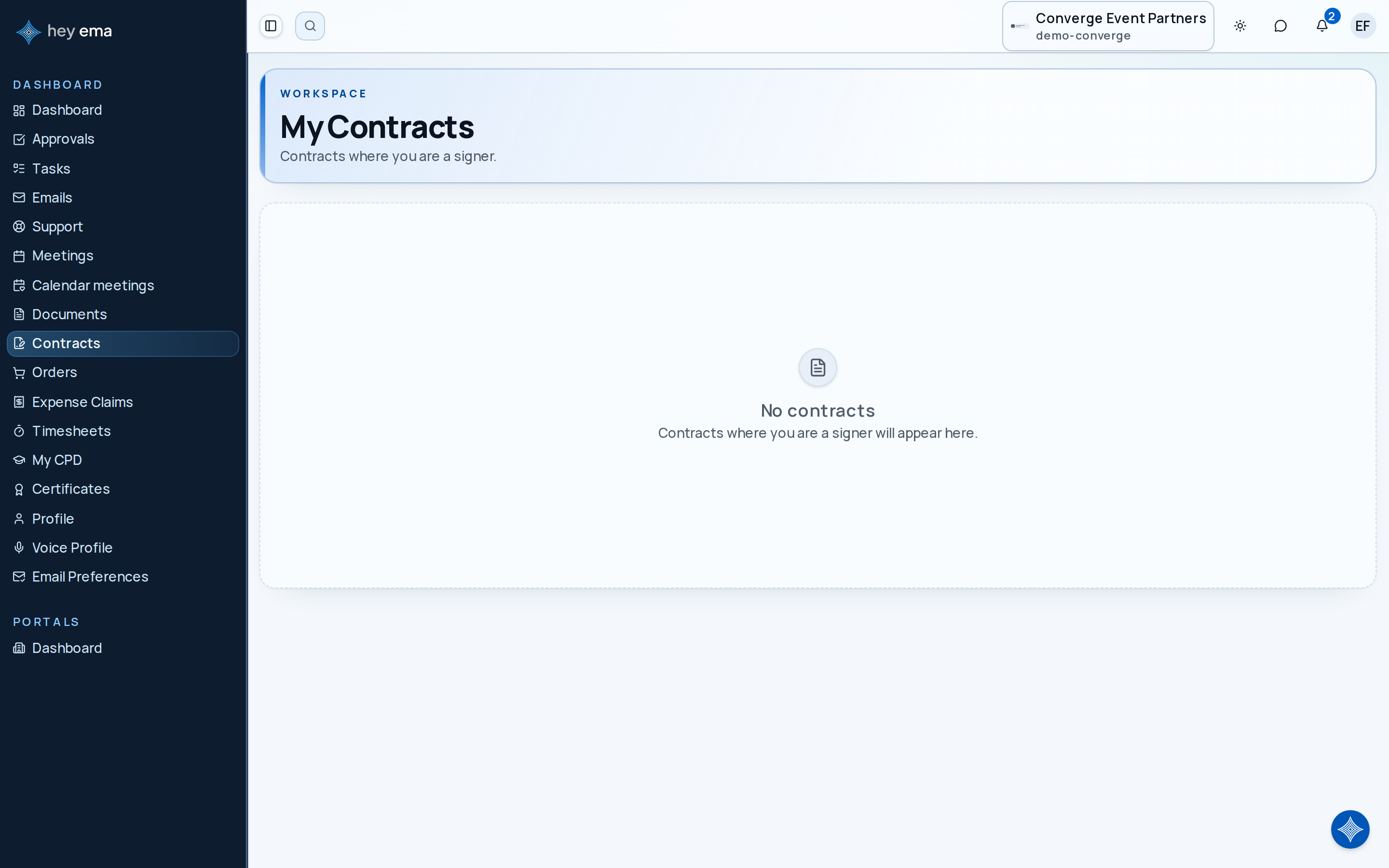
Quotes open from the quote email sent by the organiser. When you are listed as a signer, choose View contract on the Contract card of your exhibitor dashboard to open your My Contracts list, scrolled to that contract. The Contracts item in the Me sidebar is shown only to administrators and organisation members, so exhibitors reach the list from the dashboard.
Reviewing a Quote
Open the quote link from your email. The quote page shows:
- Quote number.
- Recipient and company details.
- Expiry date.
- Package, booth, entitlement, or custom line items.
- Optional items, if the organiser allows you to choose them.
- Discounts.
- Total amount.
- Attachments, such as the prospectus or floor plan.
Read the quote before accepting. If something is missing or incorrect, contact the organiser before clicking Accept Quote.
Before accepting, have the right internal approver review the package, total, optional items, attachments, payment terms, and signing requirements.
Optional Items
Some quotes include optional items. For example, your base package might include a booth and two passes, while extra lead capture access is optional.
If the quote allows editing:
- Review each optional item.
- Tick Include on the items you want and untick the ones you do not.
- Use the + and − buttons to change the quantity of an included line where the quote allows it.
- Wait for the totals to finish updating and confirm the final total before accepting.
Your changes are saved as you make them. If a change cannot be saved, you will see an error and the quote is not accepted until it is resolved.
Accepting a Quote
- Open the quote link.
- Review all line items, discounts, total, and attachments.
- Choose optional items if allowed.
- Click Accept Quote.
- ema opens your checkout cart with the accepted lines and totals. Confirm your buyer details and choose how to pay. This is the same checkout used for every exhibitor purchase.
- Complete any required contract signing.
There is no decline button on the quote page. If you do not want the offer, let it expire or tell the organiser so they can void it. If the quote has expired, ask the organiser to send a new quote.
If your company is already registered for the event, you need to be signed in as someone on its team (or with the email address the quote was sent to). If you are signed in with the quote's own address but it has not been verified yet, ema shows Verify your email to continue: choose Send verification code, enter the numeric code from your inbox, and the purchase carries on. If your event signs people in through its organization this step is not available; ask your team admin to invite you to the exhibitor portal first.
Contract Statuses
| Status | What it means |
|---|---|
| Sent | The contract is waiting for signatures. |
| Partially Signed | Someone has signed, but not everyone has completed it. |
| Executed | All required signers have completed the contract. |
| Expired | The signing deadline has passed. |
| Voided | The organiser cancelled the contract. |
Your own signer status may be Pending, Viewed, Signed, or Declined.
Requesting a Signing Link
From My Contracts, click Request Sign Link next to a contract that still needs your signature if you need a fresh signing link — for example, if your original link has expired or you can no longer find the email. ema mints a new signing link for your signer record and emails it to your account email address; the button then shows Link sent to your email. The link itself is never shown on screen, so check your inbox (and spam folder) for the email.
Use the link only for yourself unless the organiser has told you otherwise. Each signer should complete their own assigned fields.
Do not forward your signing link unless the organiser explicitly asks you to. Each signer should use their own link so signatures and fields are recorded against the right person.
Signing a Contract
- Open the signing link.
- Review the full contract and any attachments.
- Complete each required field.
- Type or draw your signature when prompted.
- Submit the signed contract.
If guided signing is enabled, ema walks you through each field. If scroll signing is enabled, review the document and complete fields where they appear.
Declining to Sign
Decline only when you cannot accept the contract terms. Add a clear reason so the organiser can respond. For example: "The package total does not match the approved quote" is more useful than "Wrong".
Attachments
Contracts can include supporting files. Common attachments include:
- Sponsorship prospectus
- Floor plan
- Schedule of inclusions
- Purchase order
- Special terms
Download and review attachments before signing when they form part of the agreement.
Tips
- Check the company name and package. These are the most common details to catch before accepting.
- Do not wait until expiry day. Contract links and quotes can expire.
- Use the portal for records. My Contracts keeps contracts where you are a signer in one place.
- Ask before accepting if unsure. Accepted quotes and signed contracts can trigger payment, booth, and entitlement changes.
After accepting a quote or signing a contract, check your entitlements and booth details so you can confirm the package has been reflected in the portal.
Related
Journey pages need an operator sign-in to open.
An exhibitor buys a stand and package online, signs and pays as the event requires, and every entitlement they paid for is delivered and evidenced.
- Step 8 of 13Buyer signs the contract the checkout is gated on, then resumes paymentExhibitor